IPTV Catch-Up: 6 Easy Checks Before Replaying a Show
By POD IPTV · Updated 10 October 2026 · 8-minute read
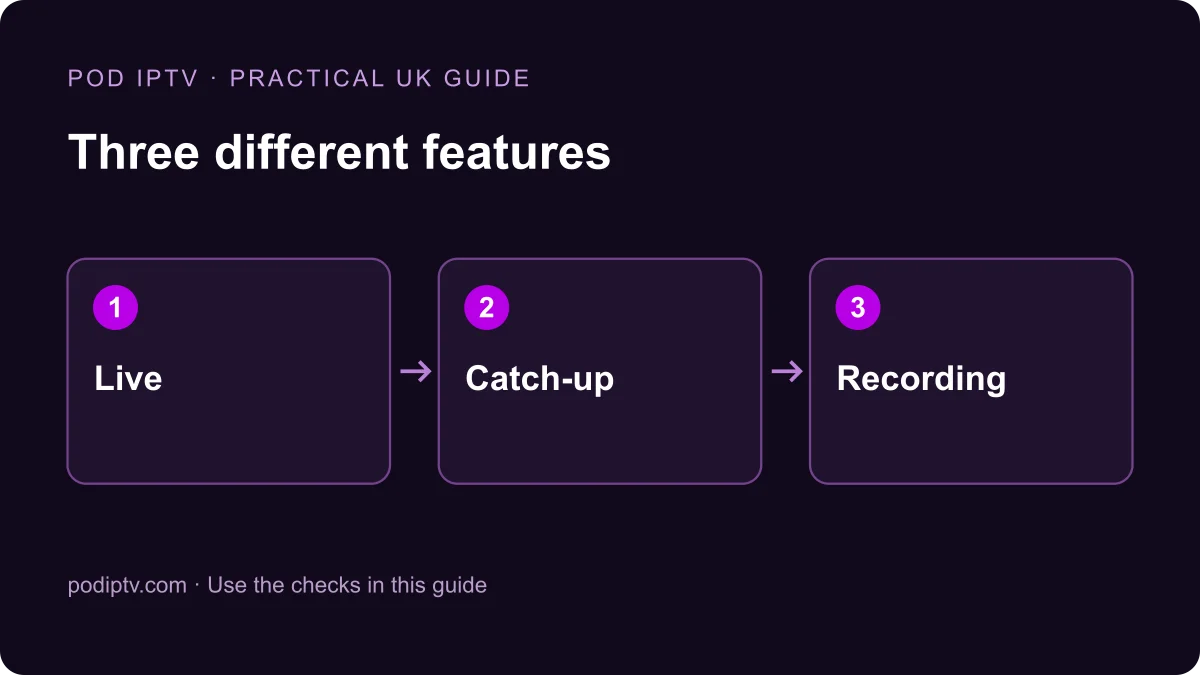
IPTV catch-up lets you replay selected earlier broadcasts when the service supplies an archive and the player supports it. It is different from watching live television, recording a programme yourself or opening an on-demand catalogue. These six checks help you understand what is available, find the correct replay and investigate problems without changing a working live-TV setup.
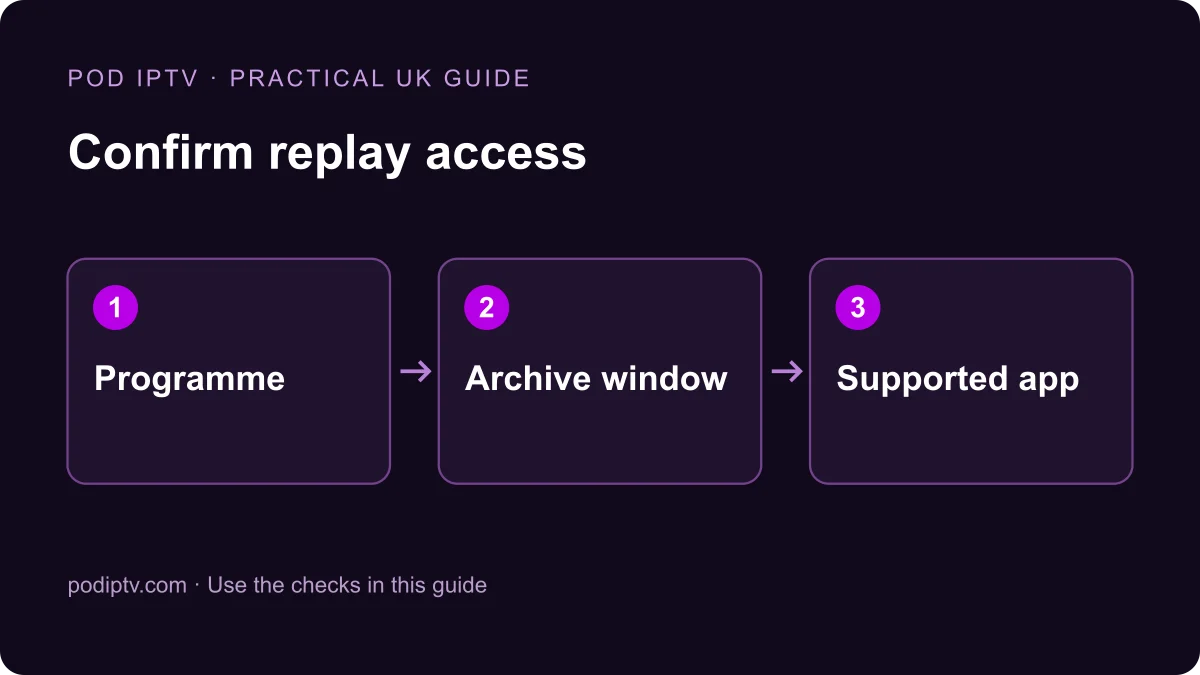
1. Confirm that IPTV catch-up is supplied for the programme
Start with the exact channel and programme. A live feed can work perfectly while having no archive. A general catch-up category also does not establish that every channel supports replay. Ask about the item you want and the period for which earlier broadcasts remain available.
Availability can differ between channels, programmes and account arrangements. A player may show a replay control because the software supports the feature, even when a particular source does not. Treat the control as a navigation option, not as a promise of archive access.
If replay is essential to your routine, test it before choosing a term. Do not assume an IPTV catch-up feature exists because a guide lists yesterday's programme. Guide information and archived video are separate resources.
2. Check the player's supported replay controls
Different players present earlier programmes differently. Some let you move backwards through the guide; others provide a dedicated catch-up section or icon. Follow the app developer's instructions for the exact platform instead of using a phone tutorial on a television remote.
The POD IPTV device guides help identify a supported setup for your screen. Confirm the player's account format and available features before paying a separate app licence. A paid licence does not create an archive at the service.
Check whether your chosen controls are comfortable to use. Replaying a programme involves selecting an earlier date, locating the correct entry and managing playback. A feature that technically exists but is awkward with your remote may not suit daily viewing.
3. Verify date, time and guide alignment
If the wrong programme opens, compare the guide's time zone with your intended viewing time. A television, app and source can present different time settings. Note what each displays before changing anything.
Do not change the device clock randomly to compensate for a guide mismatch. First establish whether the issue affects every channel or only one source. A channel-specific schedule problem may need a data correction rather than a system-wide setting change.
For a support report, record the displayed programme name, date and time, the expected programme and what actually opens. This helps distinguish an IPTV catch-up mapping problem from a replay that simply fails to start.
4. Test the archive window and playback controls
Open a recent available programme first, then an older item within the stated archive window. If the recent replay works while the older item does not, check the actual retention conditions. A visible historical guide entry can remain after its video is no longer available.
Test pause, resume and seeking where supported. Some players or sources may handle these controls differently from ordinary on-demand files. Do not assume every replay allows unrestricted skipping just because a film in another section does.
Let the programme play long enough to assess normal behaviour. Starting one replay for a few seconds proves little about navigating a full episode. Note whether playback resumes correctly after pause and whether the selected entry stays consistent.
5. Distinguish IPTV catch-up from local recording
Catch-up normally uses an archive supplied by the service. Local recording saves a stream through supported software and storage, subject to content permissions and service conditions. One does not automatically include the other.
A recording may require the device to remain awake, available storage and another active connection. An IPTV catch-up replay may not need local storage but still depends on the archive and account access. Ask about the arrangement rather than transferring assumptions between the features.
If you need to watch a programme after the archive window ends, establish whether an authorised on-demand source supplies it. Do not assume that a replay feature permits downloading, saving or redistributing the programme.
6. Compare failures without deleting the account
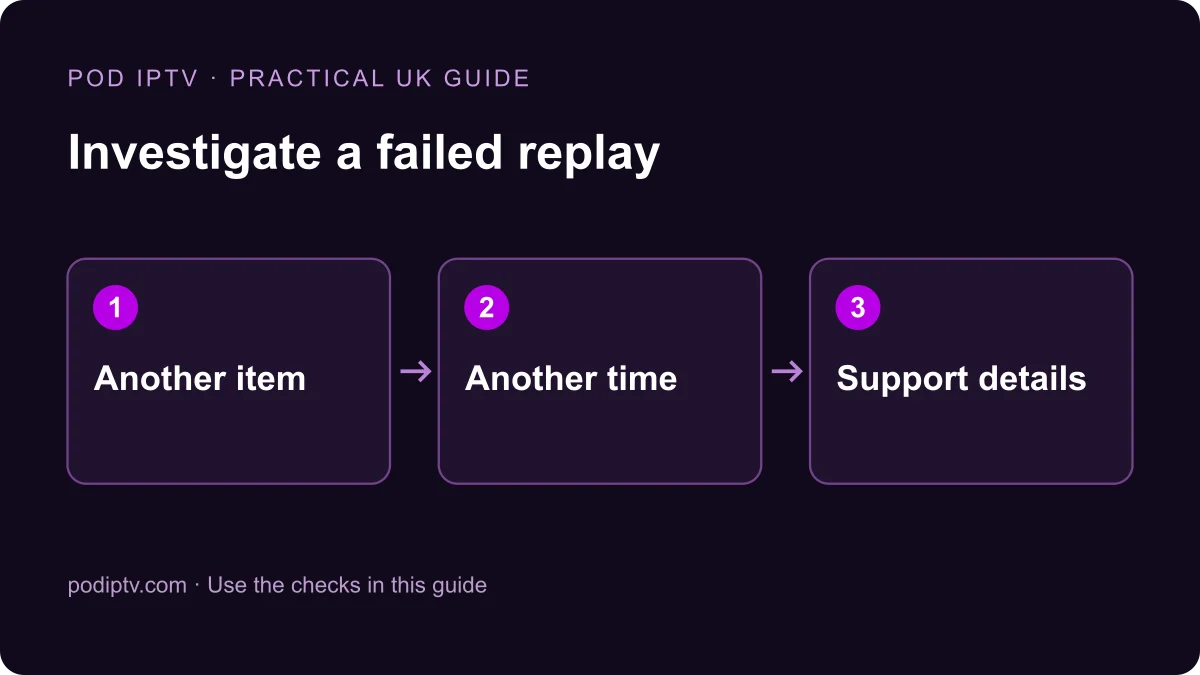
When a replay fails, test another available archived item on the same device. Then check whether live playback works. If live channels continue normally, account authentication and basic connectivity are less likely to explain every aspect of the replay issue.
Where possible, stop the first stream and compare the same replay on another supported device within the account allowance. Keep the source and timing recorded. If both devices fail on the same item, send that evidence to support.
Use the verified POD IPTV contact route. Include the player version, device, programme, displayed schedule and tests completed. Mask passwords and full playlist URLs in any screenshot.
Live, replay, recording and on demand compared
Choose the feature that matches your need
Feature
What it does
Dependency
Live
Plays the current broadcast
Available live source
IPTV catch-up
Replays selected earlier broadcasts
Archive and compatible player
Recording
Saves a permitted stream through supported software
Permission, storage and device behaviour
On demand
Starts an available catalogue item
That title in the supplied catalogue
A useful trial checklist for replay viewers
Choose two programmes you would normally watch later. Confirm that they are supplied through IPTV catch-up and identify the current archive window. Test them on the device that will be used daily, with the normal remote and account method.
Open the correct date, start playback, pause briefly and resume. Test seeking only where supported. Compare the programme actually playing with the guide's title. This checks the whole process rather than only whether a replay icon appears.
Repeat with another channel if available. One successful replay does not prove that all channels share the same archive. Record the distinction so your purchase decision reflects the actual features you need.
The 24-hour trial request page explains how to request access. Confirm activation and the relevant features with support. A trial is an opportunity to evaluate suitability, not a guarantee that every programme will remain available indefinitely.
What to do when the replay opens the wrong programme
Compare a neighbouring guide entry. If every entry is shifted by a similar amount, time or schedule alignment is a useful lead. If only one entry is wrong, report that example instead of applying a broad offset to every channel.
Check the player's documented guide-refresh option. Refreshing data is different from deleting the service account. Keep a screenshot of the original mismatch, with sensitive information masked, before refreshing so support can see the evidence.
If you make a time-setting change, record the old value and test both live-guide information and replay selection afterwards. A change that fixes one channel while shifting every other schedule is not a complete solution.
What to do when IPTV catch-up buffers
Compare another replay and a live source on the same player. A problem limited to one archived item may be source-specific. A problem across every type of playback suggests looking at shared connection or device conditions.
Keep household network activity realistic during testing. If practical, compare a cable connection while retaining the same source. Do not assume an archive automatically needs less data or that selecting a longer buffer repairs an unavailable item.
Report when the replay pauses and whether it resumes. If playback stops at the same point on several devices, that detail is useful to support. If the interruption occurs at varying points only on one screen, the local playback path deserves attention.
Plan around the limits of an archive
Understand the stated window and do not leave essential programmes until its final moment if you can avoid it. A source can change or an item can be removed. Keep an authorised alternative in mind for programmes you must access later.
Review the current service terms and ask about permitted use. A player offering a save button is not evidence of permission to retain or share a programme. Content access and software capability are separate matters.
For UK licence requirements, check TV Licensing's official guidance. Live viewing and recording, BBC iPlayer and other on-demand viewing have relevant distinctions. Use the official explanation for your circumstances.
IPTV catch-up questions
Does every channel have IPTV catch-up?
No. Confirm the exact source and archive window. A working live feed or historical guide entry does not automatically include replay.
Is IPTV catch-up the same as recording?
No. Catch-up uses an available archive, while recording uses supported software and storage subject to permission and service rules.
Why does IPTV catch-up show the wrong programme?
Guide mapping or time alignment may be involved. Record the selected entry, expected programme and actual result before changing broad settings.
Can a player licence add IPTV catch-up?
It may unlock player controls, but it cannot create an archive that the service does not supply. Check both sides of the feature.
What should I test for IPTV catch-up?
Test recent and older available items, guide alignment, pause, resume and supported seeking on your actual device.