IPTV M3U Playlist: 7 Essential Steps for Better Setup
By POD IPTV · Updated 10 October 2026 · 8-minute read
An IPTV M3U playlist provides a player with a list of programme entries and their stream locations. It may be supplied as a URL or a file, depending on the account and app. The playlist is not the player itself, and importing it does not prove that every programme will play. These seven steps explain setup, troubleshooting and privacy for UK viewers.
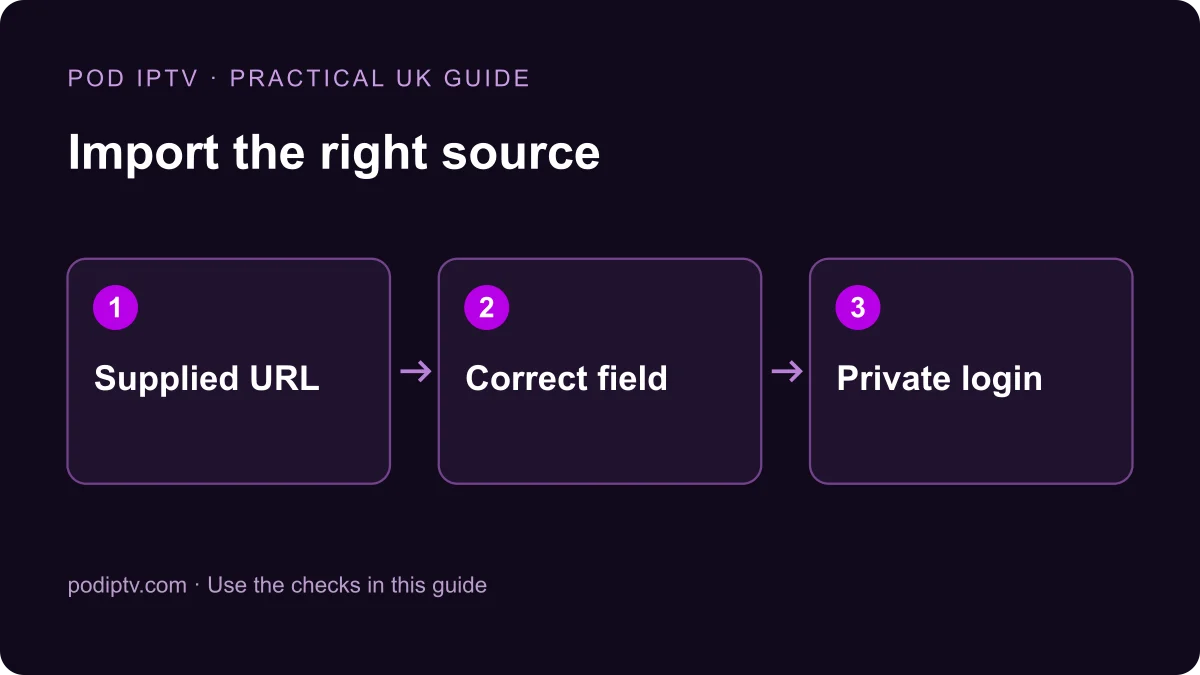
1. Confirm the IPTV M3U playlist comes from your intended source
Use the details supplied through the verified service route. An unfamiliar playlist posted in a public discussion may be outdated, unauthorised or unsuitable for your account. Do not choose a source merely because a demonstration contains recognisable channel names.
Ask whether you have a complete playlist URL, a local file or another account format. An app asking for separate server, username and password fields expects a different input from a field labelled playlist URL. Avoid splitting or reconstructing the supplied link by guesswork.
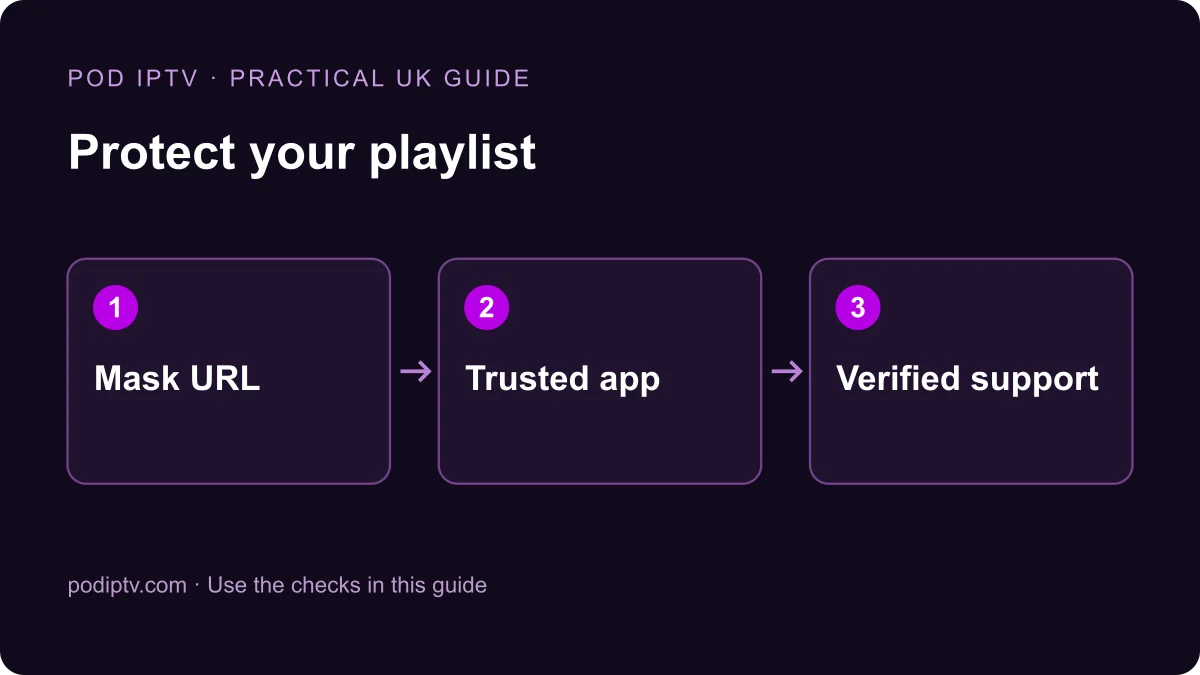
An IPTV M3U playlist can contain credentials inside its URL. Treat it as private access information. It should not be pasted into public posts, online checking services or screenshots without masking the sensitive parts.
2. Choose a compatible player for the device
Check the exact operating system and player's supported import options. A smart television, Android TV device, Apple device and computer can use different applications. Compatibility is not established by the screen size or the fact that an app has IPTV in its name.
The POD IPTV installation hub separates instructions by platform. Identify your device first, then check whether the selected player accepts the IPTV M3U playlist format supplied for your account.
A separate player licence may unlock software features. It does not automatically supply programme access. Keep app activation and service payments separate, and do not pay for an unfamiliar player before confirming that it supports the required source.
3. Enter the complete source in the correct field
Select the documented M3U or playlist option. Copy the entire supplied URL privately, including its protocol, server address and any parameters. Check that the remote keyboard or clipboard has not added spaces at the beginning or end.
Do not remove parts that look unnecessary. Query parameters may identify the account or requested format. Similarly, changing a port or replacing the protocol without instructions can make the source unreachable. Use the supplied form first and ask support if it is unclear.
If the player accepts a local file, understand where that file came from and whether it stays current. A saved copy may not update when the service changes the catalogue. A URL-based source may refresh differently, according to the player's behaviour.
4. Allow the import to complete
A large IPTV M3U playlist can take time to parse and organise. Observe the player's progress rather than repeatedly restarting it. The first catalogue load may differ from opening an already saved account.
If the import reports a failure, keep the exact message. Distinguish an unreachable URL from a file the player cannot parse. A wrong field, typo, expired account or unsupported input can cause different errors.
If the import succeeds but the visible list is empty, check the selected account, category filters and favourites view. You may be looking at a personal group with no entries rather than the full imported catalogue.
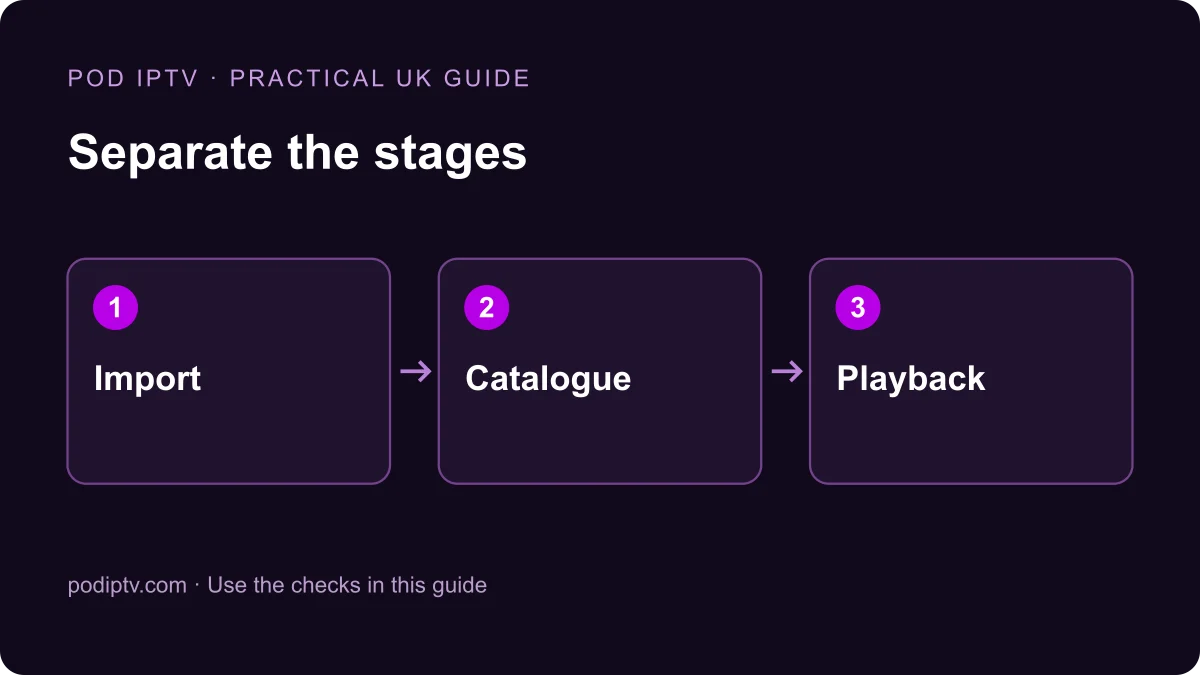
5. Test playback separately from catalogue import
Select a few programmes from different categories. A successful import means the player received usable list information; it does not establish that every underlying stream is currently available. Test the items you actually need.
If one item fails while others play, record its exact name and time. If everything fails, check account status, connectivity and player compatibility. Avoid deleting a working IPTV M3U playlist because one programme is unavailable.
Where appropriate, stop the original stream and compare a supported second device within the account allowance. Keep the source and circumstances consistent. That comparison can help distinguish a local player problem from a source issue.
6. Add guide information only through supported instructions
Programme guide data is related to the channel list but is not identical to it. Some account arrangements supply guide information automatically, while others need a separately supplied guide source. Follow the player's instructions and use only the details intended for your account.
A working channel with an empty guide does not necessarily indicate an invalid IPTV M3U playlist. Check whether guide data is supplied, whether the source has refreshed and whether the player can match entries correctly.
Do not add random guide URLs to fix a mismatch. Different naming and identifiers can produce incorrect schedules. Record which channels lack information and ask the verified support route about the appropriate guide source.
7. Refresh and protect the source
Use the player's documented refresh option when catalogue information needs updating. Refreshing is different from removing the account and starting again. Check whether favourites and hidden categories remain intact after a normal update.
If the service replaces a URL, use the confirmed details and keep the old source private. Do not forward the replacement to people outside the permitted arrangement. Stop unneeded playback before testing so simultaneous limits do not confuse the result.
If you believe the IPTV M3U playlist has been exposed, contact the provider about changing access. Deleting a public screenshot may not invalidate credentials someone already copied. The appropriate response depends on the account controls supplied by the service.
Know which part of setup failed
IPTV M3U playlist import and playback are separate checks
Observation
Possible lead
Useful next step
URL rejected
Wrong field, format or copied text
Compare the supplied complete input
Import fails
Access or parsing problem
Record the exact message
List is empty
Filter, account selection or data issue
Check the full catalogue view
One programme fails
Source-specific issue
Test other programmes
Guide absent
Guide source or mapping
Check supplied EPG instructions
A setup example using one controlled change
A viewer receives a playlist URL but selects the player's separate username-and-password screen. The app rejects the incomplete input. The useful correction is to select the documented playlist URL option and enter the complete source, not to request a new account immediately.
After import, the catalogue appears but favourites are empty. The viewer switches to the full channel list and finds the programmes. This is a navigation issue rather than evidence that the source contains no content. They add a small favourites group and test actual playback.
One programme then fails while several others work. The viewer records its name and time for support. The IPTV M3U playlist does not need to be deleted simply because one entry is unavailable. Separating these stages keeps the investigation useful.
Keep credentials out of screenshots and troubleshooting sites
A playlist link can expose the account even when no password is visible in a separate field. Crop or mask the entire access URL before sharing a screenshot. Consider browser address bars, QR codes and recent clipboard history as well as the obvious account screen.
Use trusted software and verified support. The NCSC password guidance is useful for accounts where you choose credentials. Service-supplied access may need the provider to replace it if exposed.
A public “playlist tester” asking for your full URL receives the access information embedded in it. Do not treat it as a harmless speed check. You can begin troubleshooting through the player and verified provider without giving unknown sites your account.
Plan the account and player budget separately
Use the current POD IPTV pricing page for programme-access terms and device choices. The player developer's licence is a separate arrangement. Understand both before paying.
Count active streams rather than installed playlist copies. Importing the IPTV M3U playlist on another screen does not automatically increase simultaneous viewing capacity. Stop playback on the first device before comparing another if the account permits one stream.
If evaluating the setup, request a 24-hour trial through the current process and confirm activation. Test the actual device, required programmes and normal viewing conditions rather than only the first successful import.
What to retain after a working import
Keep the player name, version, device model and supported account method recorded. Store the source details privately, separate from public notes. This helps restore a setup after a reset without exposing access to anyone reading a shared document.
Record the service end date and any separately purchased app licence. If playback stops near expiry, confirm account status before reinstalling. A player update and a service renewal are different actions.
For questions, use the POD IPTV contact page. Explain the failed stage and provide masked evidence. The phrase IPTV M3U playlist setup is useful context, but the exact error and comparison results are what make the report actionable.
IPTV M3U playlist questions
Is an IPTV M3U playlist an app?
No. It is source information opened by a compatible player. The app, programme access and device are separate parts.
Can an IPTV M3U playlist contain a password?
Yes, credentials may be embedded in the URL. Treat the full source as private and mask it before sharing.
Why does an IPTV M3U playlist import but not play?
Import and stream access are separate. Check several items, account status, connectivity and supported playback.
Does an IPTV M3U playlist include the guide automatically?
Not always. Follow the supplied account and player instructions for programme information.
Should I replace an IPTV M3U playlist when one channel fails?
Not immediately. Compare other sources and report the specific failure while retaining working settings.