IPTV Wi-Fi or Ethernet? 5 Smart Tests for Better Stability
By POD IPTV · Updated 10 October 2026 · 8-minute read
IPTV Wi-Fi can work well, but the connection reaching your television matters more than the speed written on your broadband package. A reliable Ethernet connection is often useful for a stationary screen, while wireless access makes sense where a cable is impractical. This guide explains how to compare them at home without buying equipment before you know what is wrong.
Why IPTV Wi-Fi needs a different test from broadband speed
Your broadband connection ends at the router. The player still needs to receive the stream across your home network. A strong internet connection cannot remove interference, a weak wireless signal behind the television or a busy mesh link. Conversely, replacing the wireless connection cannot repair an unavailable channel or an expired account.
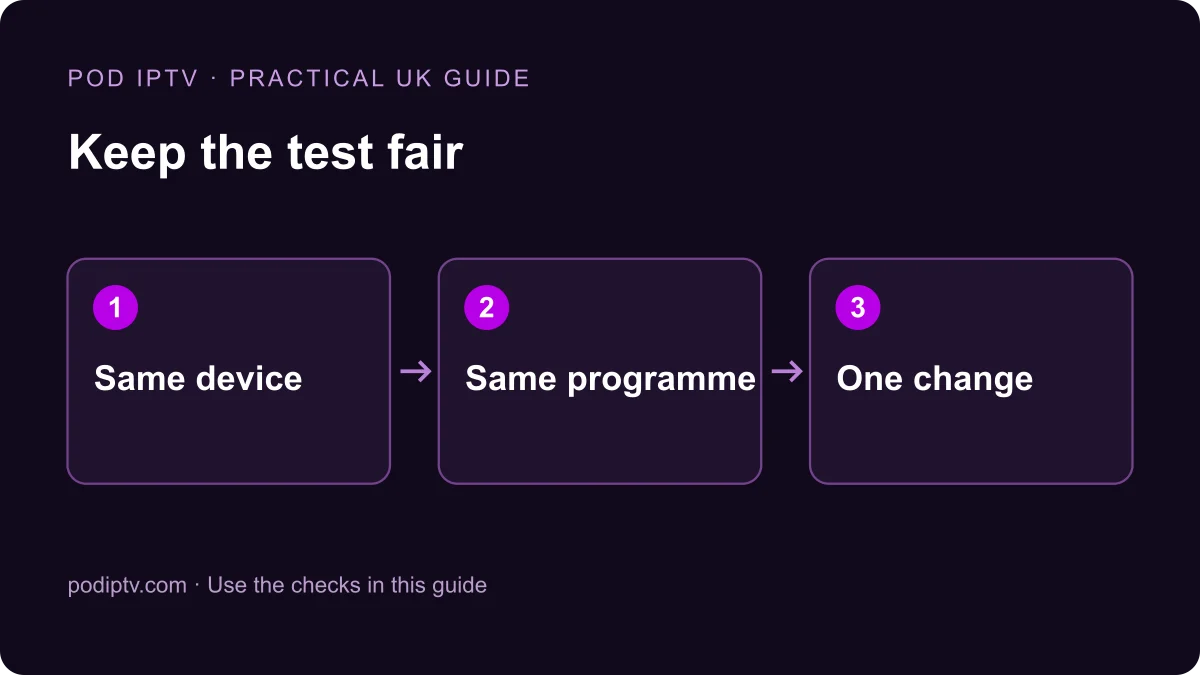
A speed test on a phone near the router answers a limited question: how that phone performed at that location and moment. It does not establish how the television performs in another room. Run your practical comparison on the actual viewing device, using the same player and programme. Treat changes in playback as observations, not proof that one technology is always better.
UK regulator Ofcom explains the importance of wireless placement and home-network conditions in its guide to improving Wi-Fi. Use that advice alongside the controlled viewing tests below.
Compare IPTV Wi-Fi and Ethernet before buying anything
Connection choices for a streaming television
Option
Useful situation
What to check
Direct Ethernet
A television or box near the router
A supported port, working cable and correct network selection
Wi-Fi
A screen where cable routing is impractical
Signal at the device and actual playback during busy periods
Mesh Wi-Fi
Several rooms need wireless coverage
Node placement and the connection between nodes
Powerline adapter
A cable cannot run directly through the home
Actual performance on your electrical wiring, not the advertised maximum
An Ethernet cable plugged into a wireless mesh node is only wired for the last part of the journey. If the node itself talks to the main router wirelessly, that link remains part of the route. The arrangement may still help, but it should not be confused with a direct cable to the router.
Check your device specifications before purchasing a USB network adapter. The operating system and player hardware must support the adapter. A connector fitting into a socket does not establish compatibility, and a larger advertised link speed is not automatically necessary for one stream.
Test 1: establish an IPTV Wi-Fi baseline
Choose a programme that normally causes problems and another that usually works. Note the device, app, room, time and connection type. Watch each for a meaningful period rather than judging the first few seconds, because the player may initially buffer data. Record whether the fault is repeated pauses, slow opening, a picture error or complete disconnection.
Keep other conditions ordinary. A perfectly quiet network at midday can produce a misleading result if your problem happens while several people use the internet in the evening. Repeat the same test once at your usual viewing time. Avoid changing player buffer settings during this comparison.
If one programme fails but the other works continuously on the same IPTV Wi-Fi connection, investigate the programme or service before replacing the router. A local network issue can affect streams differently, so this is a clue rather than a final diagnosis.
Test 2: use a temporary direct cable
If your screen or streaming box has a supported Ethernet port, connect a known working cable directly to the router. Place it safely so that nobody trips over it. Check the device network screen to confirm that Ethernet is active; some devices retain a wireless connection until their network selection changes.
Repeat the same programmes with the same account and app. Close the earlier stream first so the comparison does not accidentally use two simultaneous connections. If the wired result is consistently better across several tests, the wireless path deserves attention.
If Ethernet gives the same fault, do not conclude that the cable test failed. It has helped narrow the investigation. Account limits, service availability, the broadband connection or the player may still explain the issue. The POD IPTV installation guides can help you check the device setup.
Test 3: improve placement without changing the player
For IPTV Wi-Fi, try a practical change in router or mesh-node position. Avoid hiding wireless equipment inside closed furniture or placing it immediately behind large metal objects. Where possible, move the router into an open position and compare playback again before purchasing a repeater.
The television's location may limit your choices. A modest movement of a streaming box away from the back of the screen can be worth testing where the manufacturer's connection arrangement allows it. Do not cover ventilation, stretch power leads or use unsupported accessories merely to improve placement.
Different wireless bands involve trade-offs. A band that performs well near the router may perform less reliably through walls. Let a repeated test at the device decide, rather than selecting a band purely because its name sounds faster. Document the original setting so you can restore it.
Test 4: compare normal and busy household use
Pause a large download or cloud backup briefly and repeat playback. If the result improves, restore normal activity and see whether the fault returns. That controlled comparison is more informative than repeatedly restarting every device in the home.
Remember that a household can have competing uploads as well as downloads. Video calls and backups may contribute to congestion. You do not need to ban other users from the connection: the purpose is to identify whether ordinary simultaneous activity changes the result.
A router's traffic-management options can vary considerably. Read the manufacturer's instructions before changing them, keep a record of the original values and avoid arbitrary settings from unrelated devices. If you cannot explain what a setting does, leave it alone during your first investigation.
Test 5: check IPTV Wi-Fi across devices fairly
Compare a second compatible device in the same room, one stream at a time. Keep the account, programme and network constant. A phone working next to the router while the television fails upstairs is not a fair comparison of player behaviour.
If one device consistently performs worse in the same conditions, inspect its operating-system updates, player version and network support. A different player may help establish whether the problem is app-specific, but only use a trusted compatible app and keep your credentials private.
When a second device is on mobile data, it follows a different internet route. That can be useful evidence, but it also introduces a new variable and potentially data charges. Avoid a long comparison on a capped mobile plan.
Turn the results into a sensible decision
What your comparison suggests
Observation
Possible explanation
Next action
Direct cable repeatedly helps
The wireless path may contribute
Improve placement or plan safe cable routing
Both connections fail on one channel
A channel-specific issue may be involved
Report the exact channel and time
Only busy evenings cause pauses
Congestion somewhere along the route
Compare household activity and discuss the evidence with support
Only one device fails
Player, device or its network interface
Check supported updates and a controlled app comparison
These results help you choose the next test; they do not guarantee a diagnosis. Resist changing several things together. A new router, new app and new account at once might remove the symptom while leaving you unsure which change mattered.
Test the connection during a 24-hour trial
A 24-hour IPTV trial request gives you an opportunity to check your own device and network before choosing a prepaid plan. Test at the time you normally watch, compare the programmes that matter to you and ask about activation and availability before relying on a particular feature.
Once the connection is suitable, compare the current UK IPTV plans based on the number of simultaneous screens you need. A connection test does not increase your account's stream allowance. Close one device before moving your comparison to another.
IPTV Wi-Fi questions
Is IPTV Wi-Fi always worse than Ethernet?
No. Good wireless conditions can support reliable viewing. A direct cable is a useful comparison because it removes the wireless part of the route, but it cannot fix every account, app or service problem.
Should I buy a mesh system immediately?
First test the viewing device, router placement and a temporary cable if supported. Mesh equipment adds cost and still needs suitable placement. Buy it to solve an identified coverage problem rather than as a universal streaming fix.
Does a fast speed test prove IPTV Wi-Fi is fine?
It shows performance during that short test. Longer playback, the location of the television and changing network conditions can reveal problems that the result does not capture.
Can I test two devices at once?
Only within your account's simultaneous-connection allowance. For a clean diagnosis, compare one device at a time first. Test simultaneous use separately once each device works independently.
What should I send support?
Send your device and app version, the programme, the time and whether the same fault occurred on IPTV Wi-Fi and direct Ethernet. Use POD IPTV contact support and avoid public screenshots containing passwords or complete playlist links.