IPTV Parental Controls: 8 Essential Checks for Safer Viewing
By POD IPTV · Updated 10 October 2026 · 8-minute read
IPTV parental controls depend on the player, the device and the content source. A PIN on one channel group does not necessarily restrict search results, another app or a different screen. This guide helps UK households check what their controls actually cover, test them safely and build a viewing setup that fits their own family.
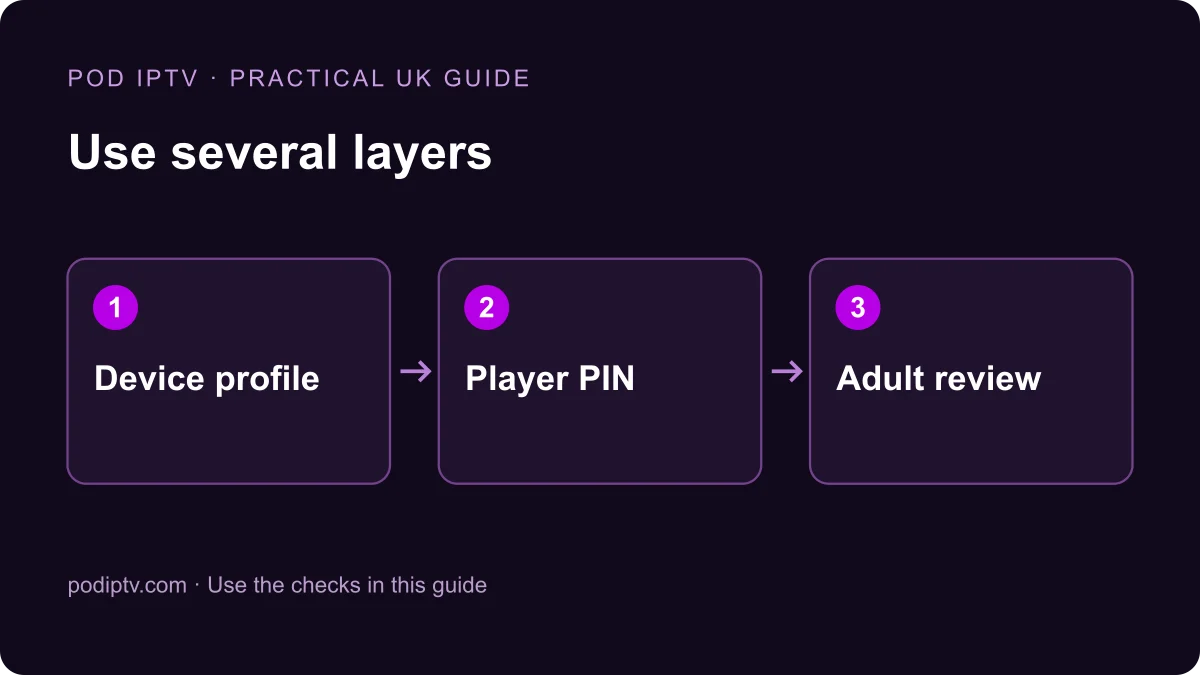
Your television or streaming box may offer device profiles, app restrictions or purchase controls. The player may separately provide a PIN, hidden categories or content locks. A service may supply its own account options. These are different layers, and enabling one does not establish that all the others are covered.
Begin by listing the devices and players your household uses. Include phones, tablets and older televisions that might still contain a saved login. Decide which screens children can access and which remain adult devices. A restriction on the living-room television cannot protect a separate unrestricted tablet.
Do not rely on the presence of a padlock icon alone. The important result is what happens when somebody opens the content through different routes. An adult should carry out the checks privately before leaving the device available to a child.
Check 1: identify exactly what is being locked
Open the player's current help or settings and identify whether its lock applies to a channel, category, playlist, profile or the entire app. Write down the scope. If a setting only hides an item from the home screen, it may not prevent opening that item through search or the programme guide.
Check whether restrictions cover live television, films, series and replays separately. A player can expose these in different menus. Where age ratings are available, review how the player uses them and whether unclassified content remains accessible.
The absence of ratings should not be treated as approval for children. Test the actual categories you want to block, and choose a more limited viewing arrangement if the app cannot enforce the boundaries you need.
Check 2: choose a private PIN for IPTV parental controls
Replace an obvious or default parental PIN where the player supports changing it. Avoid a code that children already use to unlock a household phone. Keep the recovery method available to the responsible adult without displaying the code on the television or storing it in a shared note.
A parental PIN and your service password serve different purposes. Changing the PIN may not change account access on another device. Likewise, resetting the service password may not alter the local app's content restrictions.
Check what the app does after several unsuccessful PIN attempts. Do not assume it has a particular lockout mechanism. If recovery simply exposes unrestricted access, consider whether the device itself needs an additional profile restriction.
Check 3: review device profiles for IPTV parental controls
Some devices provide separate adult and child profiles. Google's Google TV parental-control guidance explains supported kids profiles, app selection, profile locks and screen-time controls. Availability varies by device and region.
Google also distinguishes restrictions on its own recommendations from app-provided recommendations and search results. That distinction matters: a device-level rating setting does not establish that every item inside a third-party IPTV player is filtered. Check the app's controls separately.
If the player does not suit a child's profile, restricting access to that app entirely may be more effective than relying on a partial category filter. Use the device manufacturer's current instructions rather than assuming every Android TV or Google TV menu is identical.
Check 4: test alternative routes into restricted content
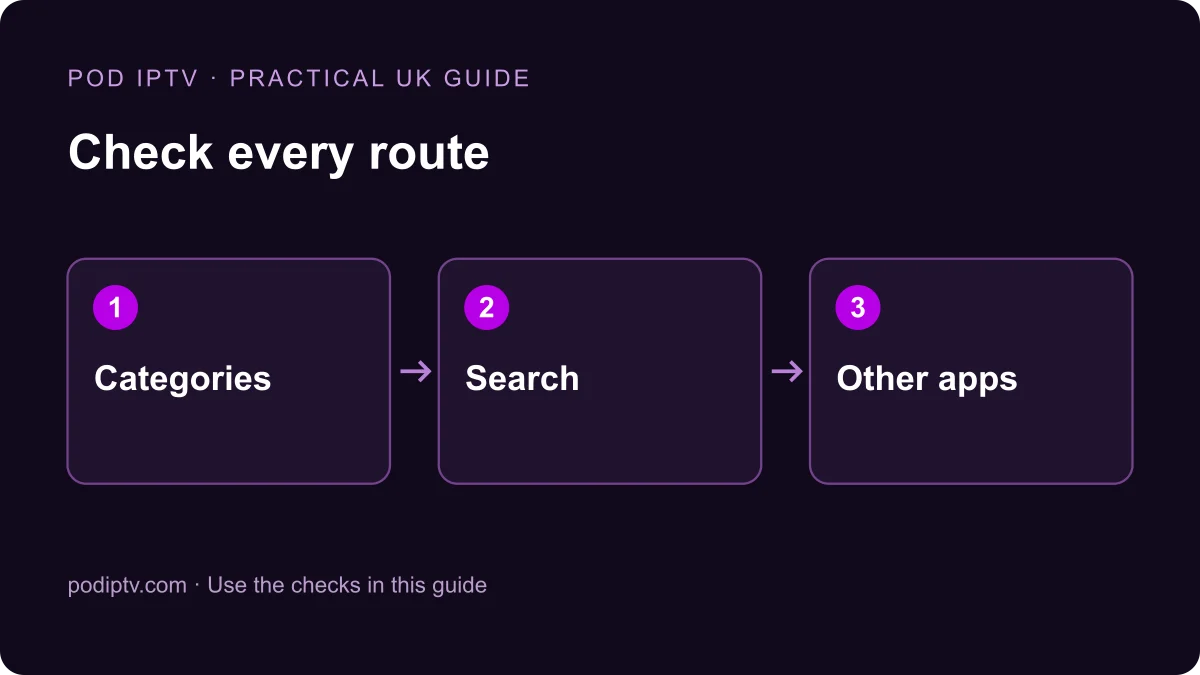
As an adult, try the main channel list, search, favourites, recently watched items and the programme guide. Check any movie, series and replay menus separately. The purpose is to find whether the same restriction follows an item when it appears somewhere else.
Use a known test item you intend to restrict. First confirm the lock is enabled, then try opening it from the ordinary list and from another available route. A hidden category that still appears through search needs a different solution.
Where to test IPTV parental controls
Route
Question to answer
Acceptable result for a blocked item
Main list
Can it be opened directly?
A PIN or access restriction prevents viewing
Search
Can a search bypass the category lock?
The same viewing restriction remains
Favourites and history
Do older shortcuts retain unrestricted access?
Restrictions still apply
Replay menus
Is catch-up covered separately?
Blocked items cannot play through a replay route
Another profile
Can the viewer switch to an adult profile?
Adult access requires the intended protection
Check 5: restart and test IPTV parental controls
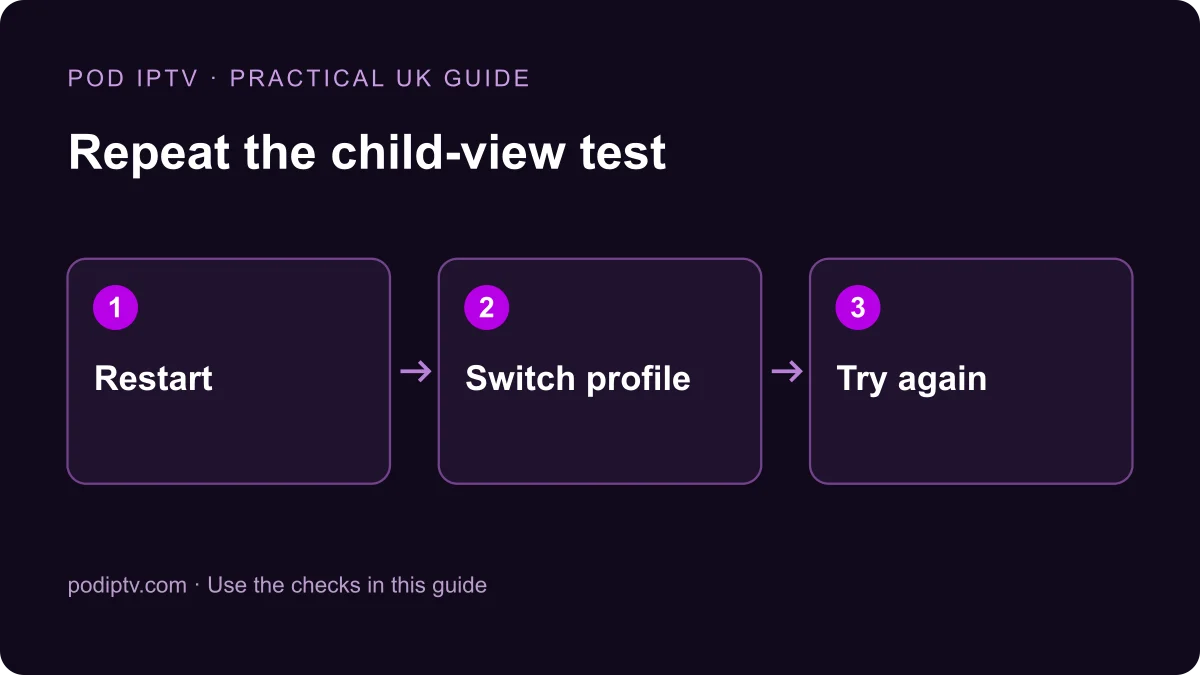
Close and reopen the app, then repeat one restricted-content test. Restart the device normally and check again. Some settings are local to the app, while others are tied to an account or profile. You need to know which restrictions remain after ordinary daily use.
Consider whether a playlist refresh, logout or reinstall might change local restrictions. Do not deliberately erase a working family setup just to test this. Read the app's documentation and, after any necessary update or account change, recheck the protected routes.
Keep a short record of the settings you applied. That helps an adult restore the setup after legitimate maintenance without guessing. Store the record privately and leave passwords and recovery codes out of shared screenshots.
Check 6: cover every household device
Repeat the checks on each screen that children can use. Different versions of the same player may have different menus or restrictions. A television app and phone app sharing a name do not necessarily enforce controls in the same way.
IPTV parental controls also need to account for casting and screen mirroring. An adult's unrestricted phone may be able to send playback to a television, depending on the app and device. Review who can initiate that connection and whether the television's own settings apply to it.
Connection allowances do not provide content protection. A plan for two devices controls simultaneous access under the service terms; it does not create two child-safe profiles automatically. Review device-plan information separately from family restrictions.
Check 7: separate viewing locks from purchases
A purchase PIN can stop some payments while leaving content viewable. A content PIN may restrict viewing without protecting app-store purchases. Check both where the device provides them and confirm which account is signed in to the store.
Consider whether children can install another player or switch to a browser that has saved account information. An app restriction is weaker if the same account is easily accessible through an unrestricted alternative route. Use supported device controls to define the allowed apps.
Never send a child your full account password to solve a setup problem. Ask an adult to manage configuration and use the installation guides for supported setup steps.
Check 8: review IPTV parental controls in your family routine
Technical controls work best alongside clear household rules. Decide where viewing happens, who can add favourites, whether autoplay is suitable and when an adult checks new content. A shared living-room screen and an unsupervised bedroom device require different arrangements.
Where the operating system supports screen-time limits, test how the limit behaves rather than assuming it stops every app. Consider normal school nights and weekends separately. Keep adult recovery access available so a legitimate technical issue does not lead to disabling all restrictions.
Review the setup when devices, players or household needs change. IPTV parental controls are an ongoing configuration task, not a promise that every programme is suitable. If the available tools cannot enforce your boundaries, restrict access to the app or choose a more limited viewing option.
Check the setup before committing to a plan
Use a 24-hour IPTV trial request to assess the player and device you intend to use. Confirm feature availability with support before relying on a particular lock or profile. POD IPTV access and a third-party player's parental features are separate parts of the setup.
For help, contact POD IPTV support with the device model, app name and the setting you are trying to locate. Do not share the parental PIN, account password or screenshots of restricted content publicly.
IPTV parental controls questions
Do all IPTV players have parental controls?
No universal feature set applies to every player. Check the current app version and device. Some offer a PIN or category lock; others may require a device-level restriction instead.
Is hiding a channel the same as blocking it?
Not necessarily. Hidden items can sometimes remain available through search, favourites or other menus. Test the viewing restriction through those routes before relying on it.
Will IPTV parental controls sync between devices?
That depends on the player and account system. Treat each device as needing its own check unless the app documents synchronisation and you have verified the result.
Does a kids profile filter everything inside an IPTV app?
Do not assume that. Device recommendations, allowed-app lists and the content inside a third-party app can have different controls. Check each relevant layer.
What should I do after an update?
Recheck the restricted routes, the PIN requirement and profile switching. Keep a private settings record so the responsible adult can restore any supported restrictions that have changed.