IPTV Recording: 7 Essential Checks for Better Planning
By POD IPTV · Updated 10 October 2026 · 7-minute read
IPTV recording is not automatically included because a player can display live television. The app needs a supported recording feature, the device needs suitable resources, and the service and content must permit the use you intend. This UK guide explains what to verify before scheduling a recording and how to test a supported arrangement without assuming it will work unattended.
Understand what IPTV recording means in your setup
Local recording saves material on your own device or attached storage. A cloud feature, where explicitly offered, stores material elsewhere under its own rules. Catch-up lets you play an existing archive and is a separate feature. A pause button may simply buffer playback temporarily.
These options can look similar in a player interface while relying on different systems. Check the app's current documentation and service information. A record icon does not prove that your account, device or storage supports the requested action.
Recording and replay features are different
Feature
Where the material is held
What to confirm
Local recording
Your device or supported storage
Player support, storage access and permission
Cloud recording
The explicitly offered cloud service
Availability, retention and account rules
Catch-up
An existing programme archive
Archive window and supported programmes
Live pause
A temporary playback buffer
Whether it persists and what the app actually supports
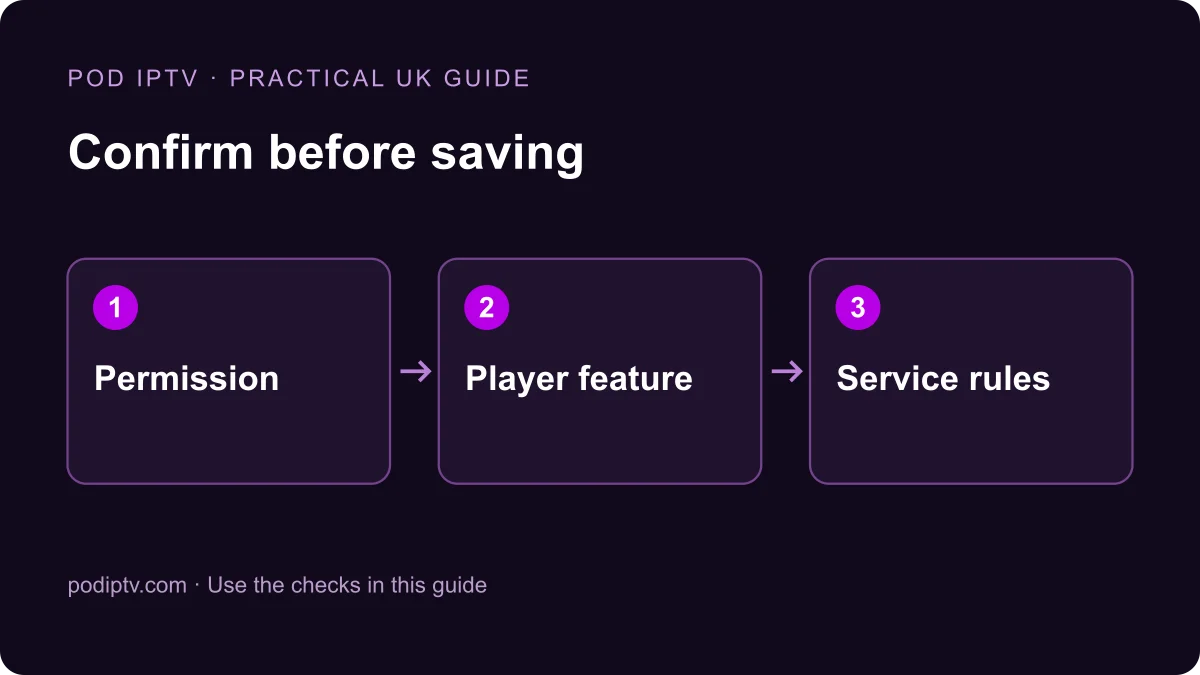
Check 1: confirm permission before IPTV recording
Review the content rights, service terms and relevant UK rules before recording. The Intellectual Property Office's copyright guidance describes a limited private time-shifting exception for broadcasts. That is not a blanket permission to download, archive or redistribute everything accessible through an IPTV player.
Do not share recordings publicly, sell copies or bypass access protection. Permission to view and permission for a particular copying use can differ. Where the rules or feature are unclear, ask the relevant rights holder or service rather than treating an app button as legal approval.
Read POD IPTV's current Terms of Service and ask support about your intended arrangement. This guide does not claim POD IPTV includes a recording service or grants rights to record every item.
Check 2: verify the player's actual feature
Inspect the current app version on your device. Recording may be unavailable, limited to particular platforms or tied to a separately licensed feature. Check whether it records live streams, schedules future programmes or only supports a manual start and stop.
App names alone are not sufficient. A phone version and television version from the same developer can expose different options. Read documentation for your exact platform and avoid purchasing an app licence before confirming compatibility.
If the player does not officially support recording in your setup, do not add unknown plugins or packages from a public message. Use the device installation guides to establish a trusted viewing configuration first.
Check 3: plan storage for IPTV recording
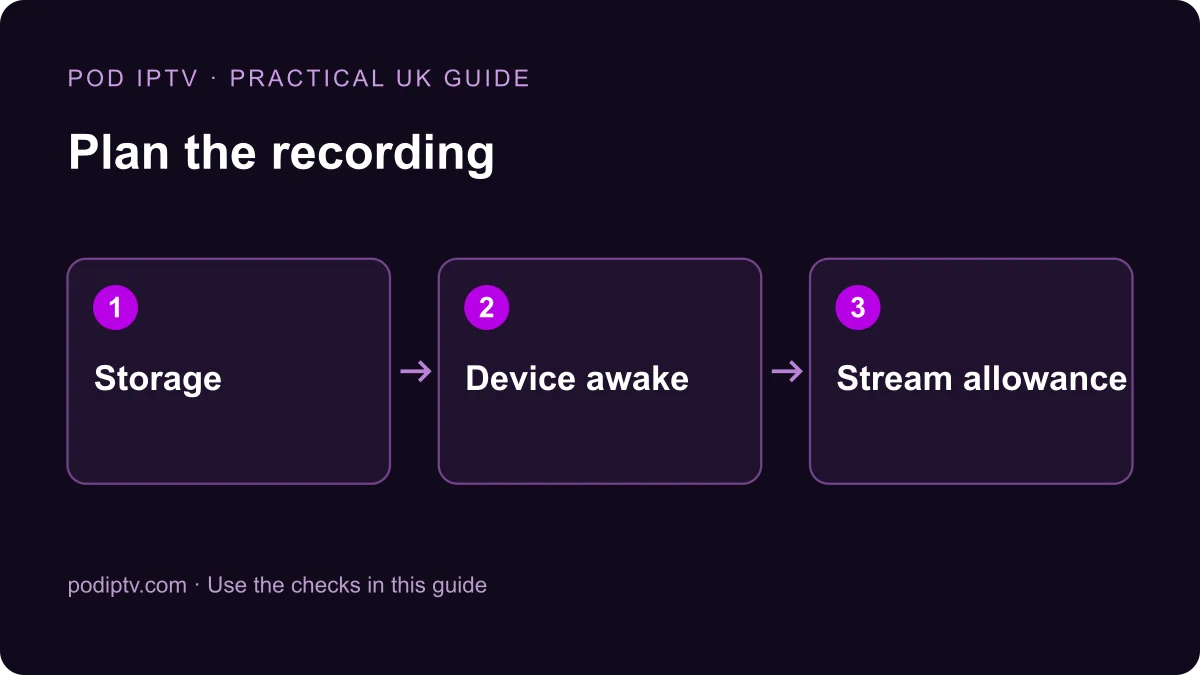
Confirm the destination, available capacity, write permissions and supported file system. A storage device visible in a file browser is not necessarily writable by the IPTV app. Some operating systems require specific app permissions or a supported destination selection.
For a known constant average bitrate, approximate decimal storage in GB per hour is Mbps multiplied by 0.45. A hypothetical 5 Mbps stream would therefore occupy roughly 2.25 GB per hour before allowing for container details and other differences. This is a planning example, not the guaranteed size of any programme.
Leave sufficient free space and complete a short test. Avoid filling the device's internal storage to its limit. Check whether the player stops safely when space runs out or produces an incomplete file, using documentation rather than deliberately exhausting storage.
Check 4: account for simultaneous streams
A local recording can require an active stream while another programme is watched. Whether that counts separately depends on the implementation and account rules. Do not assume one player app means one active connection.
Check the current device-plan allowances and ask support how your supported recording arrangement uses connections. Plan within the allowance instead of discovering the limit during an important programme.
Also consider the internet connection. Two simultaneous streams can increase traffic even if only one screen is visible. Test normal household use and keep unrelated large transfers out of your first controlled recording comparison.
Check 5: understand power for IPTV recording
For IPTV recording on your own device, confirm whether the app needs to remain open and the device awake. A television switching off, a box entering sleep or an operating system stopping background activity may interrupt a local recording, depending on the setup.
Do not assume a schedule can wake the device. Check the manufacturer's and player's documented behaviour. Test a short programme while present before relying on an unattended schedule. Cloud features may have different requirements and need separate confirmation.
Check the time zone, device clock and programme-guide timing. A listing can change, and a guide entry is not a guarantee that the programme starts exactly when expected. Where the app supports start or end padding, understand whether it changes stream or storage requirements.
Check 6: verify your IPTV recording result
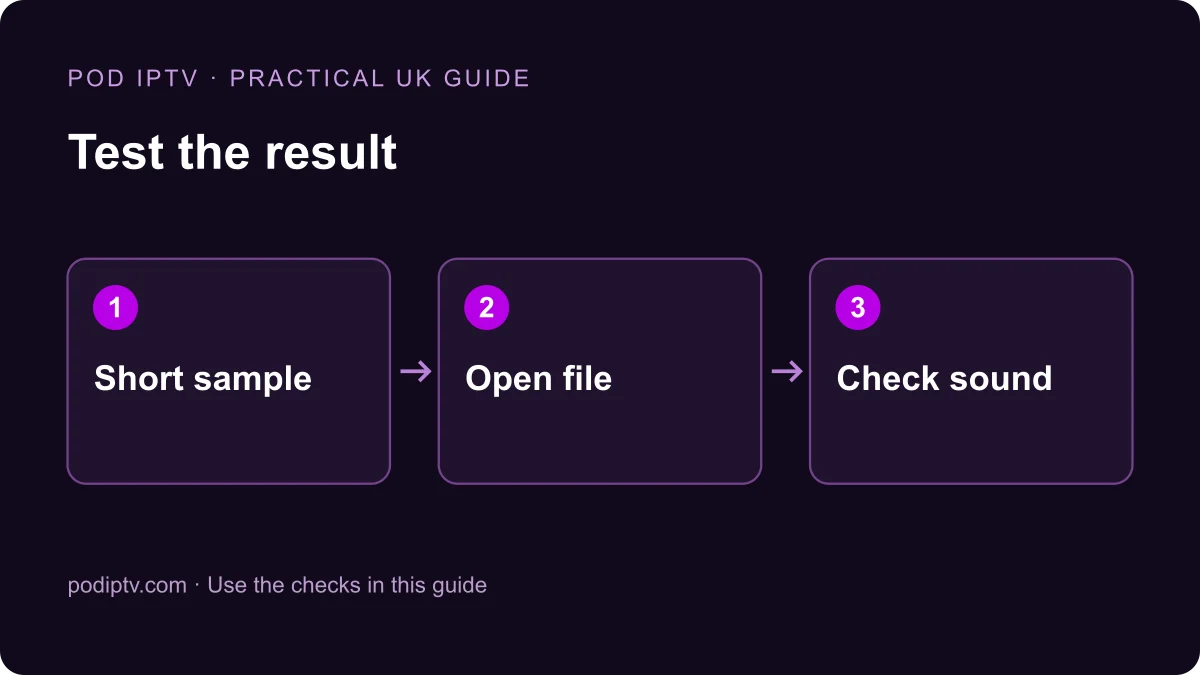
Make a short permitted test recording and stop it normally. Locate the saved item through the supported playback route. Check that it opens, has both sound and picture, and reaches the intended end. A file appearing in a folder is not proof that the recording is complete.
Test seeking or skipping within the file if the player supports it. Note whether the app needs the original account or network connection to play the saved item. Do not assume every saved file is an unrestricted offline copy that can be moved between devices.
If the test fails, record the stage: it never started, stopped early, produced no file or created a file that will not open. Those are different faults. Keep the original settings until you identify which change helps.
A practical IPTV recording test
Stage
What to verify
Useful evidence
Before starting
Permission, feature and destination
Documented app support and free capacity
During the test
Device stays active and playback is stable
Start time and any visible error
After stopping
Saved item exists and opens
Duration, sound and picture result
Before scheduling
Clock, sleep behaviour and connection allowance
A completed short schedule test
Check 7: choose the simplest supported option
If you only want to watch a recently aired programme later, an explicitly available catch-up archive may be simpler than maintaining local storage. Confirm the exact programme, replay window and compatible player. Catch-up availability should not be inferred from the existence of a guide entry.
If recording is essential, evaluate the complete setup rather than choosing an account based on a vague record label. Consider storage, device power, supported playback, account limits and the applicable rights. An arrangement that works only while you manually supervise it may not suit unattended use.
During a 24-hour trial request, you can assess normal playback and ask whether the specific feature you need is supported. Do not treat the trial itself as permission to make copies or as proof that future unattended recording will work.
Protect stored files and account details
Keep local recordings within the permitted use and protect any account information stored alongside them. A player backup can contain complete playlist links or credentials even when the media file does not. Do not upload a whole app folder to a public support discussion.
Before disposing of a storage device, review what it contains and follow supported deletion or account-removal procedures. If you need help, describe the issue to POD IPTV support without sharing programme copies or passwords publicly.
Keep only the information necessary to investigate the problem: device, app version, recording method, destination type, duration and observed error. Permission and feature questions may need the player developer or rights holder as well as service support.
IPTV recording questions
Does every IPTV player support recording?
No. Features vary by app, version, platform and licence. Confirm the exact setup before purchasing software or relying on a schedule.
Is catch-up the same as IPTV recording?
No. Catch-up plays an existing archive where available. Local recording saves through your own supported arrangement, and cloud recording is another separately offered feature.
Can recording use another account connection?
It can, depending on implementation. Ask how the arrangement counts active streams and stay within the current plan allowance.
Will the device record while switched off?
Do not assume that. Local features may require an awake device and running app. Check documentation and complete a short supported scheduling test.
Can I share a recorded programme?
A private recording arrangement does not establish redistribution permission. Check the applicable rights and rules, and do not bypass protection or share copies without authorisation.