IPTV Favourites: 7 Easy Steps for Better Channel Organisation
By POD IPTV · Updated 10 October 2026 · 8-minute read
IPTV favourites turn a large channel list into a shortlist you can actually use. Instead of scrolling through every category, you can keep the programmes your household regularly watches within easy reach. This guide explains how to build, test and maintain that list in a supported player without assuming favourites sync between every device or survive every account change.
A favourites list is usually a feature of the player rather than a separate service subscription. Its location and behaviour depend on the app. Some lists are stored locally; others may be associated with an app account or a supported backup. Check the actual player before relying on synchronisation.
Adding a channel to favourites normally creates a shortcut to an existing entry. It does not add content rights, activate catch-up or change the permitted number of streams. A star icon can make the channel easier to find while leaving its availability unchanged.
For a player such as TiviMate, begin with the developer's official website when checking current platform support and app information. Do not assume instructions for another app or an older version describe your own menu. The workflow below is deliberately based on functions to verify rather than invented universal button sequences.
Step 1: define a useful shortlist
Start with the programmes you watch during an ordinary week. Write down exact channel names, relevant regional versions and the language you need. A list based on daily viewing is more useful than adding every familiar name just because it appears in a category.
Keep the first list small enough to navigate comfortably with your remote. There is no universal ideal count. The practical test is whether somebody can find the intended channel without searching through a second large catalogue disguised as favourites.
Distinguish household preferences from availability claims. A channel you want should be checked on the supplied account, not assumed to exist because another provider advertises it. If the item matters to your decision, verify its actual playback during a trial.
Step 2: add the correct entries to IPTV favourites
Open the player's channel list and locate the precise entry. Inspect the available options for favourites, a star or adding to a personal group. A long press or context menu may be involved, but the control depends on the app and remote.
Play the entry briefly before adding it. Similar names can represent different languages, regions or versions. A shortcut to the wrong item will not become correct merely because it has the familiar label you expected.
If the player exposes channel information, compare it with what appears during playback. Keep the supplied source information intact. Avoid manually rewriting important identifiers in an attempt to tidy a label unless the player provides a supported display-name feature.
Step 3: check the list from its own menu
Return to the favourites view and open each new shortcut. This verifies that the list contains usable entries rather than simply confirming that a star was selected. Check whether the player separates favourites for live television from watchlists for films and series.
Open the guide from the favourites view if that route exists. The guide may show only selected channels, all channels or a separate category, depending on the app. Make sure the route matches how your household expects to browse.
What to test after adding a favourite
Check
Useful result
What it does not establish
Shortcut opens
The intended item plays
Permanent programme availability
Name is clear
The regional or language version is recognisable
A change to the supplied catalogue
Guide route works
You can browse the intended listings
Catch-up availability
Restart keeps the list
Ordinary app use preserves it
Survival after clearing app data
Step 4: organise IPTV favourites for everyday navigation
Where the player supports sorting, choose an order that suits normal use. You might place regularly watched news, general entertainment and sports entries together. Alphabetical order can work well if users remember names, while a custom order can suit a familiar remote routine.
Check whether the order applies only to favourites or changes the entire channel list. Make one reversible change and inspect the result. A setting that looks like a simple sort can have a wider scope in some players.
If separate personal groups are supported, use descriptive names. Avoid creating so many groups that navigation becomes slower than the original catalogue. A household list should reflect actual viewing choices rather than an elaborate filing system nobody maintains.
Step 5: test IPTV favourites after a normal refresh
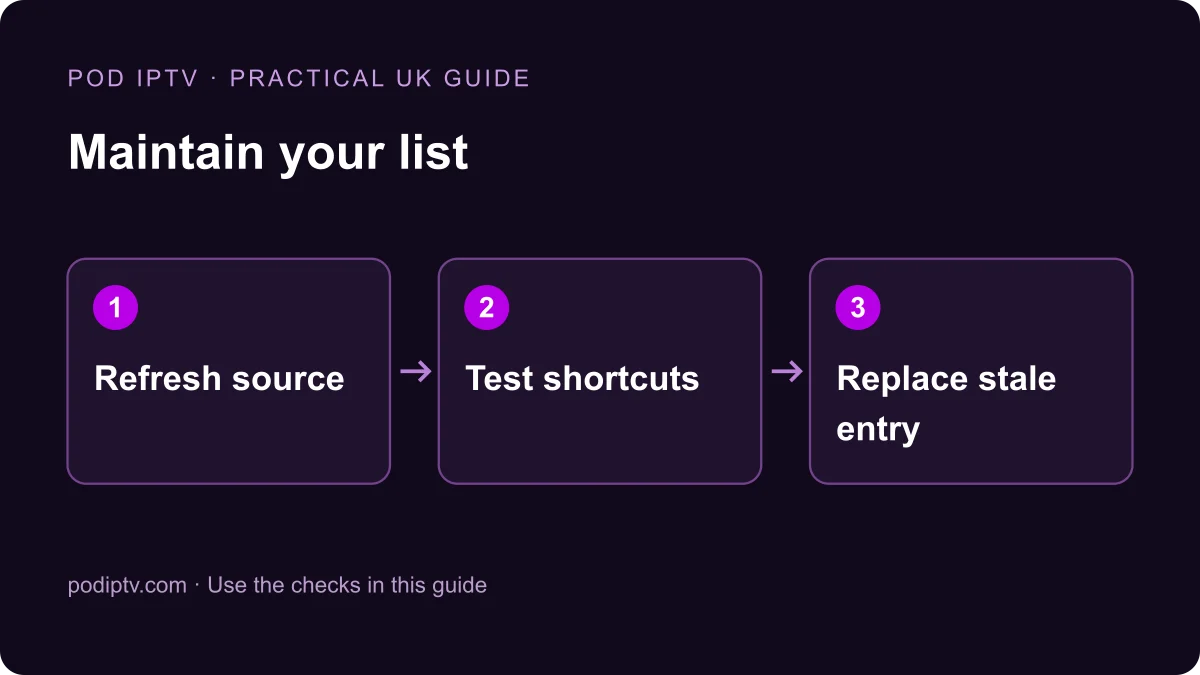
A source refresh may update channel entries or identifiers. Depending on how the player links favourites to those entries, a changed listing can leave an old shortcut unavailable or duplicated. Refreshing the catalogue and rebuilding a favourites list are different actions.
Before a necessary refresh, keep a private note of important channel names and the intended order. If the app provides a supported backup, check what it contains and how it is restored. Do not assume every export is compatible with another version or device.
After the refresh, test a few key shortcuts. If one fails while the same programme works through the main list, remove the stale shortcut through the supported menu and add the current entry. Avoid deleting the whole playlist before confirming that the problem is confined to favourites.
Step 6: check household profiles and privacy
A shared favourites list can reveal viewing preferences and provide shortcuts to items you intended to restrict. Where children use the device, check whether parental controls still apply when a restricted item is opened through favourites.
Do not treat hiding a category as proof that an older shortcut is blocked. An adult should test the route privately. A player profile and a device profile can also have different scopes, so verify both where available.
If the app supports separate lists, consider whether they actually remain separate after switching profiles and restarting. If it does not, keep the shared list suitable for the people allowed to use that screen. A favourites feature is an organisation tool, not a complete parental-control system.
Step 7: compare devices without assuming sync
IPTV favourites on your television may not appear on your phone even when both use the same service login. The login provides account access; it does not necessarily synchronise app preferences. Different players may store lists in different ways.
Check the developer's documented sync or backup options if you need the same arrangement elsewhere. Test with a small supported list first and keep access details private. Do not upload a complete player backup to a public forum merely to move favourites between devices.
Close the earlier stream when testing on another screen and stay within your account allowance. Compare the current POD IPTV device plans separately from the organisation features offered by your chosen app.
Fix common IPTV favourites problems
Favourites troubleshooting without deleting the whole setup
Problem
First check
Next supported action
Wrong regional channel opens
Compare the main-list entry
Add the exact intended version
A shortcut stops after refresh
Try the current main-list entry
Replace the stale favourite if that entry works
List differs on another device
Check player and profile
Confirm documented sync or recreate a small list
Order returns to a default
Check the setting’s scope
Use a supported persistent sort option
List disappears after reinstall
Check whether data was local
Restore only a supported private backup
Record the app version and what changed before the fault. A catalogue refresh, app update and data reset can have different effects. That information helps distinguish a damaged shortcut from missing service content.
Build the shortlist during your trial
Use a 24-hour IPTV trial request to test the actual items you need. Create a modest shortlist, check ordinary navigation and reopen the app once. This assesses how the player suits your routine without pretending a trial guarantees future availability.
The installation guides can help establish the underlying setup. For account or catalogue questions, use POD IPTV support; for a favourites-specific app feature, the developer's current help may also be needed.
IPTV favourites questions
Does adding IPTV favourites create extra channels?
No. A favourite is normally a shortcut to an existing entry. It does not expand content access or add an unavailable programme.
Will favourites appear on every device automatically?
Not necessarily. Check the player, profile and any documented sync feature. Service credentials and app preferences are separate.
Why does a favourite fail after a catalogue update?
The underlying entry may have changed. Compare the current main-list entry before replacing the shortcut or deleting larger parts of the setup.
Are favourites safe for a child's profile?
Test whether the intended viewing restrictions apply through that route. A shortcut or hidden category should not be treated as a substitute for effective access controls.
How many should I add?
Enough to reflect ordinary viewing without recreating the whole catalogue. Test whether household users can find their intended programme comfortably.