IPTV Casting: 8 Easy Checks for Better TV Playback
By POD IPTV · Updated 10 October 2026 · 8-minute read
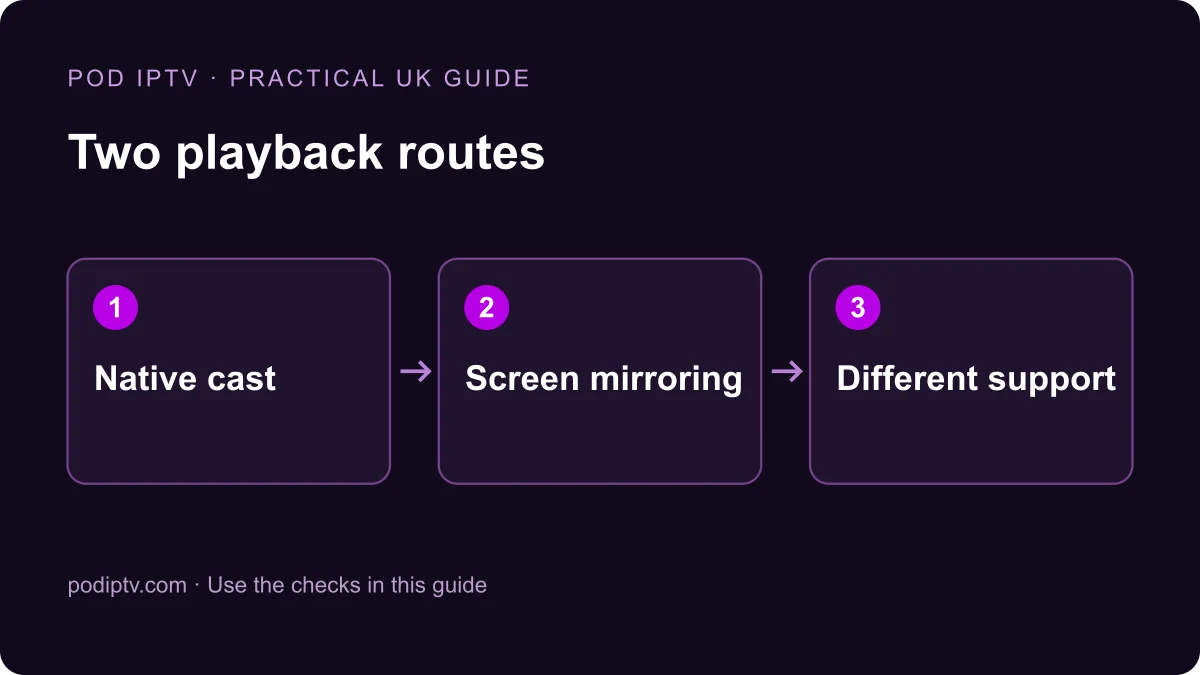
IPTV casting can move a programme from a small phone screen to a television, but the route depends on the player, receiver and network. A television appearing in a device list does not guarantee that every programme can play there. Start by identifying whether you want a supported Cast session, AirPlay playback or ordinary screen mirroring. These are different functions, even when their buttons look similar.
This guide helps UK viewers test a practical setup without buying extra hardware too early. It explains discovery, permissions, controls and privacy. Your player is the viewing app; service access is a separate account. Neither buying a receiver nor enabling casting adds content rights or changes the account's connection allowance.
In a supported casting session, the phone can act as a controller while a compatible receiver handles playback. Screen mirroring instead displays the phone's screen on the television. That distinction affects battery use, notifications and what happens when you leave the app. An HDMI connection is another route, with its own device and playback restrictions.
Before troubleshooting, write down the phone model, operating system, player name and receiving device. Include whether the receiver is built into the television or connected separately. A description such as “smart TV” is too broad: two televisions can offer different wireless protocols and app support. Test the actual combination you intend to use.
Ways to move playback to a television
Route
Main requirement
What to check
Supported Cast playback
Compatible app and receiver
Discovery and a successful programme test
AirPlay
Supported Apple sender and receiver
App permission and content behaviour
Screen mirroring
Compatible mirroring function
Notifications, sound and screen orientation
Wired display
Supported adapter and display output
Playback restrictions and power requirements
Check 1: confirm IPTV casting support inside the app
Look at the player's official documentation or current app listing. Check whether casting is supported on your particular platform and whether it requires a paid app feature. An Android version and an iPhone version carrying the same product name may not have identical functions. Avoid treating an icon shown in an old tutorial as proof of current support.
Open a programme and inspect the playback controls. Some apps show a destination selector only after playback begins; others use a separate menu. If there is no supported route, repeatedly reinstalling the app is unlikely to create one. Consider a compatible player installed directly on the television instead of forcing an unsupported connection.
Check 2: identify the receiving device
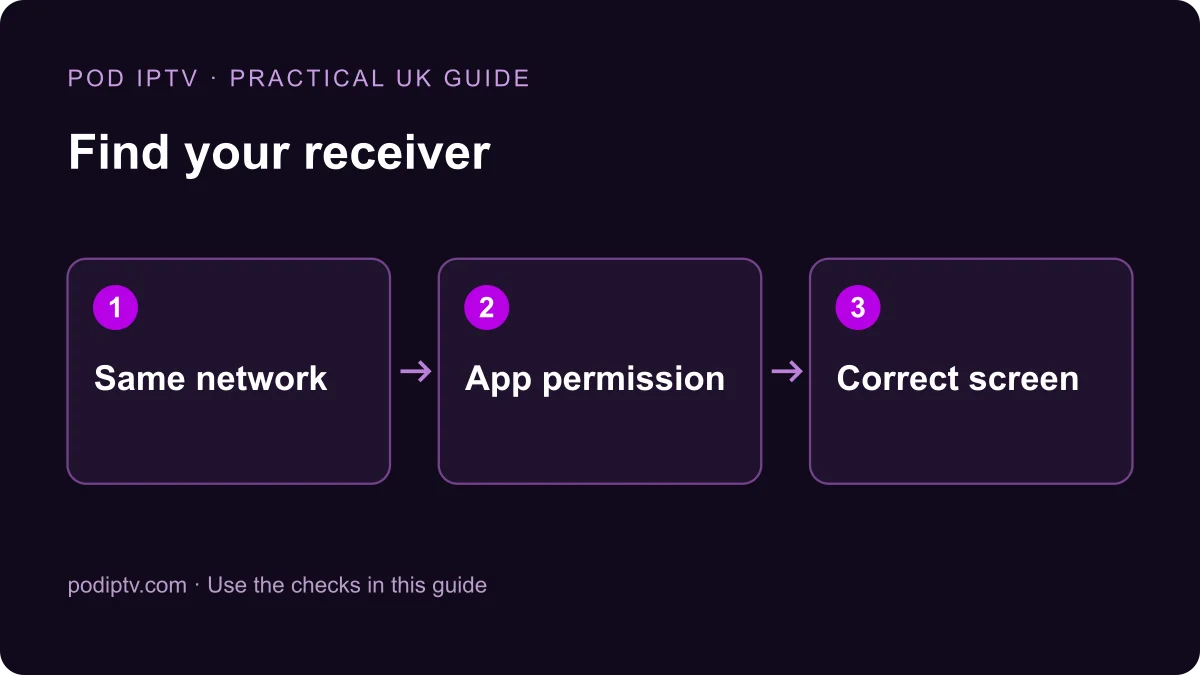
Confirm the television input and receiver power before changing network settings. A receiver can be powered down while the television remains on. Give the device a recognisable name so that you do not accidentally send a programme to another room. If several destinations appear, match the name with the screen you are watching.
Use the manufacturer's compatibility information for the exact model. A television with an app store does not automatically receive every casting protocol. An external receiver can offer a different route from the television's own wireless feature. Keep those routes separate in your notes, because testing one does not validate the other.
Check 3: put discovery on the correct network
For supported local discovery, check that sender and receiver are on the appropriate home network. Compare the network name on both devices rather than assuming that nearby devices are connected together. A phone using mobile data and a television using household Wi-Fi may not see each other through local discovery.
Google's missing Cast destination guidance explains the same-network requirement for its supported setup. A guest network or managed network may isolate devices even when the displayed network name looks familiar. Ask the network administrator about supported connections; do not disable security protections merely to make a destination appear.
Check 4: review IPTV casting permissions
A player can have working internet access yet lack permission to discover nearby receivers. Check the device's app permission controls and allow only the access needed for the feature you intentionally use. Google documents Local Network permission for supported casting. Follow the instructions for your platform rather than copying every permission from an unrelated device.
If you declined a prompt earlier, the permission may now be managed in system settings. Return to the app after changing it and check the destination list again. You should not have to grant unrelated contacts, microphone or photo access simply to troubleshoot a video destination. Review unusual requests with the developer.
Check 5: test one programme through IPTV casting
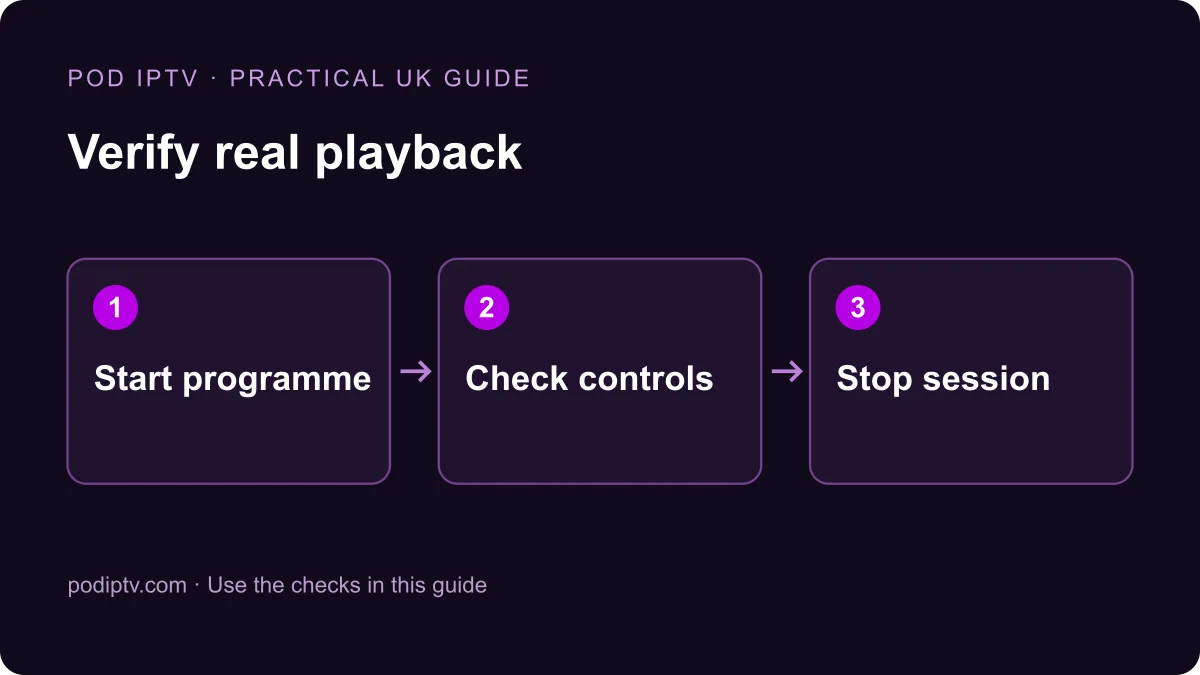
Choose a programme that already plays successfully on the sender. Start it locally, then select the intended receiver. Observe whether the television shows a loading screen, an error or actual moving video. Note whether sound arrives and whether it comes from the television, phone or a separate speaker.
Test a second permitted programme if the first fails. A single failure can relate to that programme's format or playback restrictions; every programme failing points to a broader setup issue. Do not conclude that the account has expired when local playback still works. Keep the comparison narrow enough that it identifies a useful difference.
Check 6: test the controls you will need
Try pause, resume, volume and stopping the session. If you are testing on-demand playback, check seeking where the app permits it. With live channels, seeking may not be available. A control that exists on the phone can behave differently through a receiver, so evaluate the functions you actually use in an evening of viewing.
Check what happens when the phone screen locks and when you briefly open another app. Record the behaviour instead of assuming that playback always continues independently. This is particularly useful when comparing supported casting with mirroring. A household should be able to stop the session deliberately without hunting through several menus.
Check 7: protect privacy during IPTV casting
Screen mirroring can expose notifications, messages or account screens to everyone watching the television. Prepare the phone before sharing its display and stop mirroring before entering private login details. When using a borrowed television, check whether the app stores your account or whether you are only controlling a temporary receiver session.
Use your own trusted device for credentials. After the session, stop playback and disconnect through the supported controls. If you signed into a player on someone else's device, sign out and remove saved details according to the app's instructions. Turning the television off is not proof that a saved account has been removed.
Check 8: compare a direct television app
If wireless playback remains unreliable, compare a supported app installed on the television or streaming device. Use the POD IPTV installation guide to identify the relevant device category. Keep the account allowance in mind: running both routes at once can complicate the test if the plan supports only one active connection.
Direct playback may suit a shared living room better because it uses the television remote and does not depend on a visitor's phone. Wireless playback may suit occasional use where supported. Neither route is universally best. Choose the one that remains understandable and reliable for the people who will operate it.
Record an IPTV casting result that support can use
Send the player version, sender model, receiver model, network type and exact error text. State whether local playback works and whether the destination appears. If video starts but fails when the phone locks, include that observation. These details separate a discovery problem from a playback or control problem.
A screenshot should show the error rather than your server address, username or password. Do not send a full private playlist to a public forum. For account questions use the site's Contact Us page; for receiver behaviour use the device manufacturer's support. A useful report saves repeating broad resets that do not address the actual symptom.
Evaluate the route before choosing a plan
A 24-hour trial request can help you test the intended viewing route when access is available. Try it with your own phone, receiver and internet connection at the time you normally watch. Check both starting and stopping playback, not just whether a destination name appears.
Then compare the current prepaid plans with your active-screen needs. Casting does not remove a connection limit or replace a separate player licence. Keep the app purchase, hardware purchase and service plan distinct so that you understand what each payment would provide.
IPTV casting questions
Is IPTV casting the same as screen mirroring?
No. Mirroring shares the sender's display; supported casting can use the sender as a controller for receiver playback. The exact behaviour depends on the app and platform, so test locking the phone and using the playback controls.
Why does my television appear but fail to play?
Discovery confirms that a destination was found, not that the programme format or app route is supported. Compare local playback, another programme and the receiver's documented compatibility before changing account details.
Will every smart television work?
No. Check its exact model and supported protocol. A compatible external receiver or direct television app may provide an alternative, but neither should be assumed without checking the specific combination.
Can IPTV casting increase my allowed screens?
No. Account allowances still apply. Close unnecessary playback sessions and confirm how your supported route uses connections before testing multiple destinations simultaneously.