IPTV Storage: 6 Easy Checks for a Better App Setup
By POD IPTV · Updated 10 October 2026 · 7-minute read
IPTV storage can affect whether a player installs, updates or keeps useful local settings. A streaming subscription does not mean that an entire channel catalogue is downloaded to your device, but apps can still store guide information, artwork, cache and account data. Clearing the wrong category can remove a working setup rather than simply make space.
This guide helps you inspect a device before deleting anything. It separates temporary cache from saved app data and user-created files. The exact controls depend on the operating system and player. Work from your device's own storage screen and keep private setup information available before considering a reset or reinstall.
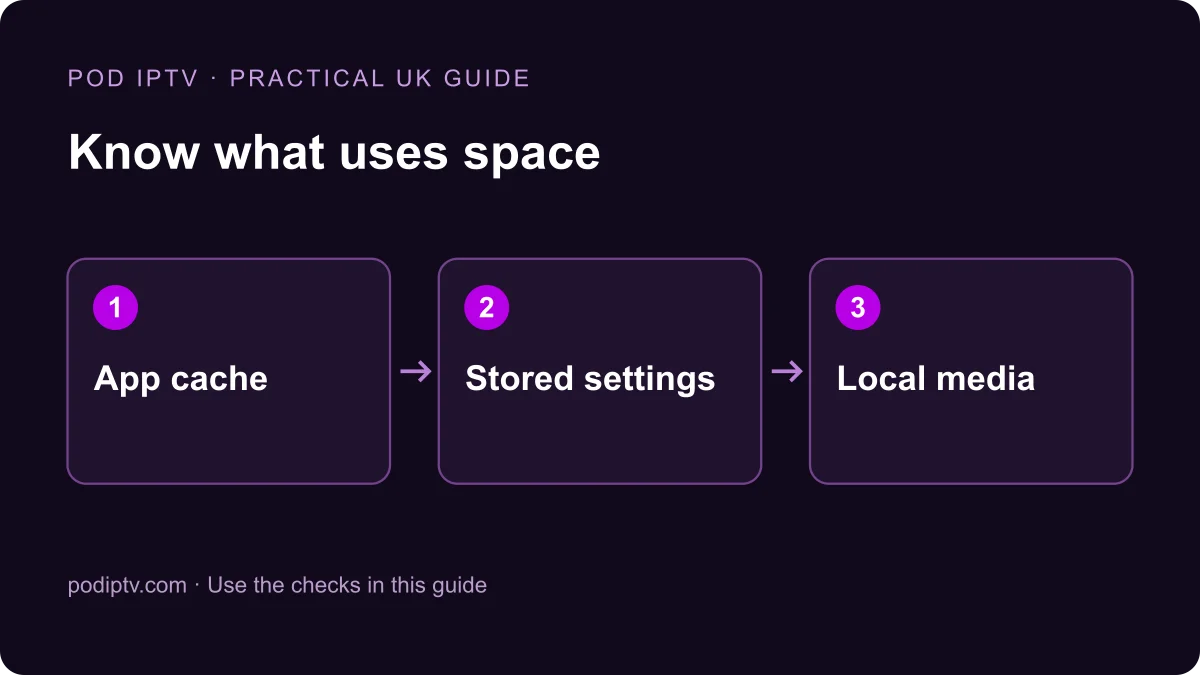
A device's total storage includes its operating system, apps and other files. The space shown beside a player may include the app itself and data it has created. These figures do not all describe disposable material. A playlist database, guide database and locally saved preferences can have different roles from temporary image files.
Write down the total free space and the player's reported usage. Compare those figures with other apps rather than assuming that the viewing app is responsible for all growth. If a device is shared with games, photos or other streaming services, those can matter too. Take a screenshot of the storage figures without showing private account screens.
Storage categories and deletion consequences
Category
Typical purpose
Before removing it
App cache
Temporary data used by the app
Confirm the device labels the action as cache clearing
App data
Saved state, settings or accounts
Prepare private login and supported recovery details
User files
Downloads, recordings or exports where supported
Check ownership, usefulness and any backup
Other applications
Software unrelated to the player
Confirm no household user still needs it
Check 1: inspect IPTV storage before making changes
Open the operating system's storage information and record the current free amount. Then inspect the relevant app's information screen. Menu names vary, so use the manufacturer's guidance for your model. A warning during installation may relate to overall device space, not the size of a particular playlist.
Look for a clear trend rather than one surprising number. If usage grows after a guide refresh or after browsing a large catalogue, note that timing. If it grows while the player is closed, compare other apps and downloads. This helps you choose a relevant cleanup action instead of repeatedly removing data without understanding the cause.
Check 2: distinguish cache from saved data
Google's storage guidance for its streaming devices describes clearing temporary cached data and uninstalling unused apps. Those are distinct operations. Follow the labels on your actual device: a button marked clear data or clear storage should not be treated as interchangeable with clear cache.
After a cache cleanup, open the player and allow ordinary information to load again. Some temporary data can return as you use the app, which is not proof that cleanup failed. Repeating the operation before every viewing session may simply force the app to rebuild material it needs. Measure the result rather than expecting permanently empty cache.
Check 3: protect the working IPTV storage setup
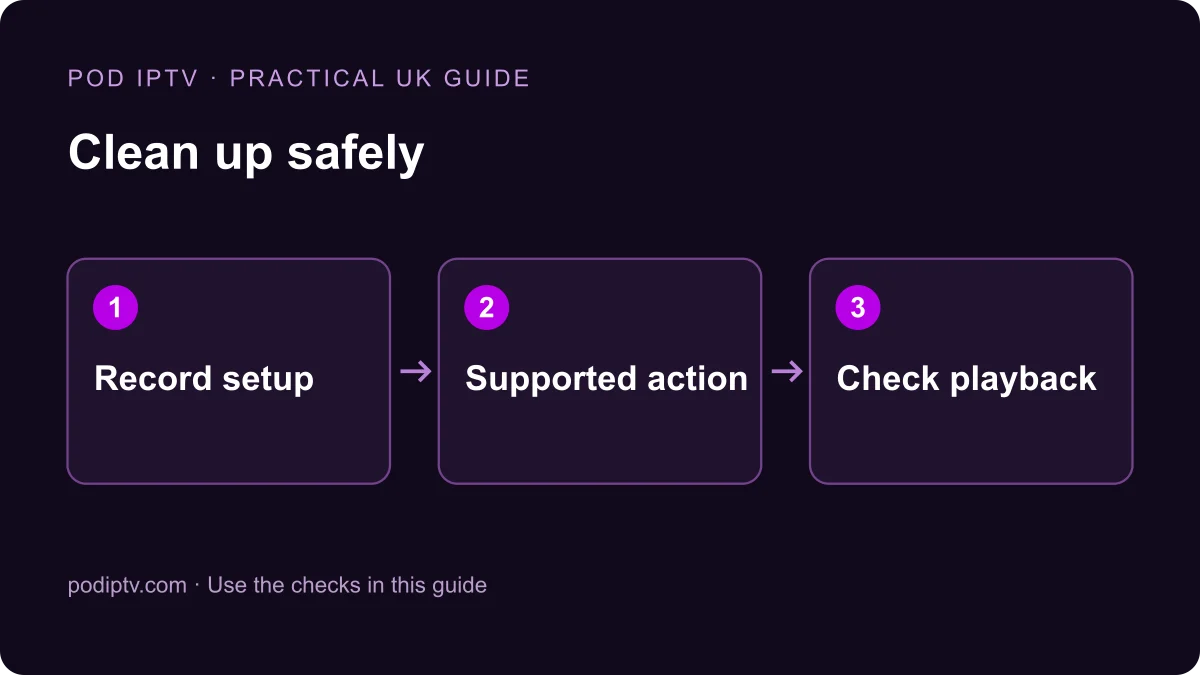
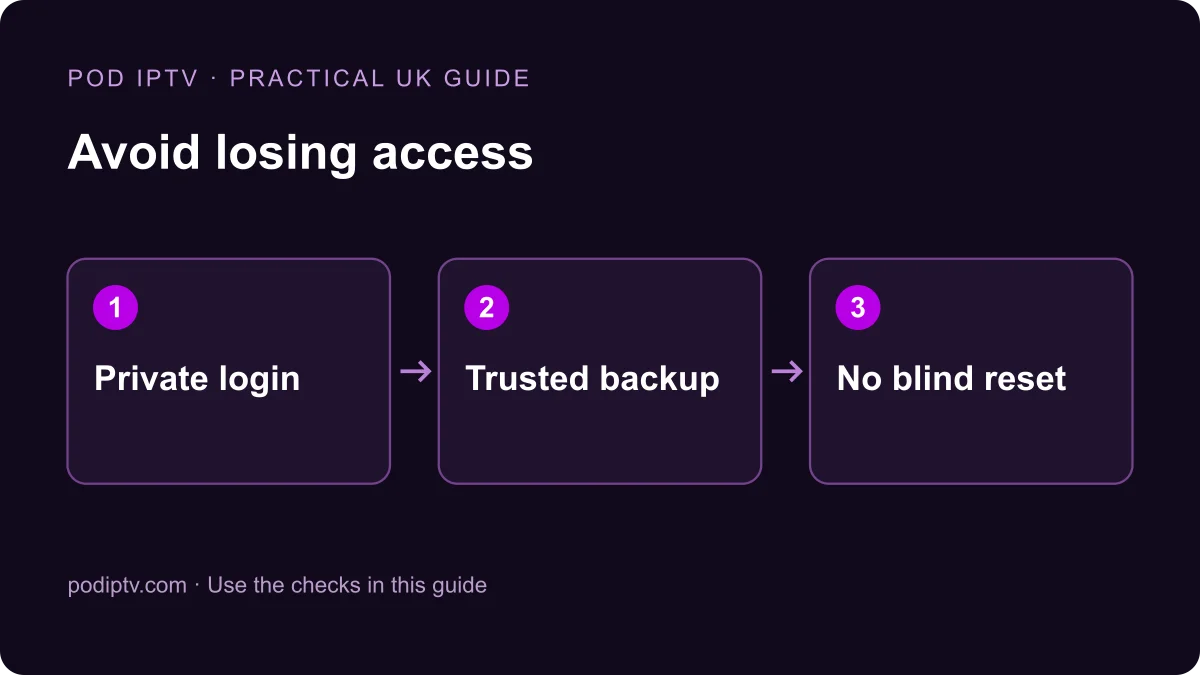
Before clearing app data, confirm that you can recover your account privately. Check whether favourites, guide preferences, hidden categories and other local settings have a supported backup route. Some players retain information in an account; others store it only on the device. Do not assume that signing back in restores every personal preference.
A reinstall can solve certain app issues, but it also creates a setup task. If the present problem is a lack of space for an update, remove clearly unnecessary material first. Keep the server address and password out of public screenshots and shared notes. Storage maintenance should not create a new account-security problem.
Check 4: review downloads and recording folders
Some players offer downloads, recording or exported files; others do not. Inspect only features actually supported by your app and content permissions. A long recording or duplicate export can occupy meaningful space, but deleting an unknown folder is risky. Open the app's own file-management controls where available.
Check whether a file is needed, whether it belongs to another household user and whether a supported backup exists. Emptying a recording list and deleting the underlying file are not always the same operation. Confirm the effect described by the app before acting. Content access and recording rights remain separate from the technical ability to create a file.
Check 5: remove unnecessary software deliberately
Review apps that nobody uses, old installers and duplicate utilities. Ask other device users before removing shared software. Avoid installing a generic cleaner that requests broad access to private files just to perform a task available in system settings. The safest useful cleanup is usually one whose target and consequence you understand.
Check the free-space figure after each substantial change. If you remove several things at once and the player stops working, it becomes harder to identify the cause. Leave enough room for normal operation and supported updates without inventing a universal minimum that applies to every device. Use any capacity requirement published for your actual app.
Check 6: evaluate external IPTV storage carefully
An external drive is not a universal expansion solution. Confirm whether the device supports it, how it must be formatted and which files or apps can use it. A television USB port may serve a different purpose from a streaming box's storage function. Check power, connection and filesystem requirements in the manufacturer's documentation.
Do not format a drive containing useful material simply because an on-screen prompt offers to prepare it. Formatting can erase existing files. Where expansion is supported, choose the intended use before moving material: recordings, ordinary files and app storage may have different requirements. Keep a separate recovery copy of important information.
Use an IPTV storage maintenance record
Record the date, free space, app usage and action taken. Include whether the player still opens, whether the guide loads and whether personal settings remain. This creates a short history that can reveal recurring growth. It also prevents a support conversation from beginning with vague descriptions of what might have been deleted.
If space returns briefly and disappears again, inspect the activity that follows cleanup. A large guide database, repeated exported backups or another application's downloads can require different remedies. Contact the relevant developer with the app version and measurements. Do not send private files just to demonstrate a storage figure.
Recognise problems that IPTV storage cannot explain
A channel missing from the service, an expired account or a network outage is not repaired simply by deleting cache. A device with ample free space can still have playback trouble for another reason. Compare the actual symptom with storage warnings and app behaviour before treating cleanup as a universal fix.
For example, an app that cannot install an update and reports insufficient space gives a direct clue. A single programme that fails while others work gives a different clue. Preserve that distinction in your notes. Broad cleanup performed without a relevant symptom can remove useful settings while leaving the original problem unchanged.
Plan a manageable installation
Use the POD IPTV installation guide to identify an appropriate app route for your device. Installing several players at once can complicate comparison and use extra space. Start with one supported option and test it before adding alternatives that the household may never use.
If trial access is available, a 24-hour trial request lets you evaluate ordinary navigation and playback on the actual device. For account help use Contact Us. The service account, third-party player and device storage remain separate parts of the setup.
IPTV storage questions
Does IPTV storage contain every available programme?
Not necessarily. A player can keep catalogue and guide information without downloading every video. Inspect its supported download or recording features and the operating system's usage figures.
Will clearing cache remove my account?
The intended cache operation removes temporary data, but labels and behaviour vary. Verify the device's official instructions and distinguish it from clearing app data or reinstalling.
Can I expand IPTV storage with any USB drive?
No. Check device support, formatting, power and the permitted storage use. Do not erase an existing drive until you have protected any useful files and understand the preparation process.
Why does the cache grow again?
The app may recreate temporary material during ordinary use. Compare growth with actual activity and available space; a non-zero cache is not, by itself, a fault.