IPTV App Updates: 7 Essential Checks for Safer Upgrades
By POD IPTV · Updated 10 October 2026 · 8-minute read
IPTV app updates can change menus, correct faults and maintain compatibility, but a successful download is only the beginning of a useful upgrade. Check the source, prepare your working setup and test the functions you rely on afterwards. Avoid replacing a trusted player with a similarly named download merely because a search result promises a newer version.
This guide is for UK viewers using third-party players on televisions, streaming devices, phones or computers. Your app version, operating system and service account are separate. Updating one does not renew another or guarantee that a particular programme will become available. The aim is a supported upgrade with a clear recovery path.
A player update changes the application. A system update changes the device's operating software. A playlist refresh updates account listings, while a guide refresh updates programme information. These tasks may appear close together in a menu, but they solve different problems. Identify the actual task before pressing a button.
Record the current player name, version and installation source. Include the operating system version where it is easy to find. If support asks what changed, these details are more useful than “everything updated”. Do not combine a player upgrade, factory reset and account change into one troubleshooting step.
Different updates and their purpose
Change
What it affects
What it does not automatically do
Player upgrade
App features and behaviour
Renew the service account
System upgrade
Device operating software
Prove every app remains compatible
Playlist refresh
Current account listings
Install a new player version
Guide refresh
Programme schedule information
Add access to missing content
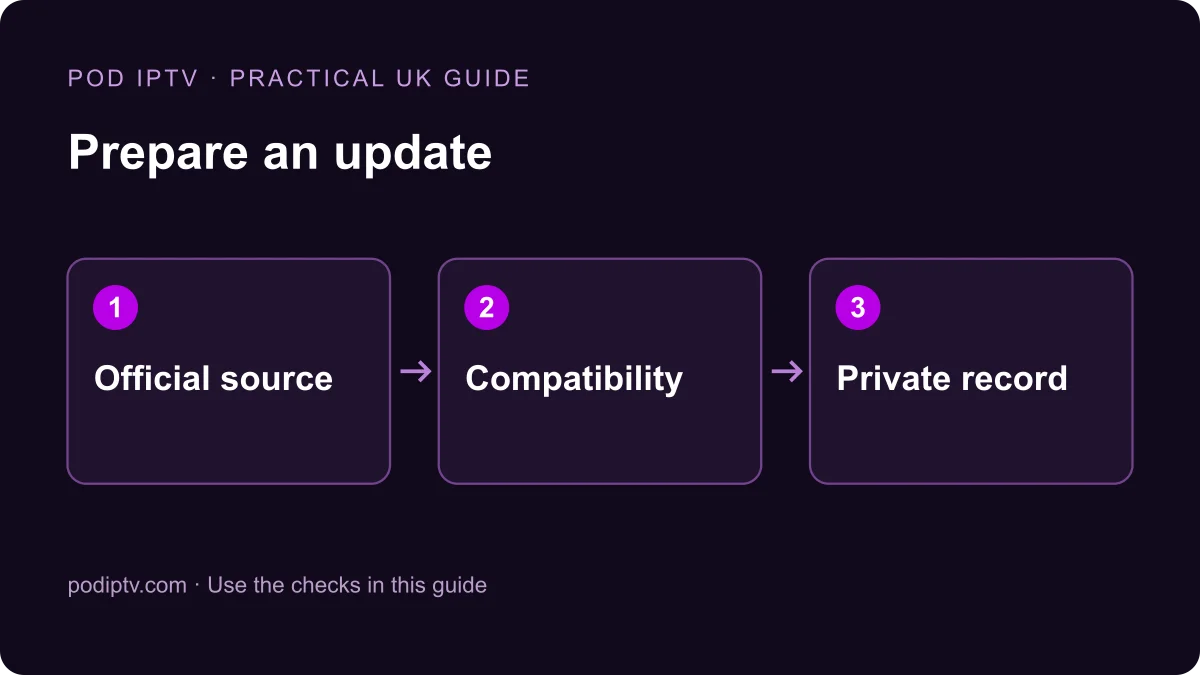
Check 1: verify the source of IPTV app updates
Use the official app store for your platform or the developer's verified distribution route. Compare the developer identity and product name with the app you already use. A familiar logo is not enough to establish authenticity. Avoid random download mirrors and promotional pages that ask for private service credentials to provide an installer.
Google's Android app update guidance explains supported update controls through Google Play. Those instructions apply to the relevant platform rather than every television. For an app distributed differently, consult its actual developer instead of assuming that a phone's procedure also applies to a streaming device.
Check 2: read compatibility information before IPTV app updates
Look for supported operating systems, minimum versions and model restrictions. An update offered to a phone may not be offered to an older television. An app's newest release is not necessarily installable on every device carrying the same broad platform label. Confirm the version appropriate to your exact hardware.
Read release notes when available, especially if the upgrade changes login, backup or playback settings. Do not infer a promised fix from a vague description such as improved performance. If you are updating to address a specific fault, keep the original symptom and error text so that you can test whether the new version actually changes it.
Check 3: prepare your settings before IPTV app updates
Keep a private record of the account format, relevant preferences and current app version. Use a supported backup function if the player provides one, but check what it includes. A favourites export may not include account details; an account record may not restore guide settings. Treat any exported file containing credentials as private.
Do not paste passwords into public notes or attach an entire backup to a support post. Record the visible setting names separately from secrets. If the player stores data only locally, ask its developer about recovery before a major upgrade. Preparation matters most when you cannot easily recreate a household's customised setup.
Check 4: leave space and use stable power
Check available device storage and any requirement shown by the installer. Remove clearly unnecessary material through supported controls if needed. Distinguish temporary cache from saved app data so that you do not delete the setup you are trying to preserve. An installation-space warning deserves a storage check, not an account-password change.
Use stable power and a reliable connection while the upgrade runs. Follow the device's progress screen instead of repeatedly closing it because it takes longer than expected. Do not interrupt an installation deliberately unless the official recovery procedure calls for that action. The appropriate response to a stalled update depends on the platform.
Check 5: perform one supported upgrade at a time
Close ordinary playback and start the update through the verified route. Note the version before and after. If the update also requires accepting new terms or granting new permissions, read those requests rather than clicking through automatically. Grant only permissions relevant to the functions you intend to use.
A major operating system change can interact with a player update. Where possible, separate those tasks and test between them. That makes a new problem easier to describe. Avoid downloading multiple alternative installers during the same test, because it becomes unclear which app is actually running and which source supplied it.
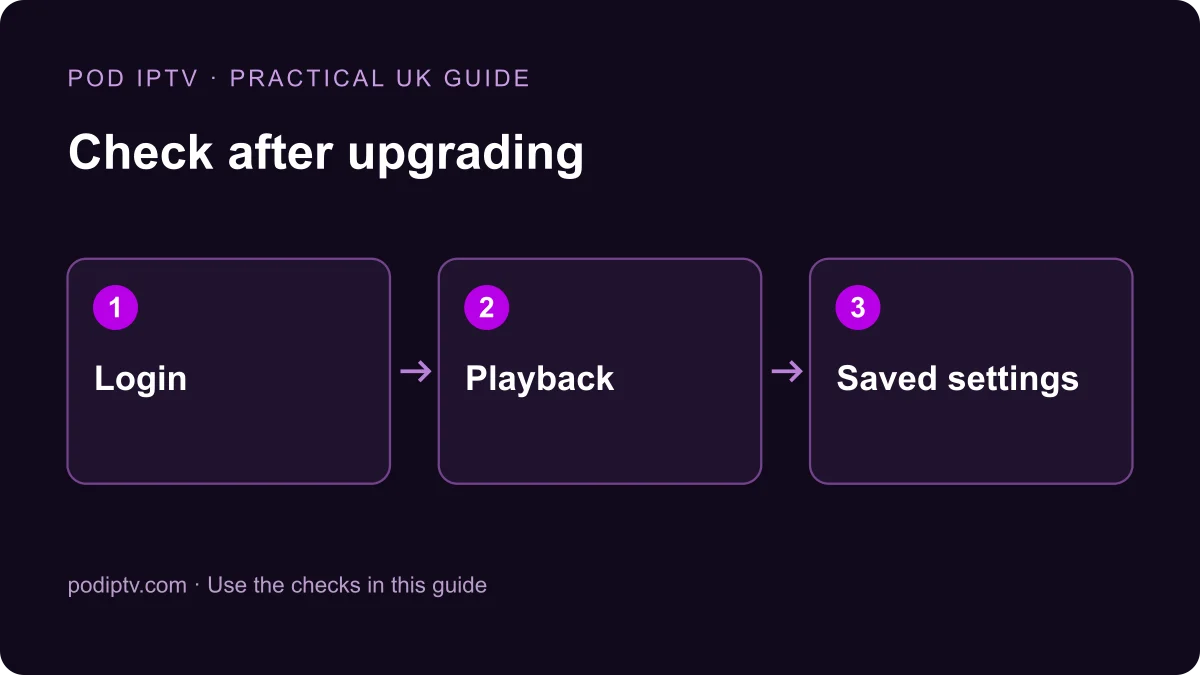
Check 6: test the essentials after IPTV app updates
Open the app and confirm the account still appears correctly. Test one working live programme, one permitted on-demand item where available, the guide and ordinary navigation. Check sound, favourites and any controls the household relies on. A redesigned menu can hide a setting without deleting it, so inspect before re-entering information.
Repeat the original fault test using the same programme and device conditions where practical. Record whether the error changed, disappeared or remained. If casting, accessibility or recording is important to your setup, test that supported feature separately. A successful basic stream does not prove that every advanced function is unchanged.
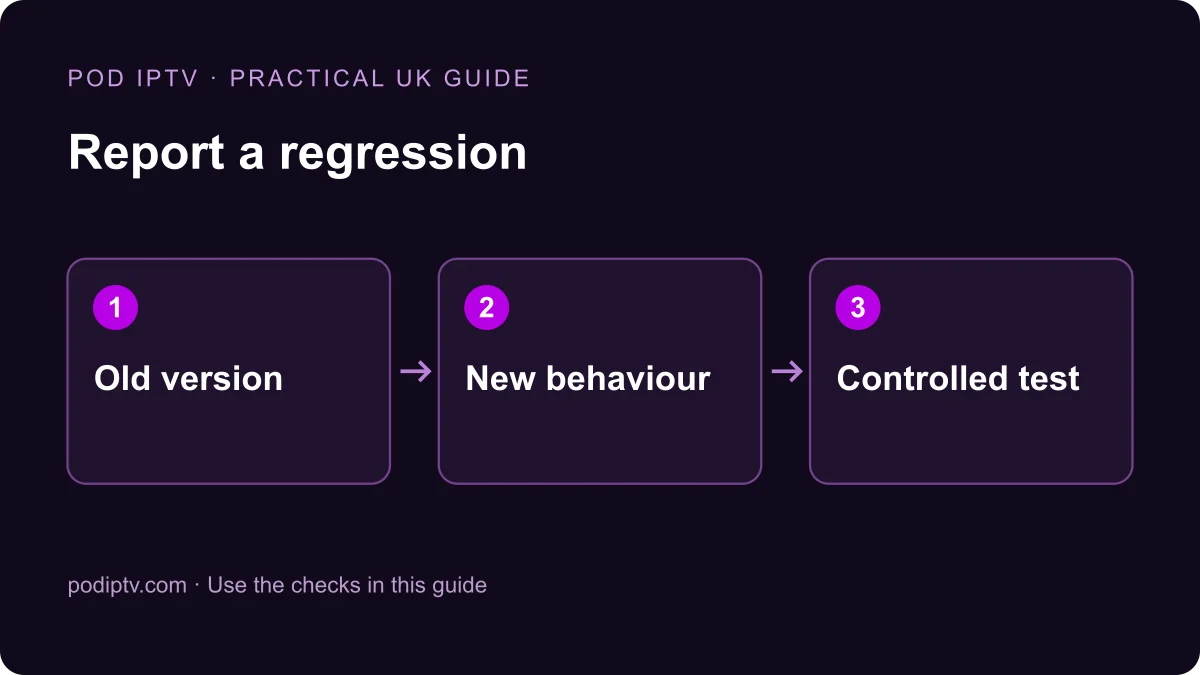
Check 7: report a regression clearly
If a previously working function fails after the upgrade, note the old and new app versions, device model and exact sequence. State what still works. A report that distinguishes “guide opens but selecting a programme fails” from “app cannot start” gives the developer a much clearer investigation path.
Use the official developer's support channel for app regressions and POD IPTV support for account questions. Share only the minimum relevant evidence. A redacted error screenshot can be useful; a full account export is usually unnecessary. Do not assume that every update-related fault belongs to the service account.
Avoid unsafe rollback shortcuts
Installing an older version from an unknown site can introduce a new risk and may not be compatible with current app data. If rollback is supported, use the developer's documented route and review its consequences. Do not disable device protections simply because an unrelated tutorial recommends it.
Ask whether the current release has a known issue and whether a supported fix is available. Reinstalling can remove local settings, and restoring a backup from another version may not work. Keep your current evidence before attempting recovery so that support can understand the original failure rather than a mixture of later changes.
Choose a realistic routine for IPTV app updates
Review update availability regularly through trusted controls. Automatic updates can be convenient where the platform supports them; manual review can help you understand a major change. Choose a routine that fits the device and does not leave software abandoned indefinitely. The goal is maintained software with informed testing, not repeated upgrades for their own sake.
For a shared television, tell other users when controls or menus change. A short note about the new route to the guide can prevent confusion. Keep the installation guide available for the correct device category. Avoid keeping several unused player copies just because each was installed during an earlier comparison.
Keep app maintenance separate from plan decisions
Use the current pricing page for account options rather than treating an app's paid upgrade screen as a service renewal. A third-party player licence and a prepaid service plan can have different terms. Confirm which product a payment actually activates.
A 24-hour trial request, when available, can help evaluate a supported player on your own device. It does not promise that a particular update fixes every issue. Test the relevant functions and choose a setup whose official support and maintenance route you understand.
IPTV app updates questions
Do IPTV app updates renew my account?
No. App software and service access are separate. Check account expiry and current plan details through the verified service route.
Should I clear all data before updating?
Not routinely. Follow the developer's instructions and protect private setup details first. Clearing app data can remove useful local accounts and preferences.
Can I use any website offering a newer installer?
Use a verified official source. Similar names or copied logos do not prove that a download belongs to the developer of your current player.
What should I test after IPTV app updates?
Check basic playback, sound, guide information, navigation and the supported features your household uses. Repeat the original problem test and record the result with the new version.