IPTV Playlist Refresh: 6 Easy Checks for Better Listings
By POD IPTV · Updated 10 October 2026 · 8-minute read
An IPTV playlist refresh asks a player to update the listings supplied through your account. It can help with stale channel names or catalogue information, but it is different from refreshing the programme guide, renewing access or updating the app. Knowing which task you are performing prevents unnecessary account resets and lost preferences.
This guide explains a careful refresh workflow for UK viewers. Menus vary by player, so use the documented controls for your app and login format. The aim is to check current listings while preserving a working setup and collecting useful evidence if information remains incorrect.
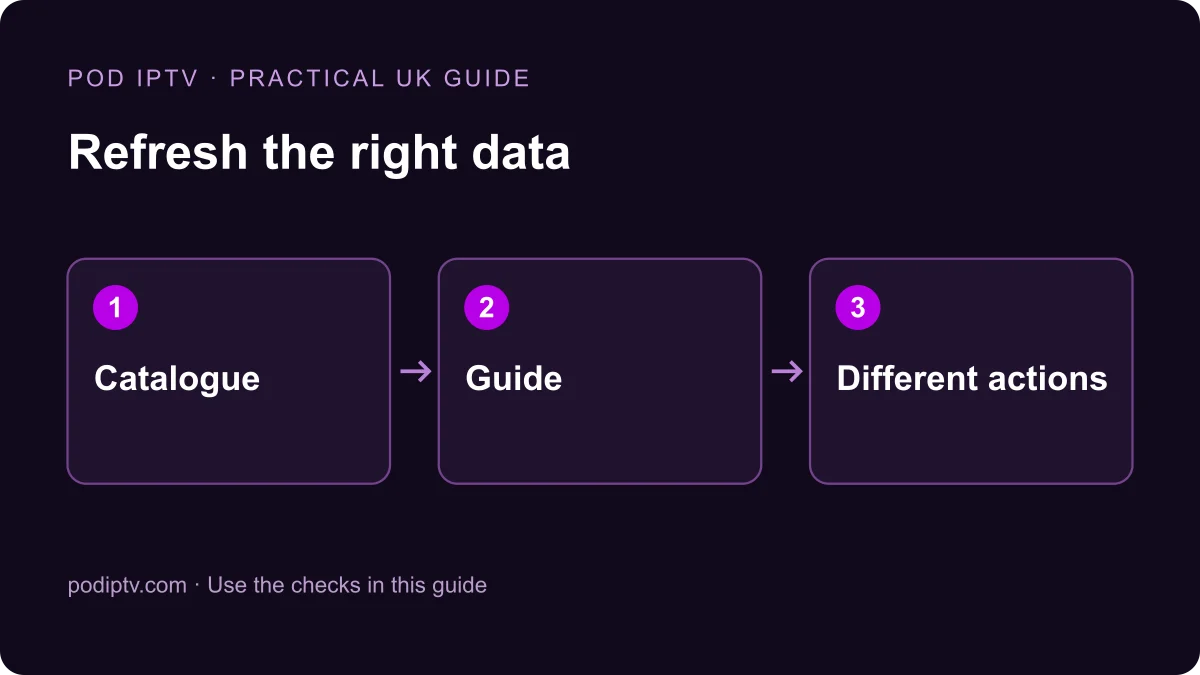
The playlist or account catalogue identifies available entries and groups. The electronic programme guide describes schedules associated with channels. App software provides the interface that displays both. A listing update may change the catalogue while leaving programme timing unchanged. A guide update may improve schedules without adding a missing channel.
Write down the symptom first. Is a category missing, a channel renamed or a schedule blank? If a programme is visible but fails to play, that is a playback observation rather than simply an outdated listing. Describe the specific problem before choosing a refresh action.
Choose the update that matches the symptom
Symptom
Relevant check
Separate task
Old channel or group names
Account listing refresh
App software upgrade
Blank or outdated schedules
Guide source and refresh
Service renewal
App menus behave incorrectly
Player version and developer support
Catalogue availability
Expired access
Account status
Repeated listing refreshes
Check 1: confirm the source for IPTV playlist refresh
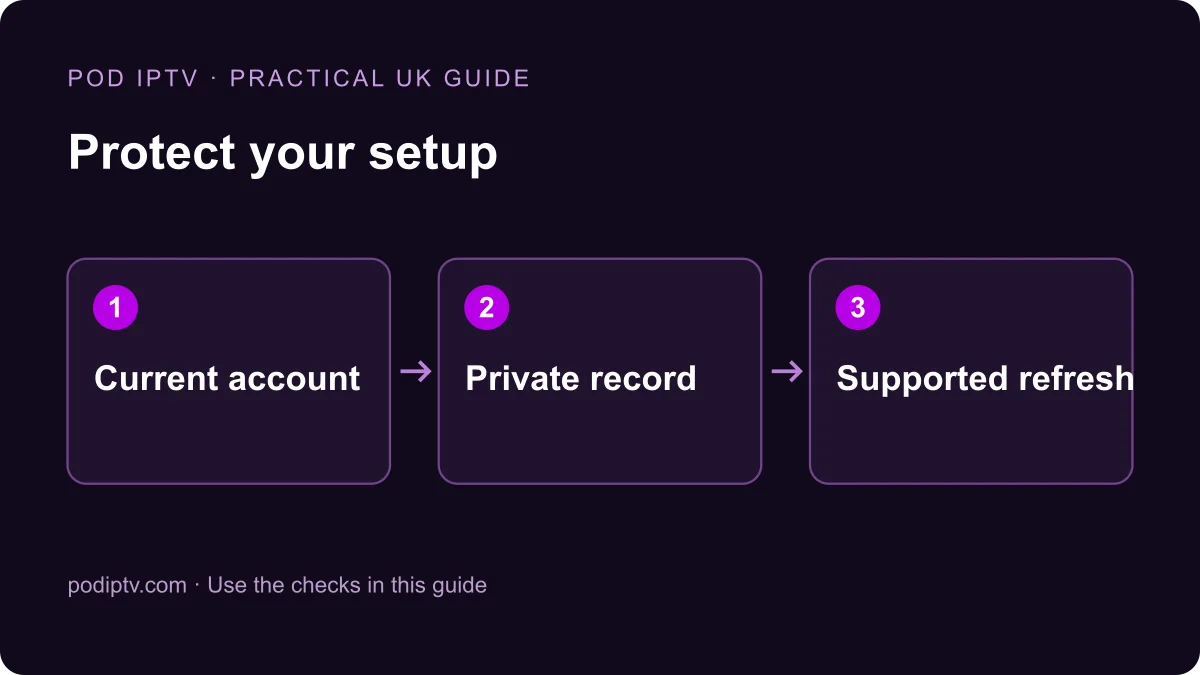
Inspect the player account that contains the affected listing. Some apps can hold several accounts or sources, so make sure you are updating the right one. Identify whether it uses an account login, a supplied playlist address or another supported format. Do not convert formats merely because a tutorial uses a different option.
Keep the server address and login details private. Check them against your original account information if the app reports an authentication failure. A refresh cannot retrieve current information from an incorrectly entered source. Avoid repeatedly changing credentials when the actual problem is selecting the wrong account within the app.
Check 2: preserve preferences before IPTV playlist refresh
Note important favourites, hidden categories and custom ordering. Ask the developer how these relate to refreshed source entries. Some personal settings can depend on identifiers supplied by the catalogue, so a renamed or replaced entry may behave differently after an update. Do not assume that every refresh preserves every preference identically.
Use a supported backup where available and protect any private export. A simple non-secret list of important favourites can also be useful. Avoid clearing app data before an ordinary refresh unless official instructions specifically require it. Removing the whole configuration is a much broader operation than requesting current listings.
Check 3: run one supported IPTV playlist refresh
Use the account or playlist refresh control documented for your player. Confirm that you are not pressing an unrelated guide or software-update button. Allow the operation to finish before repeating it. A visible progress indicator or completion message can help you record whether the request actually ran.
Keep the internet connection stable during the request and note any error text. If the app provides a last-updated time, record it. Repeatedly pressing refresh while a request is already running can obscure what happened. One deliberate attempt with a clear result is more useful than a series of unexplained button presses.
Check 4: compare the relevant listings
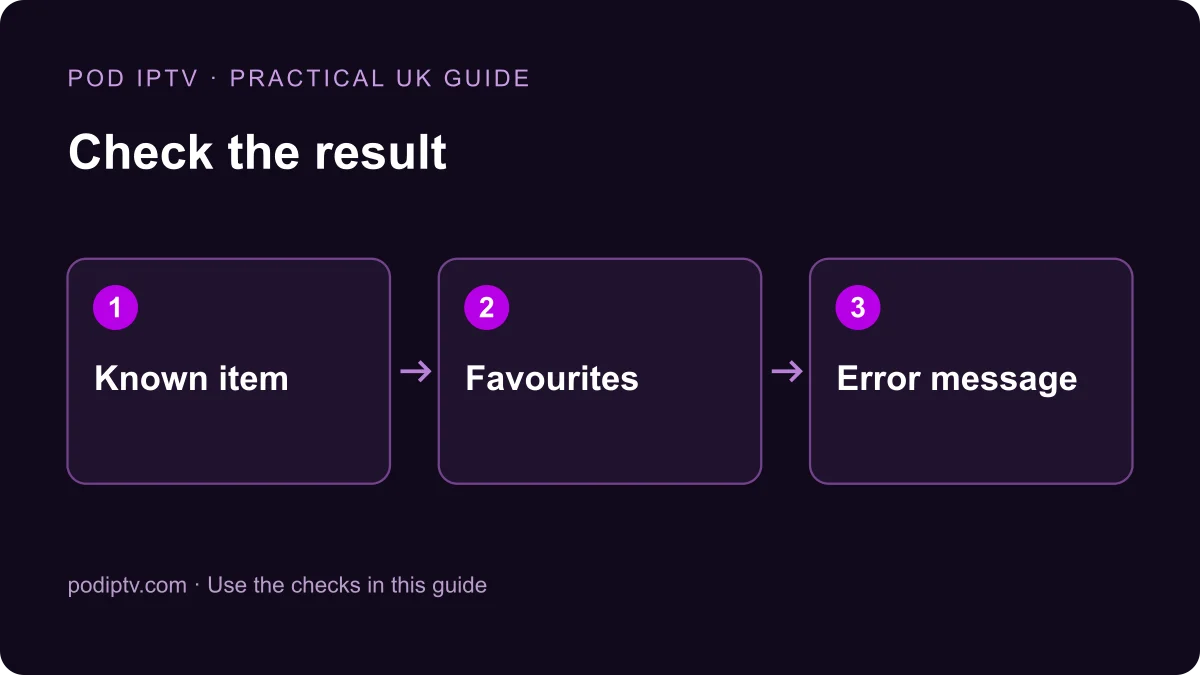
Return to the affected group and inspect the exact entry you were investigating. Clear temporary search filters and check hidden categories before concluding that an item is absent. A refreshed listing can still be concealed by a personal filter or category setting. Compare the underlying group with a saved favourite where practical.
If a channel was renamed, search using a short distinctive name rather than an entire old label. Do not claim that a missing entry must be restored: availability can change and needs confirmation through service support. A successful refresh shows that information was requested, not that every desired programme is supplied.
Check 5: separate the guide from IPTV playlist refresh
After updating listings, check whether the programme schedule is the actual remaining problem. Use the player's guide controls where supported and confirm the guide is associated with the correct account. A renamed entry may need an appropriate guide match, but that is different from renewing access or reinstalling the app.
If schedule times are consistently shifted, inspect the device clock and guide offset rather than refreshing indefinitely. If only one channel lacks data, compare other channels and report the narrow gap. Not every supplied entry necessarily has complete programme information. Keep conclusions tied to what the app actually displays.
Record the player version, device, account format, request time and exact error. State whether ordinary playback works and whether other categories updated. Include the old and expected listing names without sharing a private playlist address. This helps support distinguish authentication, catalogue and local-interface problems.
If another supported player already exists, compare sequentially within the account allowance. Do not install several apps and leave them all playing to test a listing issue. Contact POD IPTV support for account information and the developer for an app-specific refresh failure.
Keep catalogue expectations realistic
A refresh is a request for current information, not a method for unlocking content. It does not promise that a particular event, language or on-demand title will appear. Confirm important availability with the service before choosing a plan. Treat a current catalogue and a useful programme guide as separate things to evaluate.
If an entry exists but fails to play, test another permitted programme and record the playback error. If all entries disappear after a failed login, focus on access and source details. These observations lead to different investigations. Avoid using refresh as a substitute for reading the error on screen.
Choose a sensible refresh routine
Use automatic or scheduled refresh only where the player supports it and you understand its behaviour. Some apps update information at startup; others offer manual controls. Follow the developer's guidance instead of setting aggressive intervals copied from another app. More frequent requests do not guarantee a more complete catalogue.
For example, the official TiviMate website provides its own product and support route; similarly named third-party websites should not be treated as the developer. Whatever player you choose, keep the supported maintenance route available and note changes after significant app updates.
Check preferences after the refresh
When investigating IPTV playlist refresh results, keep a small before-and-after record of the affected category. Note the old label, the new label and whether the source entry plays. If a favourite remains attached to an obsolete entry, explain that difference to support rather than reporting that the entire catalogue has vanished. A personal shortcut and a current source entry can have different states.
Consider a household that hides a language group during initial setup. Later, a programme in that group may not appear in the visible list despite a successful update. Reviewing the intentional visibility setting is more appropriate than deleting the account. If the group is correctly visible and the entry remains absent, ask about current availability. This sequence preserves useful preferences while producing evidence about the actual catalogue rather than the appearance of a filtered screen.
Inspect favourites, hidden categories and guide associations after meaningful catalogue changes. Remove only obsolete personal entries you understand. If a favourite no longer points to a working listing, compare its source entry before rebuilding the entire favourites collection. A narrow repair can preserve the rest of the household's organisation.
Keep a short note when you change manual category settings. A later refresh cannot explain every hidden item if the user has deliberately filtered the list. Clear communication between household users prevents one person's preference from being mistaken for a service-wide missing category.
Test listings on your own setup
Use the installation guide for the appropriate device route. If an available 24-hour trial is suitable, check the categories and ordinary refresh behaviour you intend to use. Verify important programmes during the test rather than relying on a catalogue headline alone.
Compare the current prepaid plans separately from app maintenance. A listing update does not change price, duration or simultaneous-screen allowance. Understanding that separation makes both troubleshooting and plan decisions clearer.
IPTV playlist refresh questions
Does IPTV playlist refresh update the TV guide too?
That depends on the app. Listings and schedule data are separate, even if one interface offers a combined update. Check what your player's control actually refreshes.
Will it restore expired access?
No. Confirm account status through the service. Repeating a refresh does not renew a prepaid plan.
Should I delete the account first?
Not for an ordinary update. Use the supported refresh control and preserve settings before considering any broader reset.
What if IPTV playlist refresh finishes but an item is missing?
Check filters, hidden groups and the correct account. Then ask support about current availability; a completed request does not guarantee every desired entry.