IPTV Audio Delay: 7 Practical Fixes for Better Lip Sync
By POD IPTV · Updated 10 October 2026 · 8-minute read
IPTV audio delay means the sound and picture do not arrive together. A speaker's mouth may move before you hear the words, or the words may arrive first. The cause can sit in the programme, player, television or sound system. This guide shows how to isolate that path without applying a large offset to every programme.
Choose a scene with a clearly visible person speaking and ordinary dialogue. Rapid camera cuts, voice-over narration and subtitles can make timing difficult to judge. Note whether sound is early, late, drifting gradually or becoming wrong after a pause.
A constant offset suggests a different test from a delay that increases over time. Stuttering sound accompanied by frozen video may be a playback or connection issue rather than a simple lip-sync setting. If only the text is late while speech matches the picture, investigate the subtitle track separately.
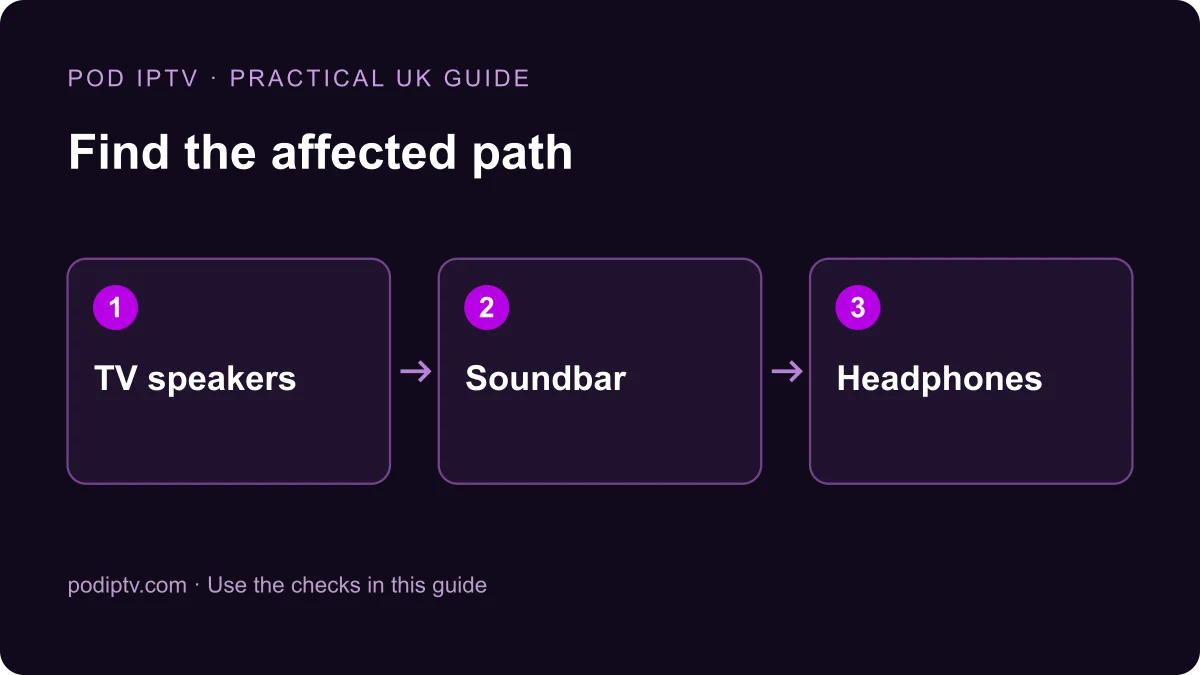
Write down the device, app, programme and audio output. The television's built-in speakers, a Bluetooth headset and a soundbar are different signal paths. That record makes it easier to recognise which part changes the result.
Fix 1: compare another programme
Before changing settings, try a second programme in the same app. If the timing fault is limited to one channel, episode or film, a global adjustment could make working content worse. Report that specific item and leave the general settings unchanged initially.
For a live stream, stop and reopen playback once. Then compare another available channel. For an on-demand item, replay the same short spoken scene. Keep the sound output constant during this first comparison so that you are changing only the programme.
If IPTV audio delay appears on every item, widen the investigation to the player and sound path. If it occurs only on one item across devices, that is useful evidence for support, although it is still not a complete diagnosis.
Fix 2: test IPTV audio delay without external speakers
Switch to the television's built-in speakers using the device's normal audio menu, where available. Repeat the same scene. If timing improves, compare the external sound path: a headset, soundbar, receiver or wireless speaker may add processing or transport delay.
Do not disconnect a complicated audio system before noting its current arrangement. A reversible menu change is preferable for the first test. Check that you have selected the intended output rather than playing through two outputs simultaneously.
Comparing audio paths for lip-sync problems
Test
What changes
What the result helps identify
Built-in television speakers
Removes an external sound path
Whether external audio contributes
Wired headphones where supported
Removes a wireless headphone link
Whether that link affects timing
Soundbar or receiver
Uses the normal external system
Whether its settings or connections matter
A second programme
Changes the content only
Whether the fault is programme-specific
Fix 3: check supported sound calibration
Some devices provide calibration for particular audio arrangements. Apple's Apple TV audio calibration guidance describes Wireless Audio Sync using a compatible iPhone for supported wired and wireless speaker setups. It is a device-specific feature, not a universal repair for every IPTV programme.
Read the current instructions for your exact model before starting calibration. Confirm the speaker arrangement and follow the supported procedure. If your device does not provide that feature, do not try to imitate its menus using instructions for another operating system.
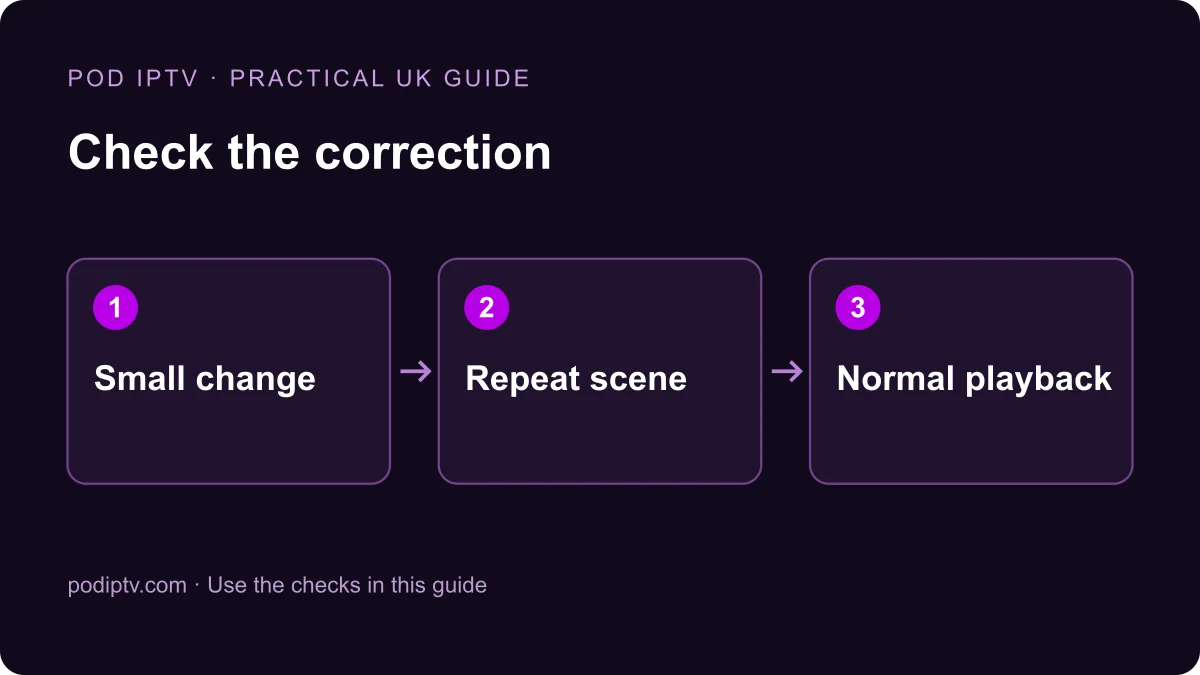
After any calibration, test the programme that failed and one that previously worked. A change should improve your actual viewing arrangement, not merely complete a setup screen. Keep a note of what you changed so that you can reverse it if necessary.
Fix 4: use a small player offset only when justified
If the player offers an audio offset, first note its original value. Make a small adjustment and replay the same short scene. Different players describe positive and negative values differently, so judge the visible and audible result instead of relying on the sign alone.
Use an offset for a consistent timing difference. If IPTV audio delay grows gradually, repeatedly adding more delay can hide the symptom briefly without correcting the underlying playback issue. Restore the initial setting and investigate the player or content instead.
Check whether the offset is per programme, per playlist or global. A per-item option is useful when only one file is affected. A global setting deserves a wider check across several programmes before you keep it.
Fix 5: review television and sound-system processing
Televisions, receivers and soundbars can expose lip-sync or processing settings. Inspect the manufacturer's current instructions and note the original values. Avoid changing every enhancement, audio format and delay setting together, because that makes the outcome difficult to interpret.
A control labelled audio delay often delays sound further. If sound already arrives late, more delay may be the wrong direction. Some arrangements instead need a different supported processing option or video adjustment. The specific device documentation is the authority for what its controls do.
Connection choices also matter. Sound routed through the television to a receiver follows a different route from sound connected directly to an audio device. Change the arrangement only where supported and safe, and keep a clear record of the comparison.
Fix 6: compare IPTV audio delay between players
Check the player's version and apply a supported update from its official distribution source if appropriate. Close other apps and reopen the programme. A normal restart is a reasonable comparison; a factory reset is a disruptive step that should not be the first response to a timing fault.
If you already have another trusted compatible player, compare the same programme on the same device and audio output. Close the first stream before opening the second and stay within your connection allowance. A different result can point towards app behaviour or compatibility.
Use the installation guides to confirm the supported account format. Do not install an unknown player from a public message solely because it promises to fix IPTV audio delay.
Fix 7: separate unstable playback from constant delay
If sound and picture stutter together, compare another programme and the device's connection. Watch whether the timing becomes wrong after buffering or after pausing. A repeated pause-and-resume fault is useful information for the app developer or service support.
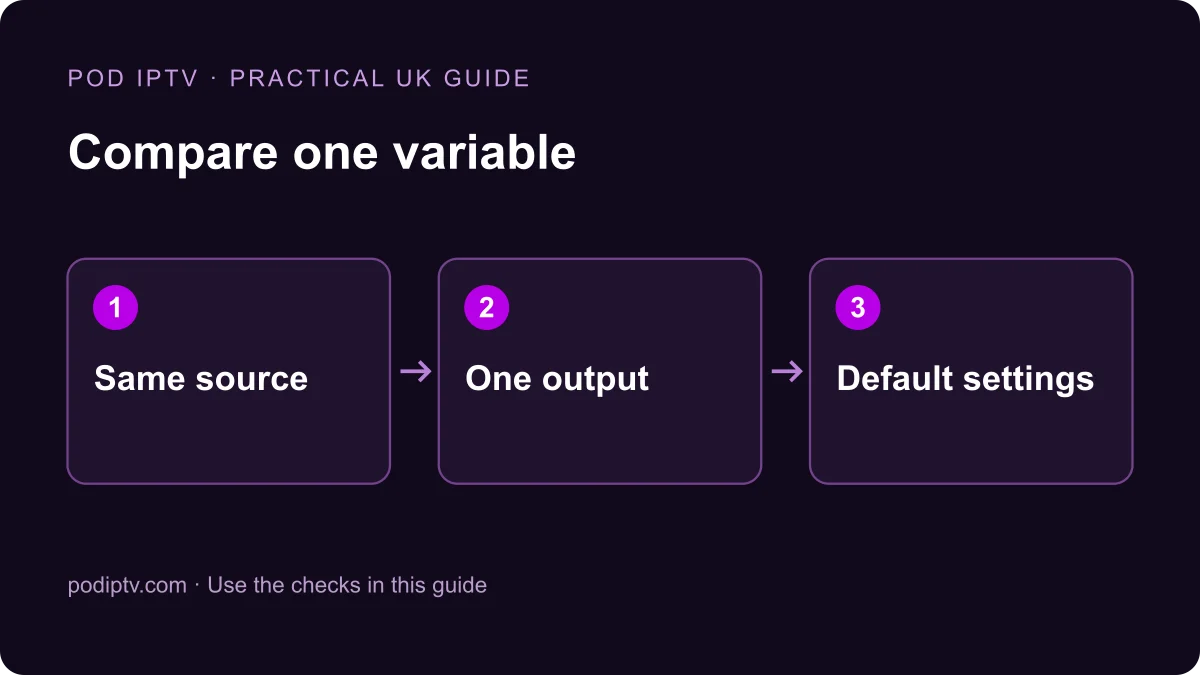
Test one variable at a time: programme, audio output, player or network. A cable comparison can help with an unstable wireless path where your device supports Ethernet, but it does not guarantee a solution to a fixed lip-sync offset.
Describe the result precisely. “Sound arrives late after every pause on this episode” is more useful than “the quality is bad.” Include approximate timing if you can judge it, but do not present a guessed millisecond measurement as an exact diagnostic result.
Keep a clear IPTV audio delay test record
A short record for audio troubleshooting
Detail
What to record
Content
Channel or exact film, season and episode
Fault direction
Sound early, sound late or increasing drift
Audio route
TV speakers, headset, soundbar or receiver
Comparison
Another programme or output and its result
Settings changed
Original values and the single change tested
Do not include passwords or complete playlist links in a public troubleshooting post. Screenshots of settings can be useful after checking they do not reveal account information. Keep your original values until you know which change is worth retaining.
Check sound during the trial
A 24-hour IPTV trial request is an opportunity to test your ordinary speaker arrangement and programmes. Check dialogue, normal playback and one pause-and-resume cycle on the screen you intend to use. A trial on a phone cannot establish how a separate television and soundbar behave together.
Once the setup suits you, compare current POD IPTV plans. Subscription duration does not change the television's audio processing. If timing remains wrong, send the recorded details to POD IPTV support before assuming a longer plan will solve it.
IPTV audio delay questions
Why does IPTV audio delay happen only with my headset?
The headset connection or its processing may contribute. Compare the same programme through built-in speakers or a supported wired output to isolate that route before changing the service account.
Should I add a large audio offset?
Start with a small reversible change only for a consistent difference. Check the direction and scope of the setting. A large global offset can make other programmes worse.
Can buffering cause a timing problem?
Playback interruptions can accompany sync problems in some arrangements. Record whether the issue begins after pauses or buffering and compare another programme and player.
Does subtitle delay fix sound?
No. Subtitle timing and audio timing are separate. Identify whether the sound is out of sync with the picture before touching subtitle controls.
When should I contact support about IPTV audio delay?
When a specific item fails across controlled comparisons, or when supported app and output checks do not resolve it. Include the exact programme, player version, audio route and the results you observed.