IPTV Backup: 7 Essential Checks for Safer Settings
By POD IPTV · Updated 10 October 2026 · 8-minute read
An IPTV backup can save time when a player is reinstalled or a device is replaced, but only if the app supports a useful export and restore process. A saved file is not automatically complete, compatible or safe to share. Understand what it contains before relying on it to recover a carefully organised viewing setup.
This guide focuses on personal settings and private account recovery. It does not recommend copying protected programmes or distributing subscription details. Your player, service account and device settings may each need a different recovery method. Keep those boundaries clear and test the supported route before deleting a working installation.
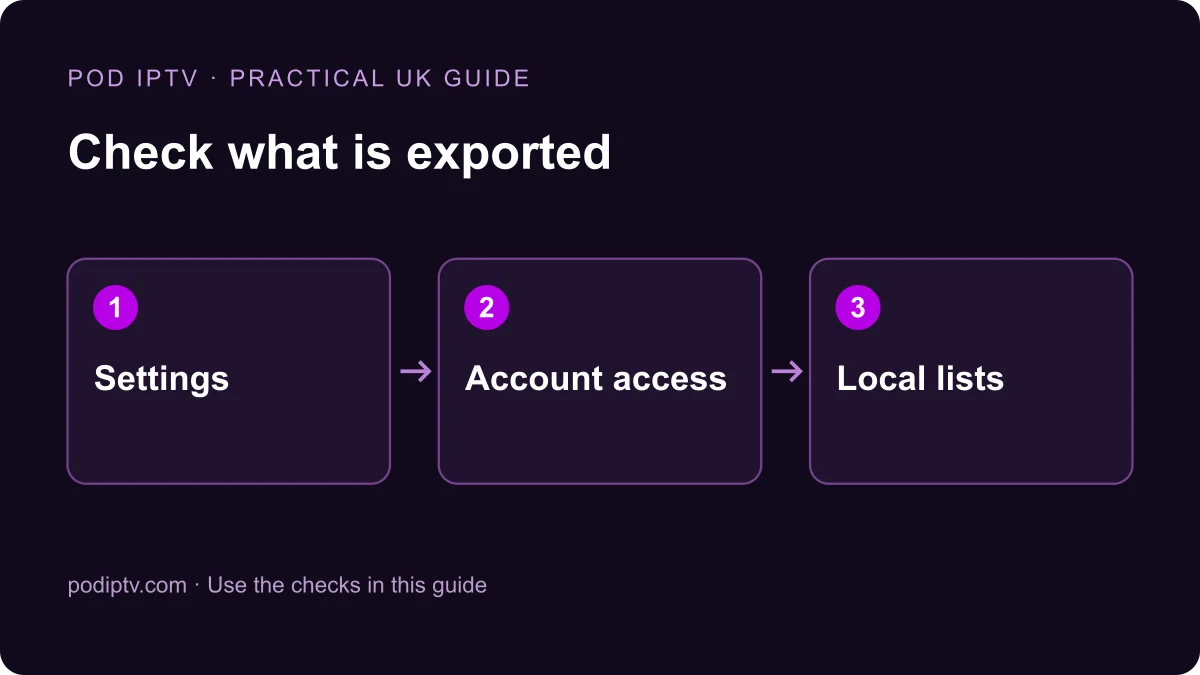
Start with a short list of the things you would find difficult to recreate: favourites, category order, guide choices, parental controls and account configuration. Some of these may be stored in the player; others may belong to the operating system. A player export cannot be assumed to include television sound settings or a device's wireless configuration.
Distinguish recovery information from access itself. A configuration file may help recreate an app, but it does not extend an expired account or transfer a player licence automatically. If a device is lost, you may also need to review active sessions and stored credentials. The backup is one part of recovery, not a universal replacement for account support.
Information to check in a supported backup
Information
Possible location
Question to answer
Channel favourites
Player data
Are order and folders included?
Login configuration
Player or private account record
Does the export contain secrets?
App activation
Developer account
Is licence recovery separate?
Device settings
Operating system
What must be configured again?
Check 1: confirm IPTV backup support
Read the player's current official help or inspect its documented export controls. Features can differ by platform, version or paid app tier. If no supported backup exists, make a private recovery checklist instead of installing a random utility that claims to extract every account. Do not assume a tutorial for another player applies to yours.
Look for a description of the exported categories and restore requirements. A file labelled playlist can mean a list of sources rather than a complete settings backup. A favourites export may be much narrower still. Record the app's terminology so that you know what a saved file is intended to do.
Check 2: check the contents of an IPTV backup
Assume an account-related export could contain private information until the developer says otherwise. It may include server addresses, usernames, passwords or other access details. You do not need to publish or inspect raw secrets to confirm that a file should be protected. Treat it with the same care as other private account material.
Keep a separate non-secret inventory of what you expect to recover. For example, note that your app has several favourites groups and a particular guide preference without copying credentials into a shared document. That inventory lets you check the restore later while reducing unnecessary exposure of private access information.
Check 3: choose a private storage location
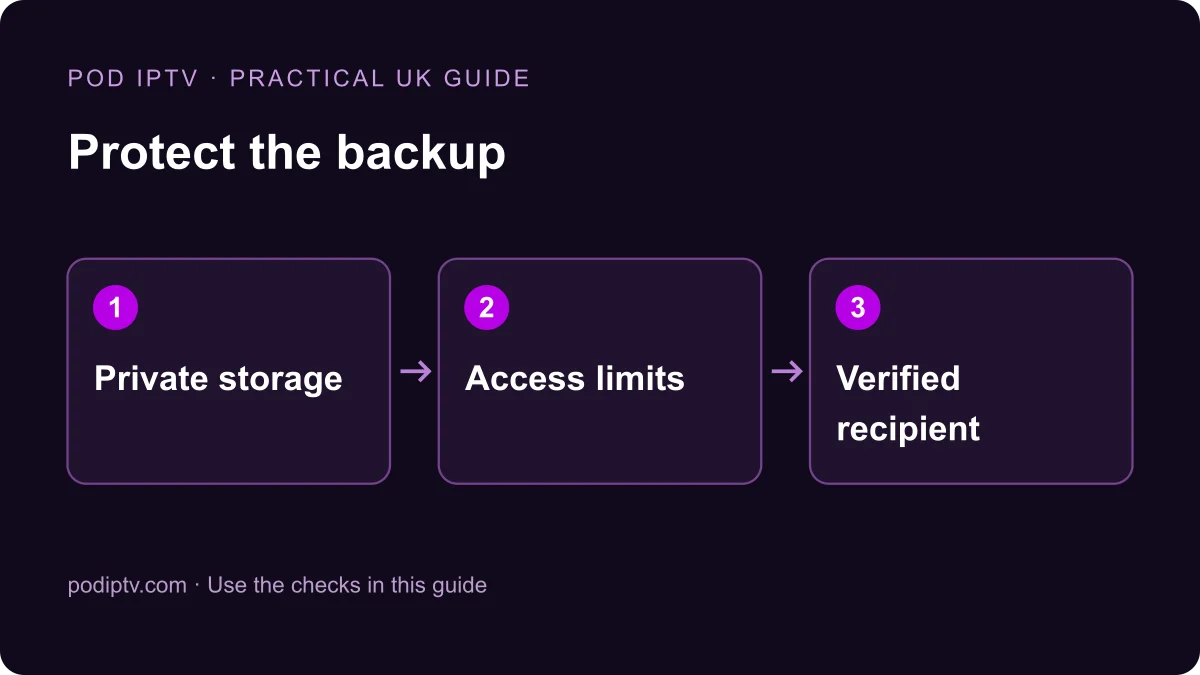
Use a trusted location with access controls appropriate to the file's sensitivity. Avoid public download links, shared household folders with unrelated users or support forums. If you use cloud storage, check who can access the folder and whether any link sharing is enabled. A convenient transfer method is not necessarily a private one.
The NCSC's personal backup guidance explains the value of protecting important data and having a recoverable copy. For a player export, combine that general principle with the developer's format requirements. Keep the file separate from the device whose failure you are preparing for.
Check 4: label the IPTV backup clearly
Use a filename or private note that identifies the date, app and version without embedding a username or password. Include the originating device model in the accompanying record. Several anonymous files called backup can become confusing, especially after app updates. Clear labels make it easier to choose a compatible restore candidate.
Do not overwrite your only known recovery copy before checking the new one. Keep a manageable number of recent versions according to your needs and the player's compatibility rules. More copies are not automatically better if they contain old credentials and are scattered through insecure folders. Review their usefulness and privacy together.
Check 5: verify restore compatibility
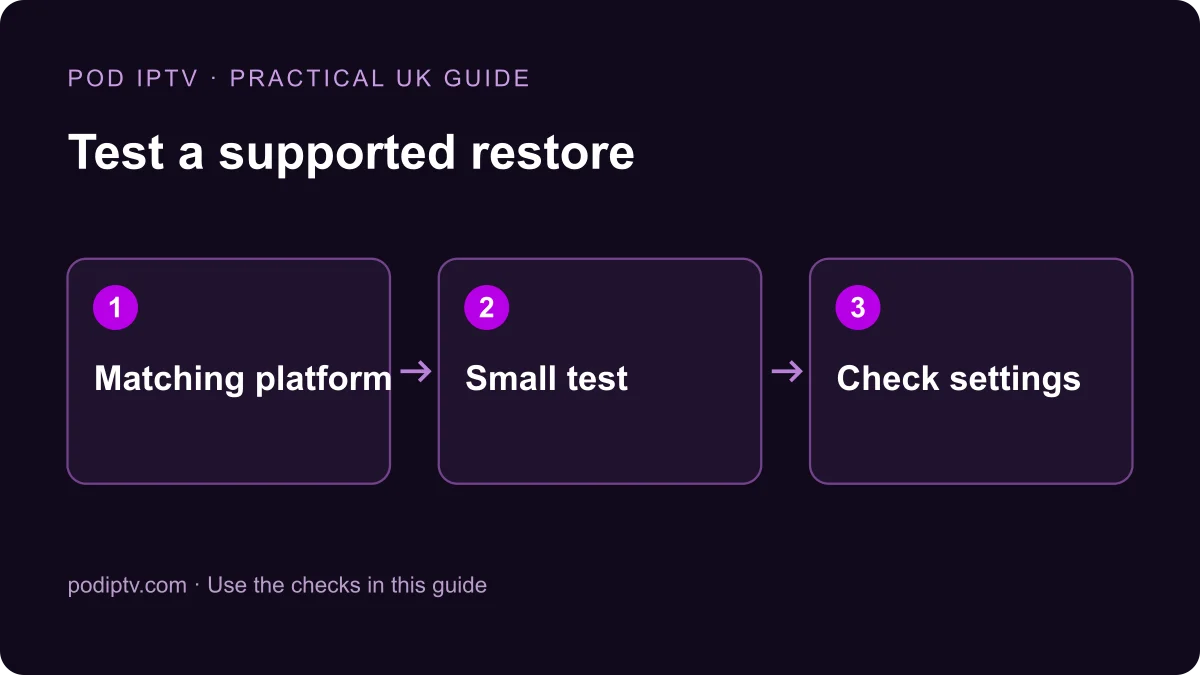
Ask whether the target app version and platform support the exported format. Moving from a television player to an unrelated phone app usually cannot be treated as a direct settings restore. Even releases of the same player can have compatibility conditions. Use explicit developer guidance rather than guessing from a matching file extension.
Check account and licence requirements separately on the new device. A restored player may still require supported activation or a valid service login. Do not interpret those prompts as proof that the backup failed. They may belong to a different part of the setup that the exported settings were never intended to include.
Check 6: test an IPTV backup safely
Where practical, test the supported restore without erasing the original working setup. Follow the app's documented process and protect existing target settings first. Stop unnecessary playback sessions during the test so that account connection limits do not confuse the result. A restore test should isolate recovery, not introduce a simultaneous-screen problem.
Check the app opens, the intended account is present and a permitted programme plays. Then compare favourites, category order and guide preferences with your non-secret inventory. A successful import message is useful, but it is not proof that every feature was restored. Test the particular settings you needed to preserve.
Check 7: maintain the recovery record
Refresh the record after substantial settings changes, a supported app upgrade or a device replacement. If credentials change, review old exports because they may retain previous access information. Keep the newest useful copy labelled clearly and remove obsolete copies through a deliberate process once you no longer need them.
Review where files have been copied during transfers. A backup downloaded to a borrowed computer can remain there after the new device is working. Check temporary locations and shared folders. Do not send a complete export to ordinary support when a redacted error message and app version would answer the question.
Prepare an IPTV backup recovery checklist
Your checklist should name the official installation source, supported login format, app version, backup location and non-secret preferences to inspect. Keep private credentials in an appropriate secure record rather than in the same public checklist. Include the correct support route for app recovery and a separate route for service access.
Think about who will perform recovery if you are unavailable. A household member may need to know where instructions are stored without having unrestricted access to every account. Explain the normal restore route in plain language. A plan that depends on remembering an obscure sequence months later is harder to use than a short documented process.
Recognise what a backup cannot fix
A file cannot repair damaged hardware, add missing programme rights or renew a service plan. It may also restore a problematic preference along with useful ones. If an app fails only after a restore, compare a supported clean configuration before assuming the service account is responsible. Keep the original export unchanged while investigating.
If the file itself cannot be read, report the app versions, platform and exact error. Avoid editing an unfamiliar binary format or renaming files randomly to force an import. The developer is best placed to confirm compatibility. Preserve a copy of the error screen with account details hidden.
Use a supported device route
The POD IPTV installation guide helps identify the appropriate setup category when you move devices. Confirm the player route first, then decide which preferences can be recovered. For account questions, use Contact Us with the relevant device and login-format information.
Check the current plan allowance before running old and new screens together. If evaluating a new setup through an available 24-hour trial, test ordinary operation as well as recovery. A backup process is most useful when the resulting device remains straightforward to use.
IPTV backup questions
Does every player offer an IPTV backup?
No. Check the current app, version and platform. When export is unavailable, a private recovery record can still document supported setup information and useful preferences.
Can I share a backup with another person?
Do not share private account exports. They may contain credentials, and licence or service terms may restrict use. Use only recovery methods appropriate to your own authorised setup.
Will an IPTV backup renew expired access?
No. Restoring settings does not extend service access. Confirm account status separately through the verified service route.
How do I know restoration worked?
Check playback and the preferences you intended to preserve. An import-success message alone does not prove that favourites, guide settings and app activation all behave as expected.