IPTV Black Screen: 8 Easy Checks to Restore Your Picture
By POD IPTV · Updated 10 October 2026 · 8-minute read
An IPTV black screen can mean several different things: the whole television is blank, the player menu works but video does not, or one programme has sound without a picture. Identifying that difference saves time. This guide gives you eight controlled checks so you can investigate the right part of the setup before reinstalling apps or changing your account.
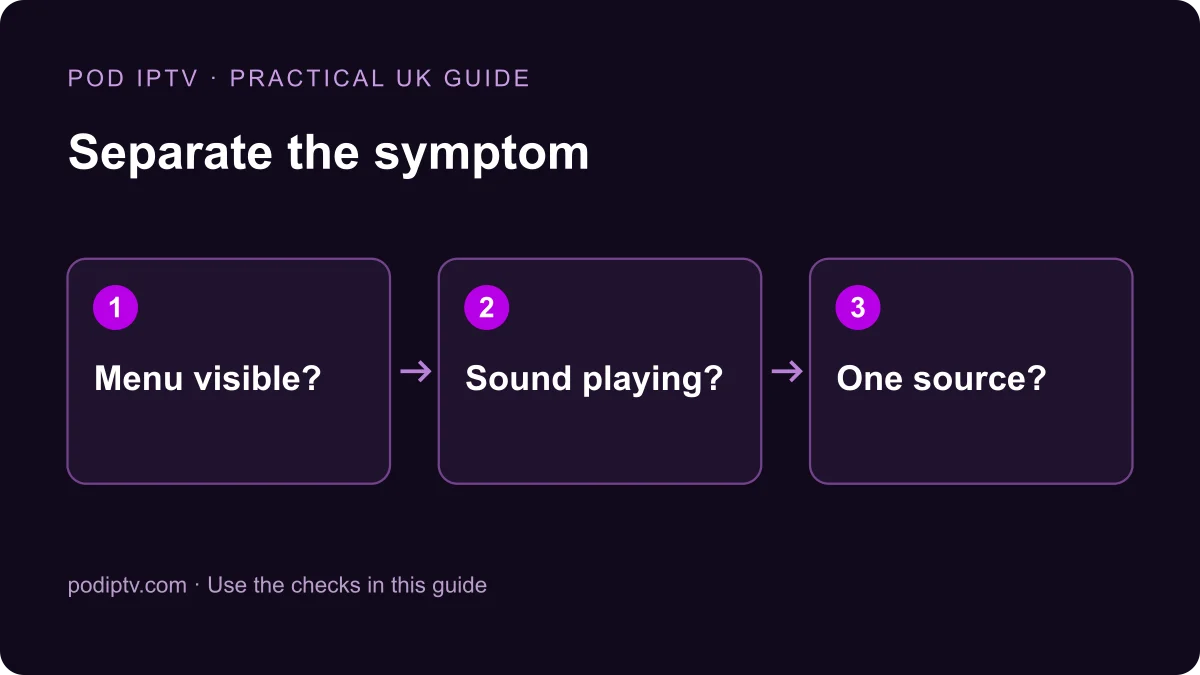
Press the television's ordinary menu control. If its own menu appears, the screen is receiving power and can display at least that menu. Next check whether the streaming device's home screen and the player interface appear. The point at which the picture disappears is the most useful starting detail.
Listen for sound and note whether the screen says no signal, displays a loading symbol or remains completely blank. A no-signal message on a television differs from a black video area inside a working player. Write down the exact visible message rather than describing all of these as the same fault.
Different meanings of a black-screen symptom
What you see
Where to start
First comparison
No television menu
Display and power
Normal power and input checks
TV menu works, box home screen missing
Input and external-device path
Selected HDMI input and connection
Player menu works, every video is blank
Player and playback compatibility
Another supported item or player
One programme is blank
That programme or source
Another programme in the same app
Picture fails only through mirroring
Casting route and content support
Native supported playback
Check 1: select the correct television input
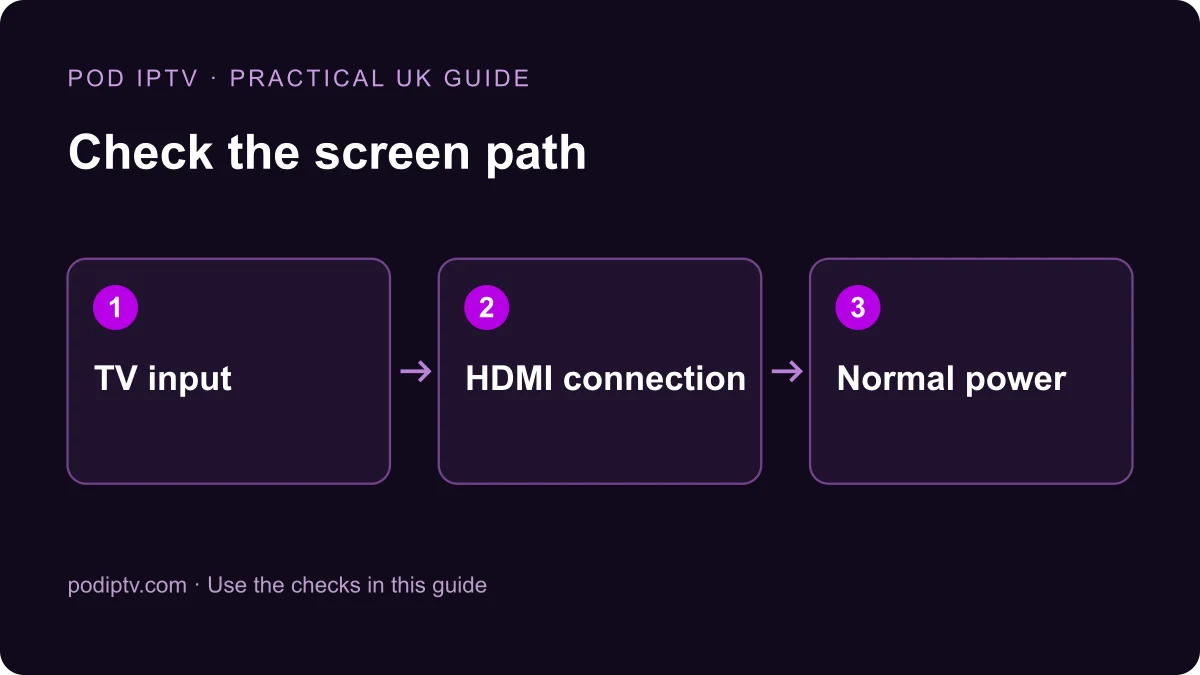
If you use an external box or stick, match the selected television input to the socket where it is connected. A television can show its own menus while displaying the wrong external input. Check the port label physically rather than guessing from a saved input name.
For a player installed directly on a smart television, an HDMI-input check does not apply to that app's video. Return to the smart-TV home screen and confirm whether the app opens. Keeping these two arrangements separate avoids irrelevant troubleshooting.
Do not change display settings blindly while the screen is unreadable. Use the manufacturer's recovery instructions for your exact device if its home screen remains unavailable.
Check 2: compare programmes during an IPTV black screen
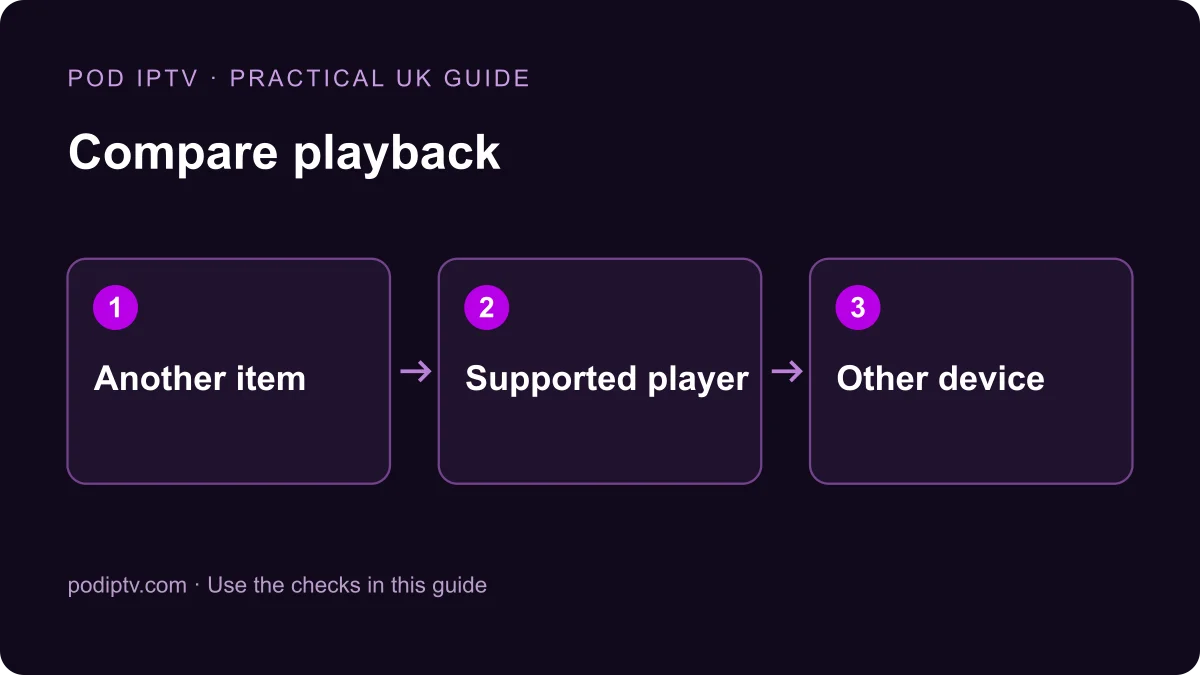
If the player menu is visible, try a second live channel or another on-demand item. Keep the same device, app and network. A single IPTV black screen on one item may involve the programme itself, while a fault across every item suggests a wider playback issue.
Stop and reopen the affected item once, then record whether the symptom changes. Avoid repeatedly opening several streams at the same time because connection limits can complicate the result. Close the earlier playback before starting your next comparison.
For films or series, note the exact title, season and episode. Similar names or multiple versions can make a vague report difficult to investigate. The same applies to a live channel with regional or language variants.
Check 3: compare sound during an IPTV black screen
Sound with no picture is different from a stream that never starts. Check whether volume controls and playback progress respond. If the sound is playing continuously, record that fact and compare another item before changing login details.
Do not assume a subtitle or audio setting will repair the video. A player may handle the sound and picture through different supported formats. The app's compatibility information and a controlled second-player comparison can be more useful than random settings.
If menus also freeze or the app exits, document that behaviour separately. An app crash is stronger evidence of a player or device problem than an isolated blank video area. A screenshot of the error can help once private account information is hidden.
Check 4: reopen the player and restart normally
Close the player through the device's ordinary app controls and reopen it. If necessary, perform a normal restart using the manufacturer's instructions. Keep your login information privately available before any step that might sign you out.
A normal restart is different from clearing all app data or resetting the whole device. Those latter actions can remove accounts, settings and other apps. They should not be the first response to an IPTV black screen when simpler comparisons have not been completed.
If a restart works only temporarily, record how long playback lasts and what action precedes the next failure. That pattern is more useful than repeatedly restarting without notes. Avoid installing an unknown cleaner or repair app that promises to fix every video issue.
Check 5: inspect the supported HDMI path
For an external streaming device, inspect the cable or connector and any receiver or HDMI switch in the route. Use the manufacturer's instructions for reconnecting safely. Where supported, a temporary direct connection to the television can help isolate an intermediate device.
Apple's official black-screen guidance for Apple TV includes selecting the matching HDMI input, checking connections and comparing a direct television connection. It also explains that display-format switching can briefly blank the screen in supported arrangements.
A brief transition when playback starts is therefore different from a picture that never returns. If you use another brand, follow its own instructions. Do not apply Apple remote shortcuts to a different streaming box or replace a working cable purely because it has a less impressive label.
Check 6: investigate an IPTV black screen in the player
Check the app version and operating-system compatibility. Install appropriate updates through the official store or the verified developer's distribution route. Read whether the update changes device support before assuming it is suitable for an older television.
If the app offers different supported playback engines, document the current choice before making a single reversible change. Menu names vary. Do not prescribe a decoder option from another app simply because both settings contain the word hardware.
The POD IPTV installation guides help you choose a compatible account setup. POD IPTV access and the third-party player's video-decoding capabilities remain separate parts of the viewing path.
Check 7: compare another device fairly
Close the current stream and open the same programme on a second compatible device, within your plan allowance. Keep the same network if you are investigating device behaviour. A different result can help narrow the problem to the first screen, player or connection path.
If your comparison uses a phone's mobile data instead, note that you changed the internet route too. That may be useful, but it does not isolate the player alone. Keep mobile tests brief on a capped allowance.
If the same programme causes an IPTV black screen on both devices while other programmes work, send that comparison to support. If every programme fails on both, account status, service availability or the network route deserves further investigation.
Check 8: test native playback instead of mirroring
If the problem occurs only when casting or mirroring, compare the app's supported native playback on the receiving device. Mirroring and casting are different implementations, and support can vary across apps and content.
Content protections or unsupported transfer methods can prevent a mirrored picture even when direct playback works. Do not attempt to bypass protection. Check whether the service and app officially support the route you are trying to use and choose a supported arrangement.
Also record whether the phone's screen remains visible while the television is blank. That distinction helps separate a failed connection from a video-specific limitation. Avoid treating screen mirroring as guaranteed merely because both devices share the same network.
Make a useful IPTV black screen report
Send the device model, app version, exact programme and time to POD IPTV support. Say whether menus appear, whether sound plays and whether other programmes or devices work. Include the HDMI, native-playback or mirroring arrangement where relevant.
Keep screenshots free of passwords, complete playlist URLs and private contact details. Do not change your whole account because of one blank programme before support has the opportunity to investigate the evidence.
If you are still evaluating the setup, use a 24-hour trial request to check the actual screen you plan to use. Compare prepaid plans only after confirming compatibility and asking about the features that matter to you.
IPTV black screen questions
Why do I hear sound but see an IPTV black screen?
The audio and video paths can behave differently. Compare another item and a supported player or device, then report whether menus and playback controls remain responsive.
Should I clear all app data immediately?
No. Start with programme comparisons, reopening the app and a normal restart. Clearing data can remove logins and settings, so understand the consequences first.
Does a no-signal message mean the IPTV account is wrong?
Not necessarily. On an external-device setup, check the television input and connection path first. The account is only one later part of the playback process.
Can mirroring fail while direct playback works?
Yes. The app, receiving device and content may support different playback routes. Use an officially supported option and do not bypass content protection.
What is the most useful comparison?
Change one variable at a time: another programme, player, audio/video path or device. Record the result and keep account connection limits in mind.