IPTV Connection Limit: 6 Easy Checks for Better Access
By POD IPTV · Updated 10 October 2026 · 8-minute read
An IPTV connection limit message usually calls for a check of active use and account allowance before you change passwords or buy another plan. Installed devices and simultaneous playback are different things. A household can have an app installed on several screens while only a smaller number are allowed to play at once.
This guide helps you investigate a limit warning methodically. It covers sessions left running, recording, player comparisons and support evidence. The precise rules depend on the service and app, so confirm them for your account. Do not assume that every activity counts identically across all providers.
Start with the plan you actually ordered and the allowance confirmed for it. POD IPTV's pricing page lets you compare one, two or three devices, but the relevant question for troubleshooting is how your chosen account handles active viewing. Keep the order record available and ask support if the wording is unclear.
A player licence can also have a device allowance. That controls use of the app and is separate from service playback access. An app activation error and a service connection warning can therefore require different support routes. Read the exact message rather than treating every mention of devices as the same restriction.
Allowances to keep separate
Allowance
What it concerns
Where to confirm
Service playback
Active viewing sessions
Your service plan and support
Player activation
Use of a third-party application
The app developer’s terms
Network admission
Devices permitted on a managed network
The network operator
Installed screens
Where an app is present
Your device inventory
Check 1: read the IPTV connection limit warning
Record the exact text and the action that triggered it. Did it appear when starting a second programme, opening the app or activating the player? Did playback already work on another device? These details help distinguish an account-session warning from an app-licence prompt or a network restriction.
If the message does not specifically mention connections, avoid guessing that a limit is the cause. An invalid login, unavailable programme or expired account is a different symptom. Compare the wording with support guidance and note the time. A redacted screenshot can preserve the information without exposing your credentials.
Check 2: count playback sessions against the IPTV connection limit
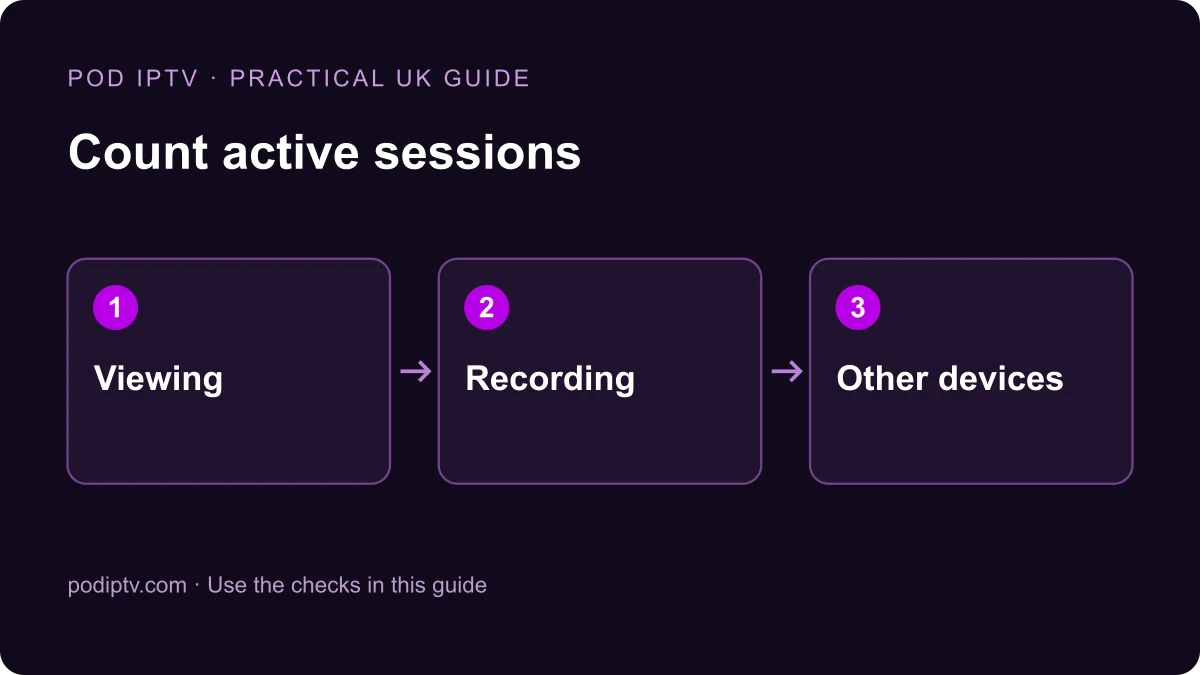
Ask household users which screens are currently playing. Include phones, computers and televisions in other rooms. An app remaining open does not necessarily mean it is streaming, but a programme continuing in the background can matter. Check the visible playback state instead of relying on whether someone is still watching.
Stop sessions deliberately through the player's supported controls. Turning off a television display may not stop an external streaming device. Allow the service's normal session handling to take effect before testing again; if the warning persists, ask support about the expected release behaviour rather than inventing a universal waiting period.
Check 3: account for recordings and preview features
Where a player supports recording, multiview or programme previews, check how those features use connections. They can create activity beyond the main programme you see on screen. The exact accounting is app- and service-dependent. Do not assume that a recording is free of session use simply because nobody is watching it live.
Temporarily stop optional activity through supported controls and test ordinary single-programme playback. Review scheduled tasks if a warning returns at the same time each evening. Only use recording features where permitted by applicable rights and service terms. A technical option in an app is not a blanket permission to record every programme.
Check 4: simplify the IPTV connection limit test
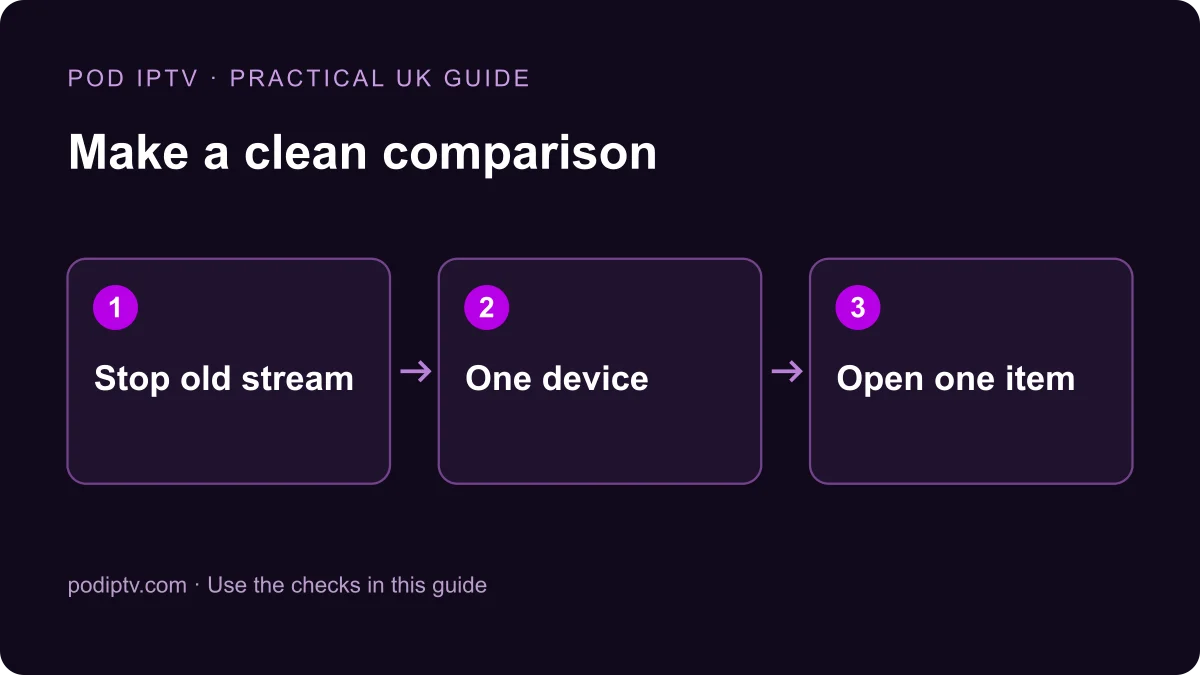
Close other playback routes and use one known device with one player. Avoid testing the same account in several apps simultaneously, because the comparison itself can introduce the warning. Start one permitted programme and record whether it plays. Then stop it before moving to the next device.
A disciplined test is particularly helpful after installation or migration. A phone, browser and television all left playing can make a new app appear faulty. Change one route at a time. If the warning disappears when additional activity stops, that is useful evidence, but confirm the allowance before deciding a plan change is necessary.
Check 5: review unexpected activity calmly
If nobody recognises the active use, inspect any account-session controls the service provides. Check whether old devices or borrowed screens still retain your login. Do not post private playlists or account details publicly while asking for help. Report unexpected activity through the verified service contact route.
A connection warning alone does not prove that someone has stolen the account. A forgotten player session or supported recording can produce a similar symptom. If support confirms suspicious access, follow the appropriate account-protection process. Keep app activation credentials separate from service credentials so that you change the correct account when needed.
Check 6: confirm the right IPTV connection limit allowance
Compare the household's real routine with the current POD IPTV plan options. Count simultaneous viewing, not every device that might be used on different days. A single viewer moving between screens has a different requirement from several people watching at once.
Before ordering a change, ask how it affects the existing account, expiry and total price. Do not assume that a new player licence increases service connections. Review the Terms of Service for the relevant conditions. Choose the allowance you need without paying for screens that are never used together.
Create a clear household session routine
Consider a simple evening comparison: one person watches on a television while another opens the same account on a tablet. If the warning begins only at that point, stop the tablet and repeat the television test. This does not establish the precise server accounting by itself, but it identifies the combination that support should examine. Keep any optional recording stopped during the comparison.
For an IPTV connection limit reported after a device move, inspect the old screen as well as the new one. An external box may remain running even when its display is disconnected. Confirm that playback has stopped through the app, and ask support how abandoned sessions are released if you no longer have access to that device. Do not solve the problem by sharing another person's credentials or trying to bypass the account allowance.
Make stopping playback part of switching rooms. If a streaming box remains powered separately from the television, explain how to leave the player properly. Use a recognisable device name where the app supports one. A household can avoid many confusing warnings by knowing which screen is currently active.
Do not rely on an aggressive automatic-kill utility to manage sessions. It may interfere with normal operation and does not clarify the service's rules. Use ordinary app controls and ask support about idle-session handling if necessary. The routine should be understandable for every person who uses the account.
Send useful IPTV connection limit evidence
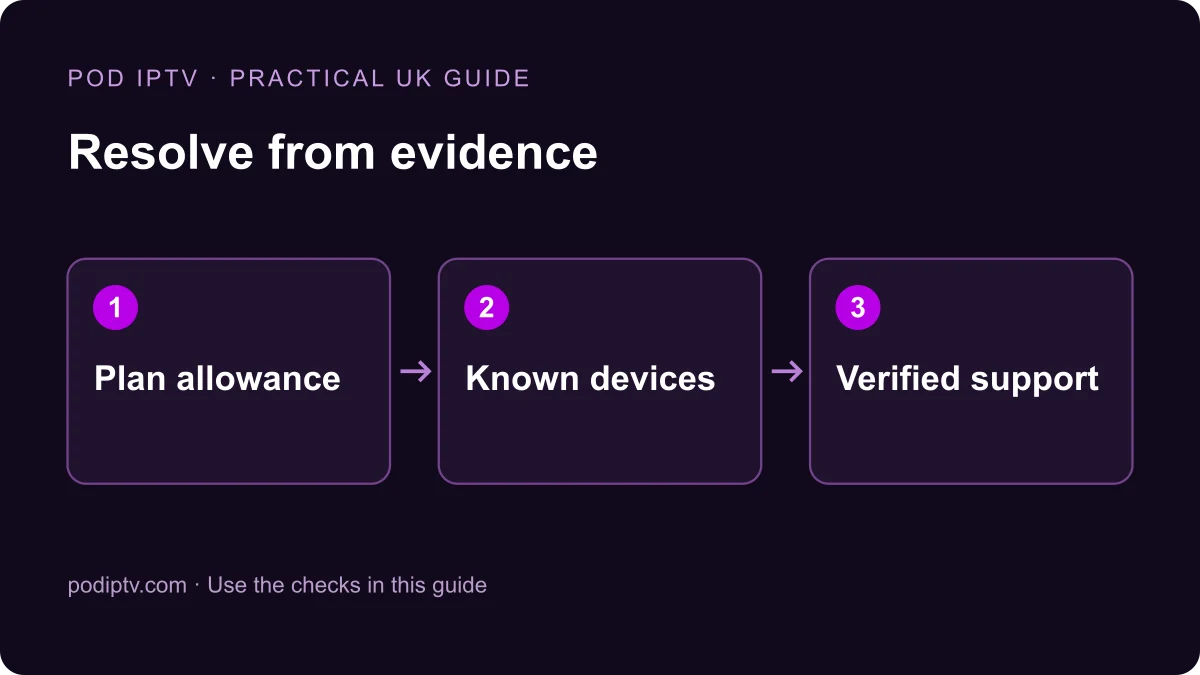
Prepare the plan allowance, affected device, player version, exact warning and test time. Describe which other sessions you stopped and whether recordings or multiview were enabled. State whether the account works on a single known screen. These facts are more useful than a general claim that every device is broken.
Contact POD IPTV support for service-session questions. For a separate app-activation limit, consult the developer; for example, TiviMate's own terms concern its application licence rather than your service plan. Do not send private activation receipts to an unrelated support channel.
Understand what a session test cannot establish
One successful stream shows that a particular route worked at that moment. It does not prove that every programme, device or household combination will work later. Likewise, a temporary warning does not establish permanent account damage. Keep conclusions tied to the conditions you actually tested.
If single-device playback fails without a connection warning, move to the appropriate login, network or player investigation. Repeating a limit test indefinitely will not diagnose every failure. Preserve the useful evidence already collected and let the actual error determine the next step.
Test a setup before committing
The installation guide helps you prepare supported device routes. If an available 24-hour trial has its own allowance, confirm that allowance before testing several screens. Trial access should not be assumed to match every paid-plan configuration.
Test the household's intended viewing pattern with permission and within the confirmed rules. Keep installation count, app licensing and active playback distinct. That gives you a practical basis for choosing a plan and a clearer explanation if you later need help.
IPTV connection limit questions
Is the IPTV connection limit the number of installed apps?
Not necessarily. Confirm active-playback rules separately from installed devices and third-party app activation. The service's account conditions are the relevant source.
Can a recording use a connection?
It can, depending on the supported app and service. Check before running recordings or multiview alongside ordinary playback.
Does a warning mean my account was stolen?
No. Forgotten sessions or optional features can also explain it. Stop recognised activity and ask support about unexpected use before drawing that conclusion.
How should I compare two players?
Stop one before starting the other, keep the device and programme consistent where practical, and record the result. Simultaneous comparisons can trigger the very limit you are investigating.