IPTV Hotel Wi-Fi: 6 Smart Checks for Safer Viewing
By POD IPTV · Updated 10 October 2026 · 8-minute read
IPTV hotel Wi-Fi can behave differently from your home network. A phone may browse normally while a streaming device cannot complete the login or find the television. This guide explains six checks for an authorised hotel setup, including captive portals, local discovery and privacy, without recommending ways to bypass the hotel's network or equipment restrictions.
Understand the three separate hotel-network stages
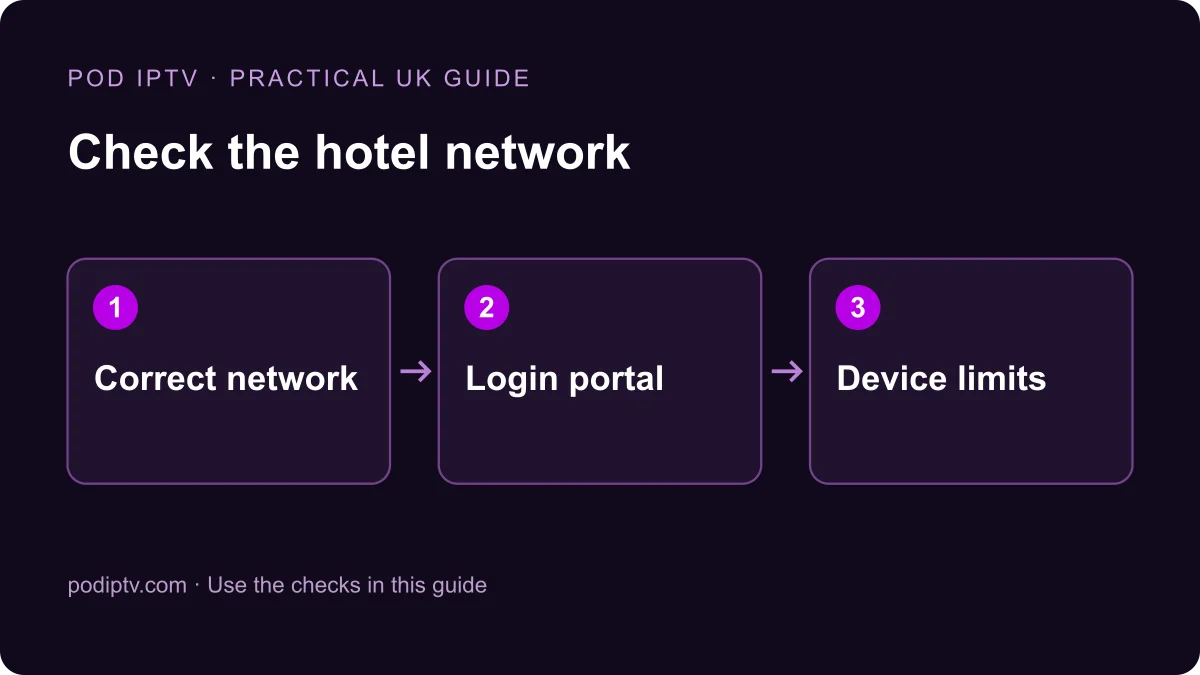
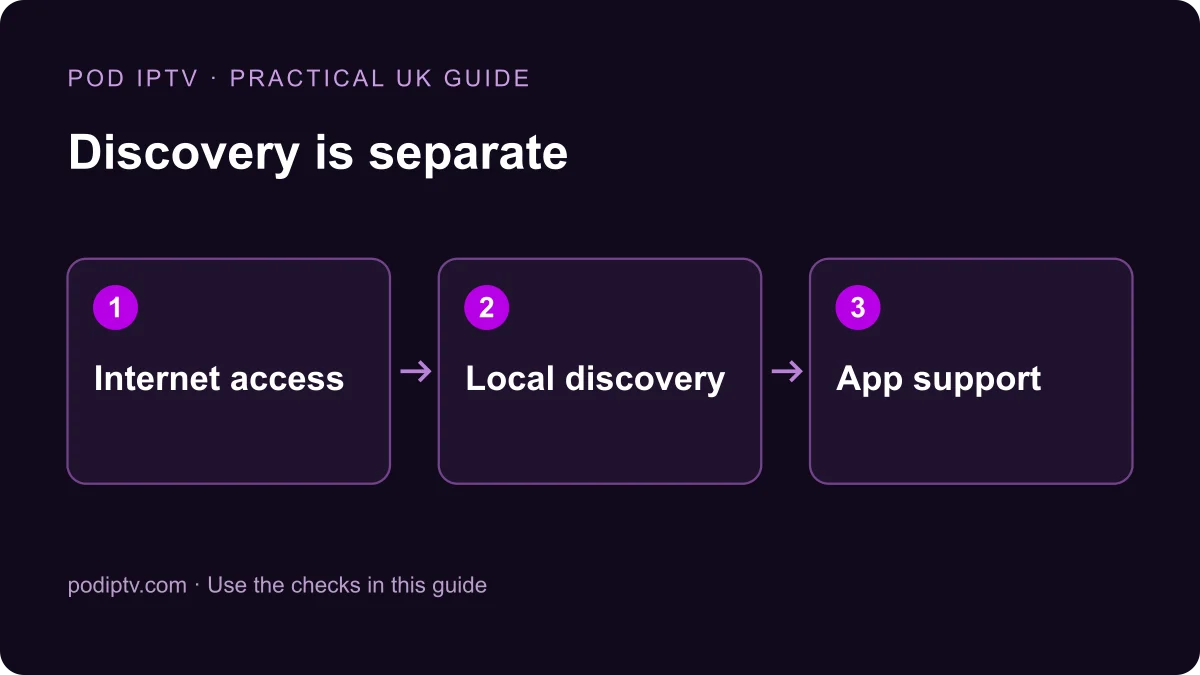
First, a device must join the wireless network. Second, it may need to complete an internet-access login. Third, casting or another local connection may require devices to discover one another. Success at the first stage does not establish success at the other two.
A Wi-Fi symbol therefore does not prove that the player has working internet access. Similarly, a phone loading a web page does not prove it can communicate with a streaming receiver on the same hotel network.
Write down which stage fails before changing the app. The practical problem may belong to the hotel's connection arrangement rather than the service account. Ask staff about permitted personal devices and supported connection instructions.
Check 1: confirm the correct IPTV hotel Wi-Fi network
Get the current network name and login instructions from the hotel through its normal guest-information route. Do not choose a similarly named open network based only on signal strength. The name visible in a list is not independent proof of ownership.
Check whether access is intended for your room, the lobby or a particular guest area. Some properties use separate networks or access periods. A password supplied at check-in may also need an additional browser step.
Do not request router-administration credentials or change shared equipment. You are a guest user of the connection. The hotel's supported procedure should define what personal devices can connect and under what conditions.
Check 2: identify an IPTV hotel Wi-Fi captive portal
A captive portal is a web page shown before normal internet access is granted. It may ask for a room code, guest login or acceptance of the network's terms. A device without a suitable supported browser can struggle with that arrangement.
Google's streaming-device connection guidance states that its streaming devices do not support networks requiring a captive-portal connection. Check your exact device's current documentation rather than assuming all sticks can use the same hotel login.
If the portal works on your phone but not your receiver, ask staff whether an authorised alternative is provided. Do not copy another guest's access details, spoof device identifiers or install an unknown login helper. A different supported viewing route may be the appropriate answer.
Check 3: separate IPTV hotel Wi-Fi access from casting discovery
A hotel network can allow internet access while isolating devices from one another. That can prevent a phone from finding a receiver even when both appear connected. The same wireless name alone does not establish that local communication is permitted.
For a supported cast-enabled app, check that you are selecting the intended receiver and that required local-network permissions are appropriate. Do not cast to an unfamiliar nearby screen or assume a listed device belongs to your room.
Do not disable isolation on a hotel network or ask to weaken shared protections solely to make discovery work. Describe the symptom to staff and use their supported arrangement. Native playback on a device you control may avoid needing a local casting route, subject to account and network permission.
Check 4: review device and session limits
The hotel may limit connected devices or authorise access for a particular period. A login can expire independently of your IPTV account. Check the hotel's current rules before assuming a player error means the subscription has ended.
Your service account has its own simultaneous-stream allowance. A home screen left playing and a travel tablet can still be separate sessions. Close unused playback and compare one device at a time during troubleshooting.
Different limits that can affect a hotel setup
Limit
Who controls it
What to ask
Guest-network devices
The accommodation
How many personal devices may connect?
Network access period
The accommodation or network operator
Does the portal login need renewal?
Simultaneous service streams
Your account plan
Which known devices are still playing?
Player installation or licence
The app developer and platform
Is this exact device supported?
These are separate checks. Buying a longer service plan cannot remove a hotel's device cap, and a hotel network upgrade cannot increase your account's permitted streams. Compare POD IPTV device plans only for the allowance they actually describe.
Check 5: test ordinary performance fairly
Once permitted internet access works, test a representative programme on your actual device. Record the time, player and connection arrangement. Shared network conditions can vary between a quiet afternoon and a busy evening.
Try a second programme while keeping the device and network constant. If one item fails but another works, report that distinction. If every ordinary internet activity is slow, ask the hotel about the connection before reinstalling the player.
A speed test on a phone in the lobby does not establish performance on a device in your room. Use the viewing location and device where practical. Keep mobile comparisons short if they use a capped or roaming allowance.
If staff provide a permitted wired connection and your device supports it, a controlled comparison can be useful. Do not unplug hotel systems or run cables through shared walkways. The aim is a safe supported test, not redesigning somebody else's network.
Check 6: protect account privacy on IPTV hotel Wi-Fi
For IPTV hotel Wi-Fi viewing, prefer your own phone, tablet or streaming device. A hotel's television may retain account data after you leave, and its settings may not expose a clear way to remove it.
Before signing in on a shared screen, understand the player's supported logout and saved-data removal. If you cannot verify that access information will be removed, avoid saving the account there. Closing a menu or switching off the television is not necessarily a logout.
Keep full playlist links and passwords out of messages to accommodation staff. Describe the device's network stage instead. A hotel can help with its portal and permitted equipment without receiving your television-service credentials.
At departure, stop playback, remove saved access through supported controls and check the result. Keep a private record of devices you used so that unexpected later activity can be investigated with the relevant provider.
Choose an authorised alternative when necessary
If the hotel cannot support the intended device, ask whether another permitted route exists. You may be able to watch on your own compatible mobile device using the authorised guest connection. Do not assume a screen-mirroring or television-input workaround is allowed.
A personal hotspot is another possible route only after checking operator coverage, tethering rules, data and roaming costs. Ofcom's mobile-abroad advice explains why the applicable package should be checked before travel. Do not start a long stream on the basis of a Wi-Fi icon alone.
If none of the supported routes is suitable, use a permitted local viewing option. A working home account is not a guarantee of access through every accommodation network or destination.
Send useful IPTV hotel Wi-Fi evidence to support
Separate network questions from player questions
Observation
Useful first recipient
Details to include
Portal will not complete
Accommodation support
Device type and the failed login stage
Receiver cannot be discovered
Accommodation or device support
Authorised network and discovery behaviour
One programme fails after internet works
Verified service support
Exact item, time and controlled comparison
Player will not open
Player or device support
App version, model and visible error
For POD IPTV account or playback questions, use the current Contact Us page. Identify podiptv.com and your connection type, but leave passwords and complete playlist addresses out of public discussions.
Test basic setup before your trip
Use the installation guides to establish supported playback at home. A 24-hour trial request can assess those present conditions, while future accommodation access still needs separate confirmation.
IPTV hotel Wi-Fi questions
Why does my phone work but the stick does not?
The phone may complete a browser login that the stick does not support. Check the exact device's documentation and the hotel's authorised connection options.
Does being on the same network guarantee casting?
No. Local discovery may be isolated, and the app and receiver must support the route. Do not weaken a shared network's protections.
Can I leave my login on the hotel's television?
Avoid leaving saved access on a shared device. Verify supported logout and removal before using it, and prefer equipment you control.
Will a hotspot avoid all IPTV hotel Wi-Fi problems?
It is a different route with its own coverage, costs and restrictions. Check those conditions instead of treating it as a universal fix.
Does a longer subscription improve the hotel's connection?
No. Account duration and accommodation network performance are separate. Identify the failed stage before changing a plan.