IPTV Remote Control: 7 Smart Checks for Better Navigation
By POD IPTV · Updated 10 October 2026 · 8-minute read
An IPTV remote control should make ordinary viewing easy: open the player, select a channel, return to the list and adjust sound. A remote can turn a television on yet fail to navigate a streaming box, because power and menu control may use different connections. Testing the tasks you need is more useful than buying a remote with the largest number of buttons.
This guide covers choosing a control method, identifying failures and preparing a useful support report. It does not assume that all players share the same shortcuts. Use your device's official instructions for pairing, and keep changes reversible while you establish whether the problem belongs to the remote, operating system or player.
Identify what the IPTV remote control is controlling
List the television, streaming device, sound system and player separately. A television remote may control its own menu, while the streaming device needs another remote. Some setups pass selected commands between devices; others do not. Write down which control opens the home screen and which control adjusts the volume.
This small map prevents the familiar situation where a working power button is treated as proof of a working player connection. Start on the streaming device's home screen before opening the app. If navigation already fails there, focus on device control first. If only the player misbehaves, its interface or settings deserve attention.
Separate remote-control symptoms
Symptom
Useful comparison
Likely next check
No buttons respond
Check the remote’s supported power indicator
Batteries, power or pairing
Menus work but volume does not
Try the television’s own volume control
Configured sound device and button mapping
Only one app fails
Navigate another ordinary app
Player interface and app version
Several presses happen at once
Press once and watch for a delayed response
Stuck buttons or slow app response
Check 1: examine power and physical condition
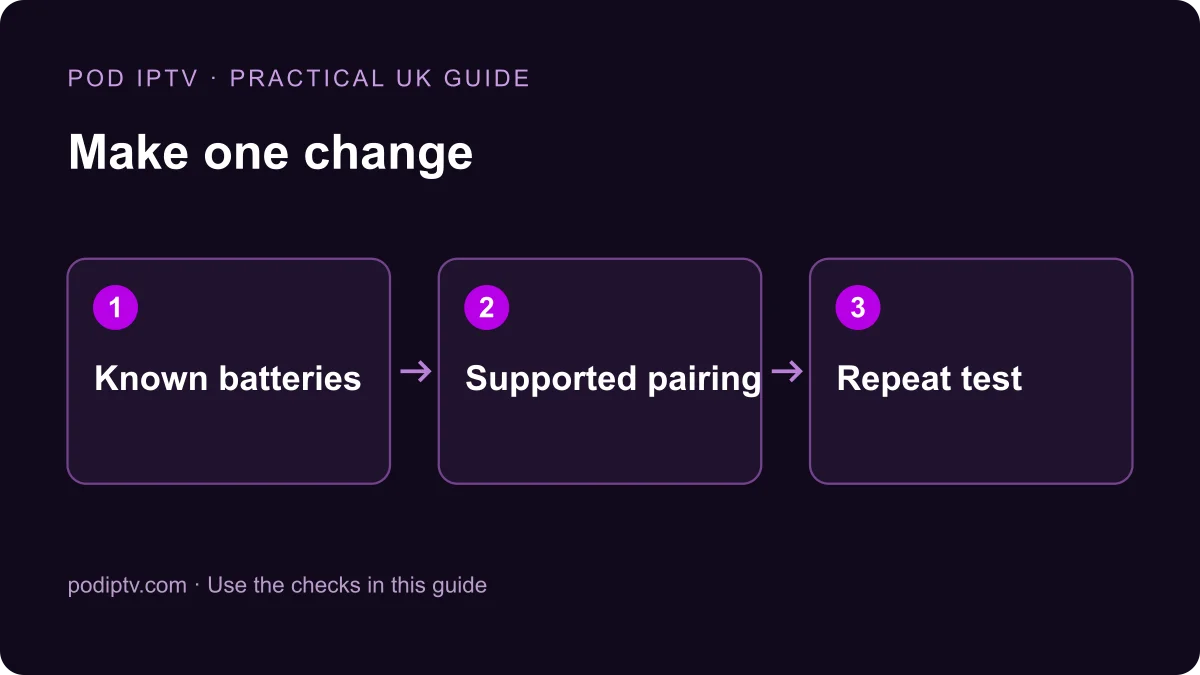
Replace removable batteries with the correct type and orientation when needed. For a rechargeable remote, use the manufacturer's charging instructions. Inspect accessible buttons for sticking and check whether the casing has obvious damage. Do not open sealed electronics or use liquid cleaners inside a remote to resolve an ordinary navigation issue.
Watch the screen after one deliberate press. Repeated pressing while the device is busy can produce a queue of commands, making the remote appear erratic. If an indicator is available, compare its response with the manual. An unlit indicator can mean different things on different models, so avoid diagnosing from appearance alone.
Check 2: pair the IPTV remote control correctly
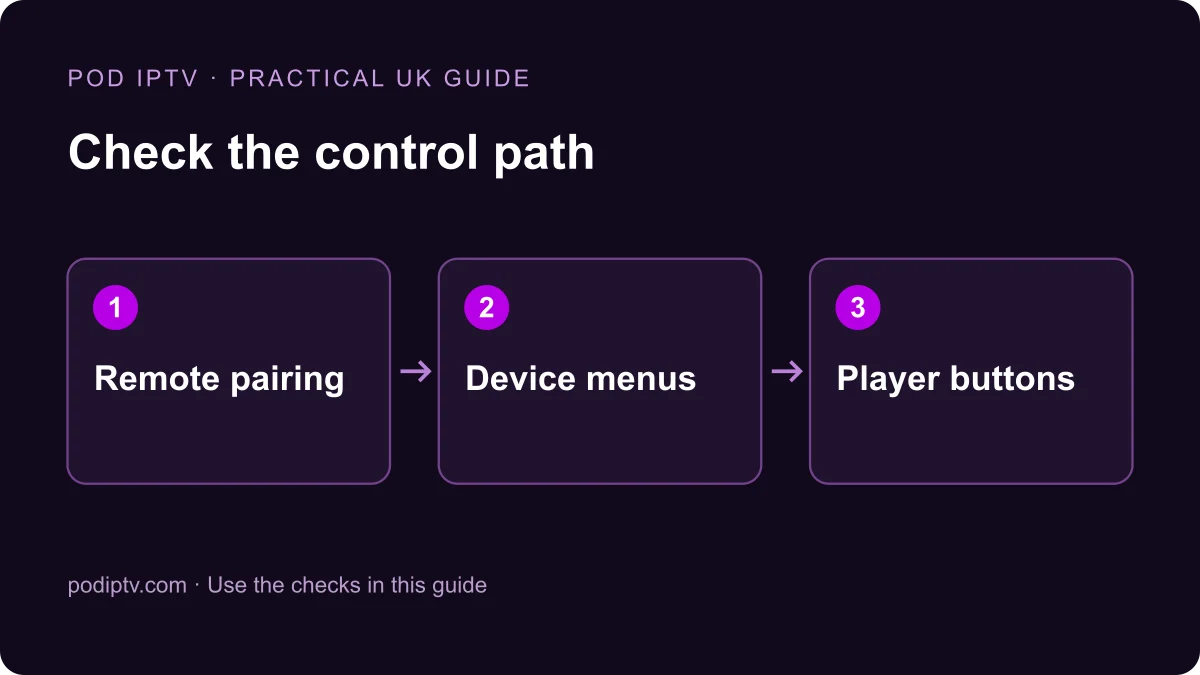
Use the pairing instructions for the precise remote and streaming device. Button combinations are not universal. Google's Voice Remote troubleshooting guide distinguishes its supported models and separates general control from specific television-button problems. Follow the relevant model section rather than applying a reset intended for another product.
Before unpairing your only working control, establish a supported way to navigate the pairing screen. A device's official phone remote may help, where available. Avoid a full streaming-device reset as the first step: it can remove accounts and settings while leaving a damaged remote unchanged. Record your existing setup before any destructive action.
Check 3: test the IPTV remote control in the home menu
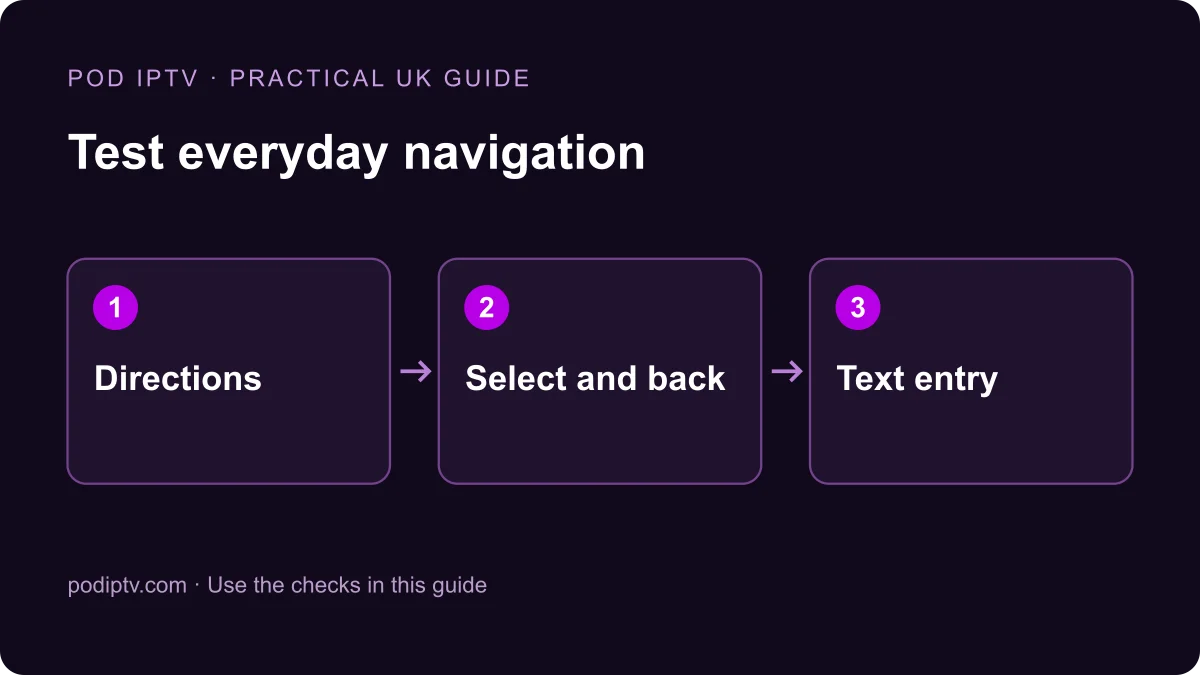
Move left, right, up and down through the device home screen. Select an item and return with the back button. Then open the player and repeat the same navigation. This comparison shows whether the remote is communicating normally outside the app. Keep the test short and use one clear press at a time.
If the home screen responds immediately but the player takes several seconds, the player may be loading information rather than missing button presses. Wait for loading to finish and repeat. If all menus respond poorly, note whether the streaming device itself is generally slow. A replacement remote is not automatically the right answer to a busy device.
Check 4: verify the player's key behaviour
Open the player's documented help or button settings. Test channel selection, opening the guide, returning to categories and leaving full-screen playback. A long press may open a menu in one player but perform a different action in another. Do not copy shortcuts from a different app without checking their meaning.
For an IPTV remote control used by the whole household, choose predictable commands. Avoid remapping essential buttons before other users understand the change. If a player supports custom shortcuts, record the original setting and change one action at a time. Test that the back button still gives a clear route out of each menu.
Check 5: separate sound controls from navigation
Identify whether sound is controlled by the television, receiver or soundbar. Test the relevant device's own remote first. Menu navigation working on the streaming box does not prove that volume commands are configured for your sound equipment. Confirm the intended output device before changing audio settings in the player.
Power, input and volume may use a different control path from the directional pad. That explains why one group of buttons can fail while another works. Follow the device manufacturer's button-configuration guidance and test at an ordinary listening level. Do not continually raise volume while an unknown output is muted or disconnected.
Check 6: make IPTV remote control text entry practical
Entering a long private address with a directional pad is possible but can be frustrating. Use a supported on-screen keyboard or official companion function where available. Check capitalisation, symbols and accidental spaces carefully. Never treat repeated login failures as a remote problem until you have verified the entered text privately.
A keyboard or phone control can be useful, but compatibility must be confirmed for the device and player. Keep account details off shared clipboard services and do not dictate private passwords through unrelated voice tools. Once setup is complete, ordinary navigation should not require repeatedly entering credentials or exposing them on the television.
Check 7: assess comfort and accessibility
Test the IPTV remote control from the usual seating position. Consider button size, contrast, tactile differences and how firmly a button must be pressed. A control that works well for one person may be difficult for someone with reduced dexterity or vision. Evaluate actual use rather than a product photograph.
Check whether the system and player offer useful accessibility settings, including spoken navigation or larger interface elements where supported. Make changes with the intended user present, and verify how to turn them off if necessary. The device's accessibility features do not guarantee that every screen inside a third-party player will behave equally well.
Compare IPTV remote control options before buying
The supplied remote is a sensible starting point because it is designed for the streaming device. A compatible replacement may be appropriate if it is damaged, but confirm exact model support. A universal remote, phone controller and keyboard solve different problems. None should be described as universally compatible with every player.
Consider the household routine. A phone controller can be convenient during setup yet inconvenient when the phone's owner leaves the room. A physical remote should remain available to people using the television. Avoid buying accessories solely to solve an account, network or programme-loading problem that the remote cannot control.
Keep a useful test record
Note the streaming model, remote model, battery or charging state, player version and affected buttons. State whether the problem happens on the home screen, only inside the player or only while changing sound. If the issue began after an app update or a button remapping, include that timing.
A short description such as “back works in the home menu but not in the programme list” is more actionable than “remote broken”. A video of navigation can help, provided it does not show credentials or private household details. Ask the manufacturer about pairing and the player developer about app-specific shortcuts.
Test navigation with your intended setup
Use the device installation guide to select a supported player route. When a 24-hour trial is available, try the remote tasks you actually perform: finding a programme, opening the guide and stopping playback. A successful first login is only part of a comfortable setup.
For service questions, use POD IPTV support with the device details. A service plan does not include universal control over third-party hardware. Keep your app, remote and account responsibilities separate so that the correct support team receives the relevant evidence.
IPTV remote control questions
Why does my IPTV remote control change volume but not channels?
The sound buttons and player navigation can use different control paths. Check whether directional navigation works on the streaming device's home screen, then inspect the player's supported controls.
Can I use my phone instead?
Possibly, if the device offers an official compatible remote function. Confirm network and pairing requirements, and keep a practical control available for other household users.
Should I reset the whole device?
Not as the first test. Check batteries, model-specific pairing and navigation outside the player before considering a reset that removes accounts and settings.
Will a new IPTV remote control fix a slow app?
Not necessarily. Compare one deliberate press in the home menu with the same action in the player. If only the app is slow, investigate its loading behaviour and current version first.