IPTV Search: 7 Smart Checks for Better Programme Results
By POD IPTV · Updated 10 October 2026 · 8-minute read
IPTV search is most useful when you know which catalogue, category and title the player is examining. A search inside live channels may not include on-demand films, and a television's system search may not inspect every third-party app. Start with the scope of the search before assuming that a missing result means a programme is unavailable.
This guide helps UK viewers find results more efficiently without promising access to particular titles. It covers names, language variants, episodes, filters and useful support evidence. The player controls discovery, while the service controls the supplied catalogue. Search cannot add rights or unlock an entry that the account does not include.
Look at where you started searching. A channel-list field, a guide search and an on-demand catalogue field can examine different information. Some apps offer a combined search; others require selecting a category first. The same word can therefore return different results depending on the screen you use.
System-level search is another layer. Google's Google TV discovery guidance describes its supported ways to find programmes and resume viewing. That does not establish that every third-party player is integrated into its home-screen search. Check inside your actual player before treating a system result as a complete account inventory.
Search locations and their limits
Location
Possible search target
What to verify
Channel list
Channel names or groups
Correct account and category
Programme guide
Available schedule titles
Guide coverage and date range
On-demand section
Film or series entries
Title, year and episode details
Device home screen
Integrated services
Whether the player participates
Check 1: choose the right IPTV search category
Decide whether you are looking for a channel, scheduled programme, film or series. Enter the corresponding section before typing. A film title searched only against channel names may naturally return nothing. A guide search may show an upcoming broadcast rather than an on-demand copy of the same programme.
If the app combines categories, inspect any filter or result label. Open a result only after checking what it represents. This avoids confusing a series folder with one episode or a channel entry with a scheduled event. Keep the intended viewing method in mind while comparing results.
Check 2: use a distinctive title fragment
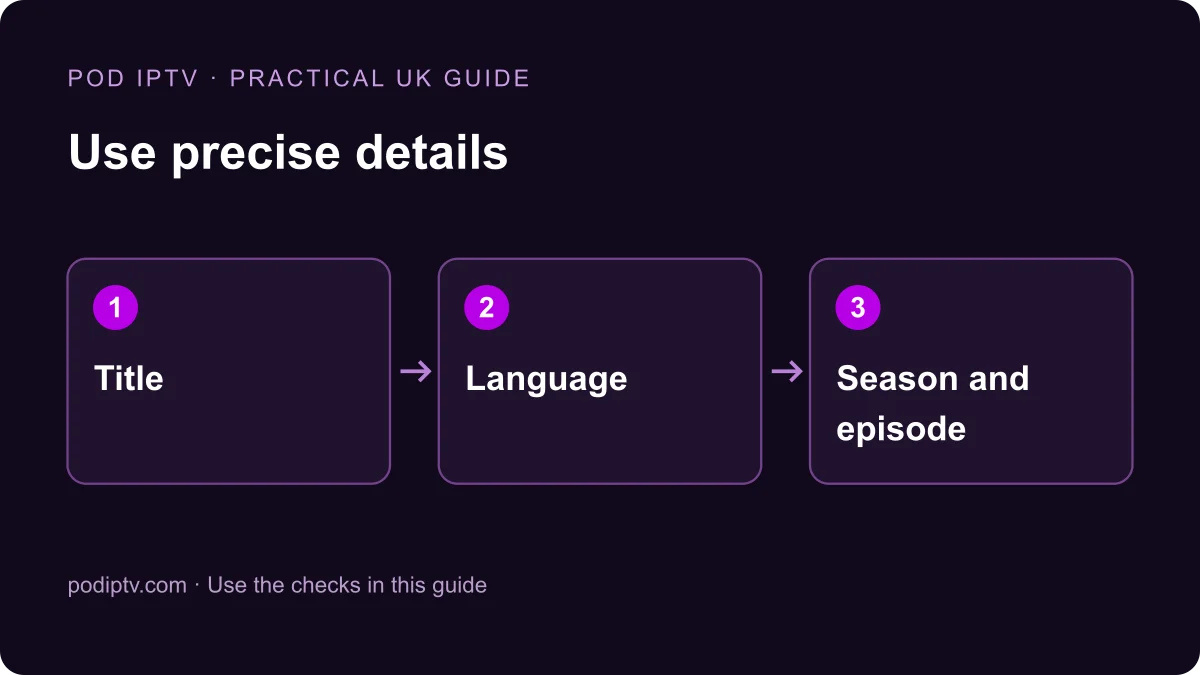
Begin with a short recognisable part of the title. Long copied strings can include punctuation or promotional wording absent from the catalogue. If the result list is broad, add another distinctive word. Avoid searching only generic terms such as movie or news unless you deliberately want a category overview.
Check spelling and accidental spaces, especially when using a television keyboard. A single incorrect character can matter in a strict search field. If your player supports voice input, verify the recognised text before accepting the result. Spoken titles, names and abbreviations are not always transcribed as intended.
Check 3: compare IPTV search title variants
A programme can be listed under a localised title, an alternative spelling or a shortened label. Try a known official title variant where relevant, but do not assume that any loosely similar result is the same work. Check the year, description and episode information before selecting it.
Channel names can also include regional labels or abbreviations. Search the distinctive name first, then inspect the available variants. A familiar brand name does not guarantee a particular regional schedule or language. Use the actual entry information and ask support about important distinctions rather than guessing from a thumbnail.
Check 4: verify series and episode information
Open the series folder and compare season and episode identifiers where supplied. A result matching the series title may not include the specific episode you want. Descriptions, release years and durations can help distinguish remakes or similarly named programmes, but metadata can still be incomplete.
Do not rely on artwork alone. Two entries may share a poster while representing different versions or incomplete listings. If a result opens but the episode label does not match playback, record the visible entry and the mismatch. That is a catalogue-evidence question rather than a reason to reset your account.
Check 5: inspect filters and hidden groups
Clear temporary filters that could narrow IPTV search unexpectedly. Check whether you are searching only favourites, a single language group or a selected account. Personal hidden-category settings may also affect discovery in some players. Inspect those settings before concluding that a programme has disappeared from the underlying catalogue.
Respect household parental controls while checking visibility. Do not disable a restriction without the responsible user's approval merely to broaden results. If a category is intentionally hidden, keep that context in the support report. A restricted profile can correctly show fewer results than an unrestricted account view.
Check 6: verify current catalogue information
If results look outdated, use the player's supported account-listing refresh. Keep that task separate from guide updates and app upgrades. Note whether the refresh completed and whether the relevant category changed. Repeatedly updating unrelated settings will not explain a missing title.
Availability can change, and a refreshed catalogue does not promise that every programme will appear. Confirm important current availability through POD IPTV support. A search result from an unrelated website or a reference service is not proof of what your own account supplies.
Check 7: report a specific IPTV search problem
Include the player, device, search screen, exact query and relevant category. State whether you searched a channel list, guide or on-demand section. If possible, describe a result that appeared and why it was wrong. A narrowly described mismatch is more useful than “search doesn't work”.
Redact account information from screenshots. You can usually show the search text and result labels without exposing a private server address or password. Send app-interface questions to the developer and catalogue questions to the service. Distinguishing those responsibilities prevents the report from being sent to the wrong place.
Build a useful IPTV search routine
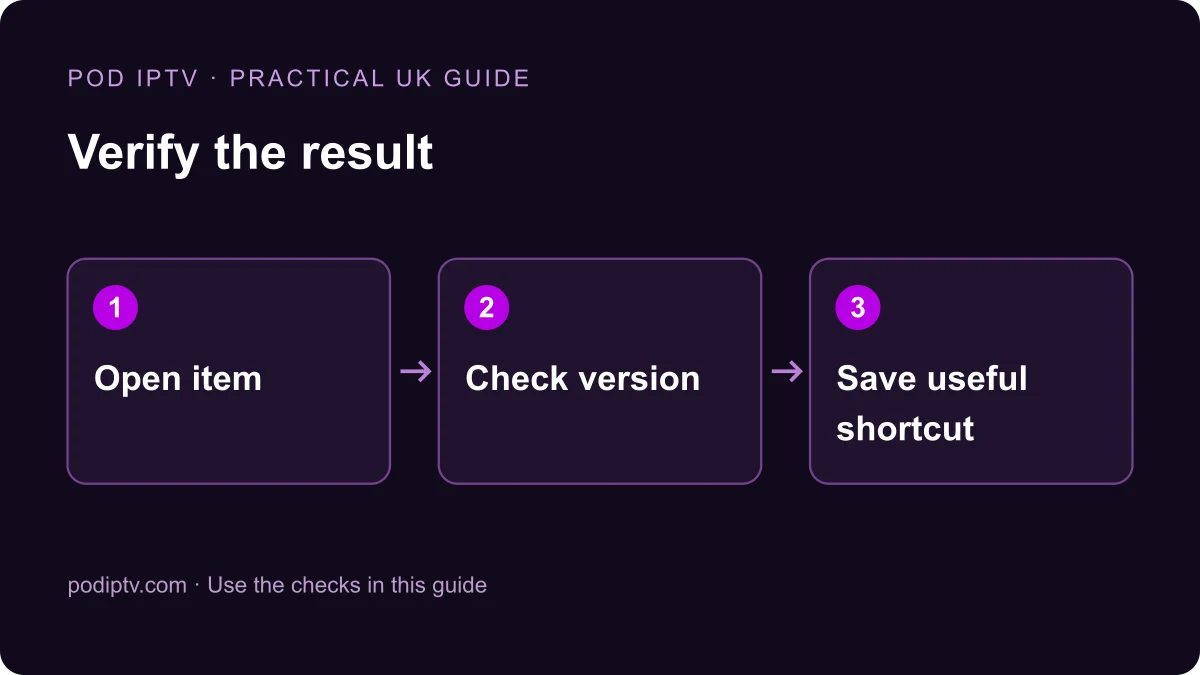
Use the right category, a distinctive fragment and an identity check before playback. Once you find a frequently used entry, add it to a supported favourites or watchlist function rather than repeatedly searching broad terms. Keep such lists manageable so that they remain useful for the household.
Do not add every loosely related result. Confirm the channel region or programme version you need, then retain the correct entry. If the catalogue later changes, compare a saved item with the current listing before rebuilding the entire list. Organisation and search should support each other rather than create more duplicate entries.
Know the limits of discovery
For a practical IPTV search comparison, try a known channel name in the channel list, then a known programme title in the appropriate guide or on-demand section. Note which screen produces a result and which does not. This establishes the app's search scope more clearly than trying dozens of unrelated words. It also reveals whether a favourites-only filter is still enabled.
If a result has several versions, inspect the description before starting playback. A release year can distinguish a remake, while a season label can distinguish one collection from another. Where metadata is missing, ask for confirmation rather than claiming that a thumbnail proves identity. Keep the query and visible result labels in your report, with private account information removed. That gives support a reproducible discovery problem without requiring your entire playlist or viewing history.
A found entry is not a guarantee of current playback, complete episodes or a preferred language track. Test the result where permitted and inspect its actual information. Conversely, a missing result from one search field does not conclusively prove that the programme is absent from every account section.
Keep search evidence separate from performance evidence. A result that takes too long to open can be a loading issue; a result with the wrong description can be a metadata issue. A precise observation helps support choose the relevant investigation instead of applying generic network advice to every discovery problem.
Test discovery on your intended device
Use the installation guide for a supported player route. During an available 24-hour trial, search for the types of programmes and channels you normally use. Try the actual television keyboard or remote rather than evaluating only a phone screenshot.
Compare the current prepaid plans after assessing ordinary use. A plan headline cannot demonstrate how intuitive the search interface is on your device. Choose with both the account terms and the practical viewing workflow in mind.
IPTV search questions
Why does IPTV search find a channel but not a film?
The search may be scoped to channel names. Open the on-demand section or a documented combined search, then verify the title and category.
Does the television home screen search every player?
No. System integration varies. Search within the player and check its documentation before treating home-screen results as a complete catalogue.
Does a missing result prove the programme is unavailable?
Not by itself. Check spelling, category, filters and current listings, then ask the service about important availability.
How can IPTV search avoid similarly named results?
Use a distinctive title fragment and compare the year, description, series and episode labels. Artwork alone is not enough to establish identity.