IPTV Subtitles: 6 Easy Checks for Better Accessibility
By POD IPTV · Updated 10 October 2026 · 8-minute read
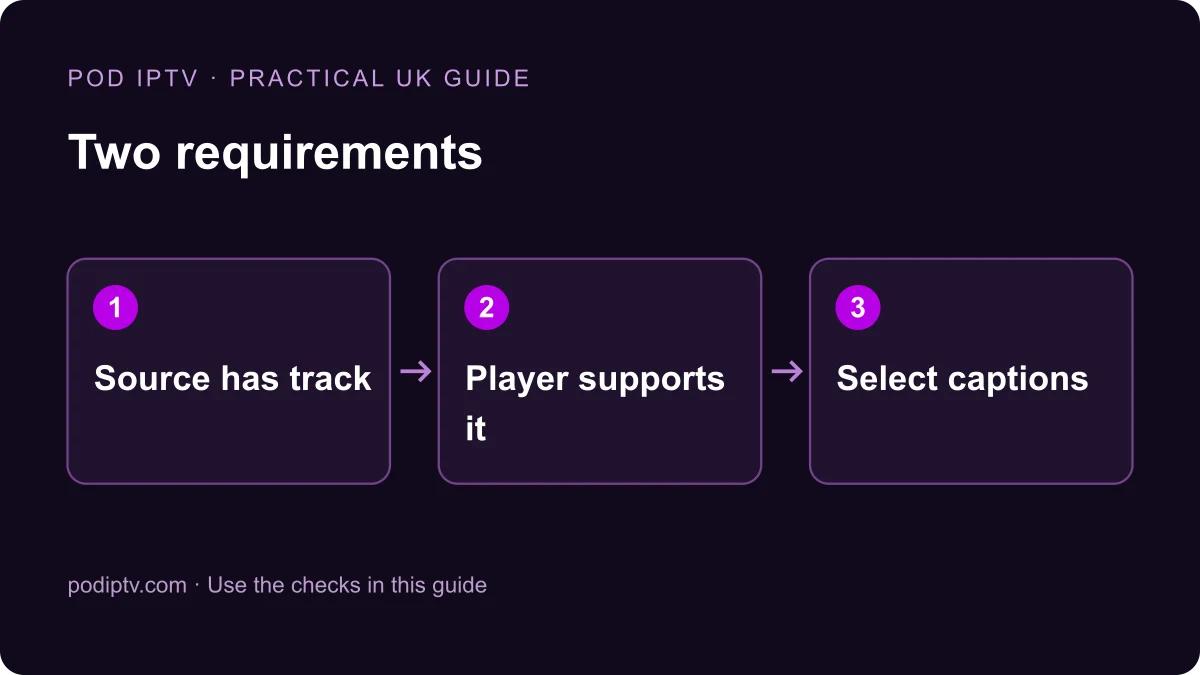
IPTV subtitles can make a programme easier to follow, but their availability depends on the content and the player. A caption setting on your television cannot create a missing subtitle track. This guide explains how to find the available options, distinguish translated subtitles from accessibility captions and diagnose missing, unreadable or out-of-sync text.
A stream may carry one subtitle language, several languages or none. The player must also support the type of track supplied. Accessibility captions may include sound descriptions and speaker information, while ordinary translated subtitles often focus on spoken dialogue. Those distinctions matter when choosing a viewing setup.
Do not assume the existence of a programme in a catalogue means captions are available for it. Different episodes or versions of the same film can have different tracks. Check the exact item you intend to watch and the actual device on which you will watch it.
Some text is burned into the picture itself. That text is part of the video and normally cannot be switched off, resized or given a different language by the player. A selectable subtitle track is separate and may offer more control where the app supports it.
Check 1: find the subtitle control during playback
Start a programme, open the player's playback controls and look for subtitles, captions, CC or a language menu. The name and location vary by app. On a remote, the relevant menu may appear only after you press the select button, a directional key or the player's designated options control.
Review the available tracks rather than enabling a global setting and assuming the result. Select the intended language, resume playback and confirm that text appears during dialogue. A scene without speech is a poor test of whether the track is working.
If you cannot locate the control, check the current player instructions for your device. The POD IPTV device guides help establish a compatible setup, but the precise subtitle menu belongs to the app you selected.
Check 2: distinguish IPTV subtitles from audio languages
The audio and subtitle menus can sit together while controlling different things. Changing the sound language does not necessarily change the text, and selecting English captions does not establish that an English audio track is available.
Where a track is labelled SDH or closed captions, it may contain accessibility information such as music cues or speaker identification. Choose it if those details are useful to you. A simple language label may not explain the track's full accessibility content, so inspect the result on a short sample.
Apple's audio and subtitle control guidance shows how its TV app exposes available languages and accessibility options. Those instructions apply to that app; third-party IPTV players have their own menus and support limits.
Check 3: confirm IPTV subtitles on the exact programme
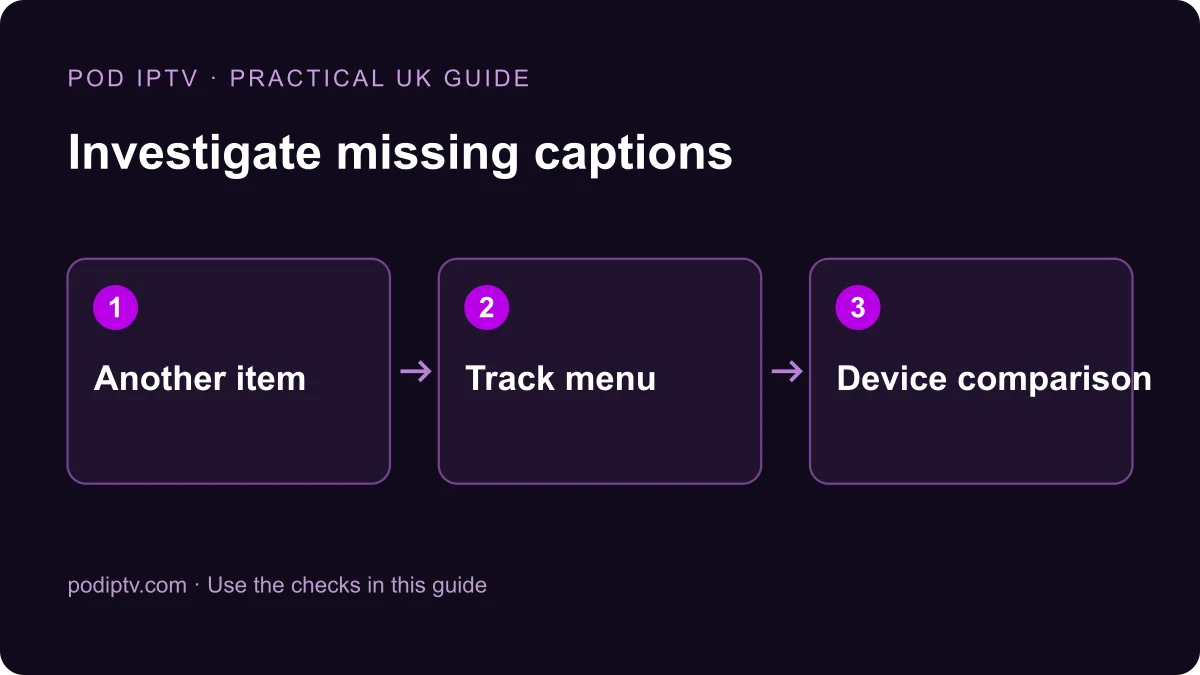
If no text appears, open the track menu again. If it shows no subtitle options, the programme may not supply a compatible selectable track. Compare another episode or another programme known to have captions. This helps distinguish a general app problem from missing content metadata.
For live television, tracks may vary by programme even on the same channel. An available option during one show does not prove it will be present during the next. Check the content you regularly watch before making captions a deciding factor in a longer plan.
Diagnosing IPTV subtitles by the visible result
Result
Possible explanation
Useful next check
No subtitle options
No supplied or compatible track
Try another confirmed captioned programme
Options exist but no text
Track selection or player issue
Reselect the track during a spoken scene
Text is always visible
It may be burned into the video
Check whether disabling selectable tracks changes it
Wrong language appears
Another track or default was selected
Review the actual track list
Only one device fails
App version or format compatibility
Compare a supported player on that device
Check 4: make IPTV subtitles readable
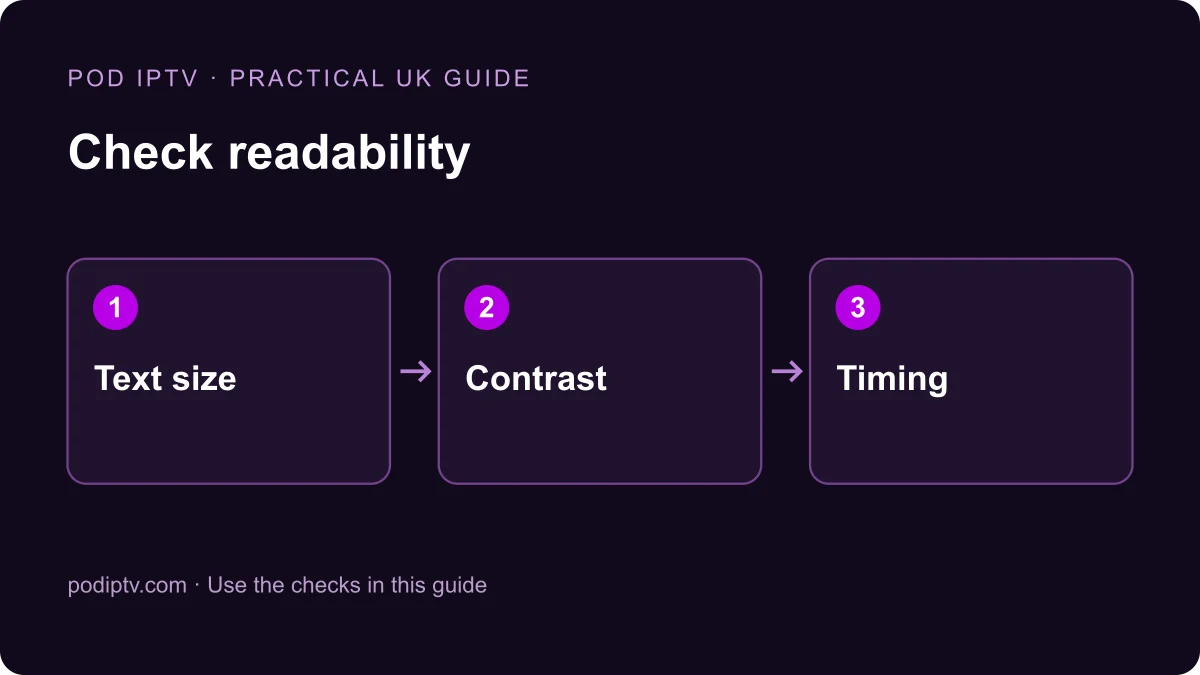
Where the player supports styling, adjust one option at a time. Text size, contrast, background shading and position can make a significant difference at a normal viewing distance. Check both a bright and dark scene so a setting that looks good on a menu does not become unreadable during a programme.
Keep the television's own picture boundaries in mind. If subtitle lines are cut off at the edge, inspect supported picture-size or overscan settings using the manufacturer's instructions. Do not assume changing the font will fix a display that is cropping the whole picture.
Device accessibility settings may influence some apps while leaving others unchanged. Test the specific player after making an operating-system change. If the player's own style controls are available, compare them carefully so two overlapping settings do not create confusing results.
For a shared household, choose a readable default and document it. A style that suits a phone held nearby may be too small on a television across the room. Different screen arrangements can reasonably need different settings.
Check 5: diagnose text arriving early or late
IPTV subtitles can be out of sync even when sound and picture match. First establish which relationship is wrong: text against dialogue, or sound against the speaker's mouth. A subtitle timing adjustment cannot fix an unrelated speaker or Bluetooth delay.
If your player exposes a subtitle delay, note the original value and make a small reversible change. Apps describe positive and negative offsets differently, so observe the result rather than assuming a particular sign moves text in the desired direction.
Use the same short scene for each comparison. If timing becomes correct briefly and then drifts, the issue may not be a simple constant offset. Stop and reopen the programme, compare another available track and report the exact item rather than leaving an extreme adjustment as a universal default.
After fixing one programme, check another before saving a global delay. A correction suitable for one file can make other programmes worse. Prefer a per-item adjustment where the app provides it and restore the original setting if the change does not help.
Check 6: compare IPTV subtitles across supported devices
Close the first stream and try the same programme on another compatible device within your connection allowance. Use the same language track if it is available. Record whether the menu, text and timing differ.
If the track works on one device but not another, compare app names, versions and supported formats. This is more informative than repeatedly refreshing the account. Update only through trusted sources and avoid installing unknown packages offered as a universal subtitle repair.
If the same track fails everywhere, the supplied programme or track may be involved. Contact support with the title, episode, language, time and devices tested. A service investigation is easier when the request identifies one exact item rather than saying that all captions are broken.
What to check before choosing a subscription
Use a 24-hour IPTV trial request to test the programmes and accessibility features you depend on. Ask about specific availability rather than treating a general compatibility statement as a caption guarantee. A third-party player's options and the tracks supplied with content are separate requirements.
Check live programmes, films and series independently. If you watch with another person who needs a different language, verify how switching works on your screen. Some players remember a language preference; others select a default separately for each item.
Only then compare the current prepaid plans. Choosing a longer duration does not create additional subtitle languages or make an unsupported player compatible. The practical trial result is more useful than a feature label.
Send a clear caption support request
Use POD IPTV support and identify the programme, season or episode, player, device and selected language. Explain whether tracks are missing, unreadable, in the wrong language or out of sync. Include a short description of the comparison you completed.
A screenshot of the track menu can help if it does not expose credentials or private information. Do not publish complete playlist links or account details. Where a recording would include protected programme material, a text description is often sufficient to begin the investigation.
IPTV subtitles questions
Do all IPTV programmes have subtitles?
No. Availability depends on the exact programme, the supplied track and the player's compatibility. Test the items that matter to you rather than assuming every channel or episode has the same options.
Can the television generate a missing subtitle track?
A normal subtitle setting selects or displays existing supported text. It does not create a missing supplied track. Separate transcription tools, where available, have different capabilities and should not be assumed to exist in your player.
Why cannot I switch off some text?
The words may be embedded in the video picture itself. Burned-in text is different from a selectable track and normally cannot be removed using a caption toggle.
Can I resize IPTV subtitles?
Some apps or device accessibility settings support styling; others do not. Check your actual player and test the result at your normal viewing distance.
Will changing subtitle delay fix lip sync?
It only changes text timing where supported. If sound and picture are out of sync, investigate the audio path separately rather than treating the caption offset as an audio repair.