By POD IPTV · Updated 10 October 2026 · 8-minute read
A clear IPTV support request helps identify the failed stage without repeating the same questions. “It does not work” could mean an app will not open, a login is rejected, one channel fails or every programme buffers. This guide shows six useful details to collect, how to describe a fair comparison and how to keep account information private while asking POD IPTV for help.
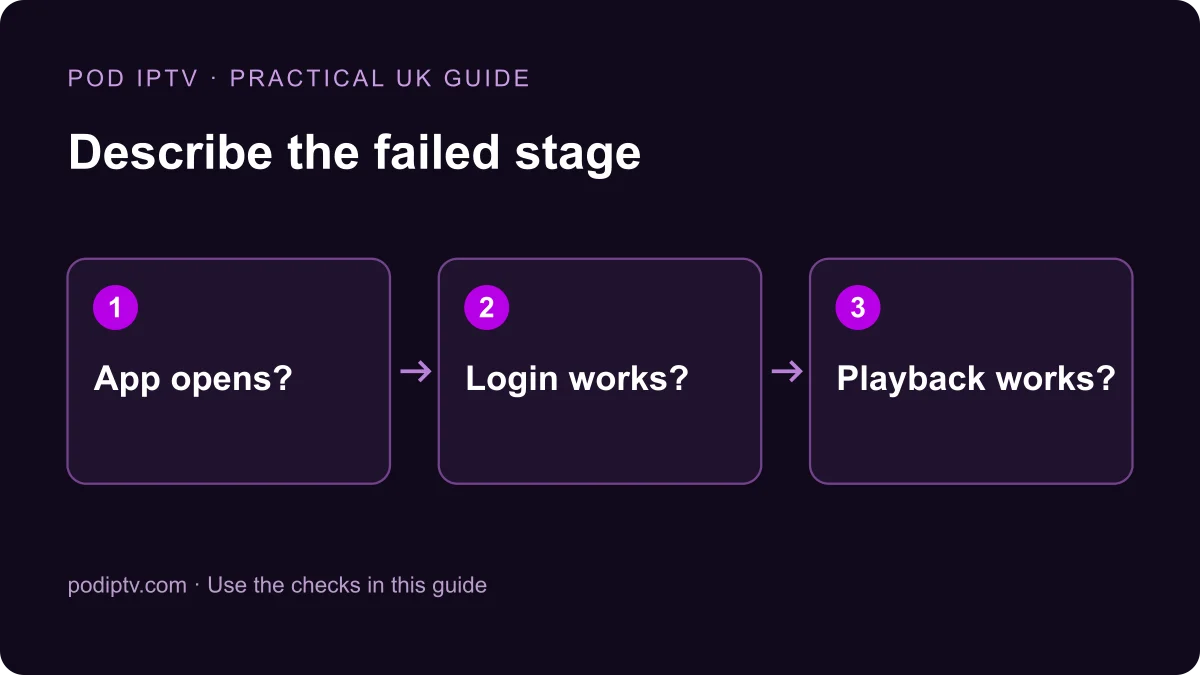
Think of setup as a short sequence: the device connects, the app opens, the account signs in, the catalogue loads and a programme plays. A problem at the first stage needs different evidence from one at the final stage. Identify the earliest point that does not work.
If the app does not open, changing a service password may be irrelevant. If the catalogue loads but only one programme fails, reinstalling the whole app may erase useful settings without addressing the item. Describe what still works as well as what fails.
Use the installation guides to check the intended setup sequence. You do not need to complete every possible troubleshooting step before contacting support, but a short factual record helps the investigation.
Detail 1: identify your device for IPTV support
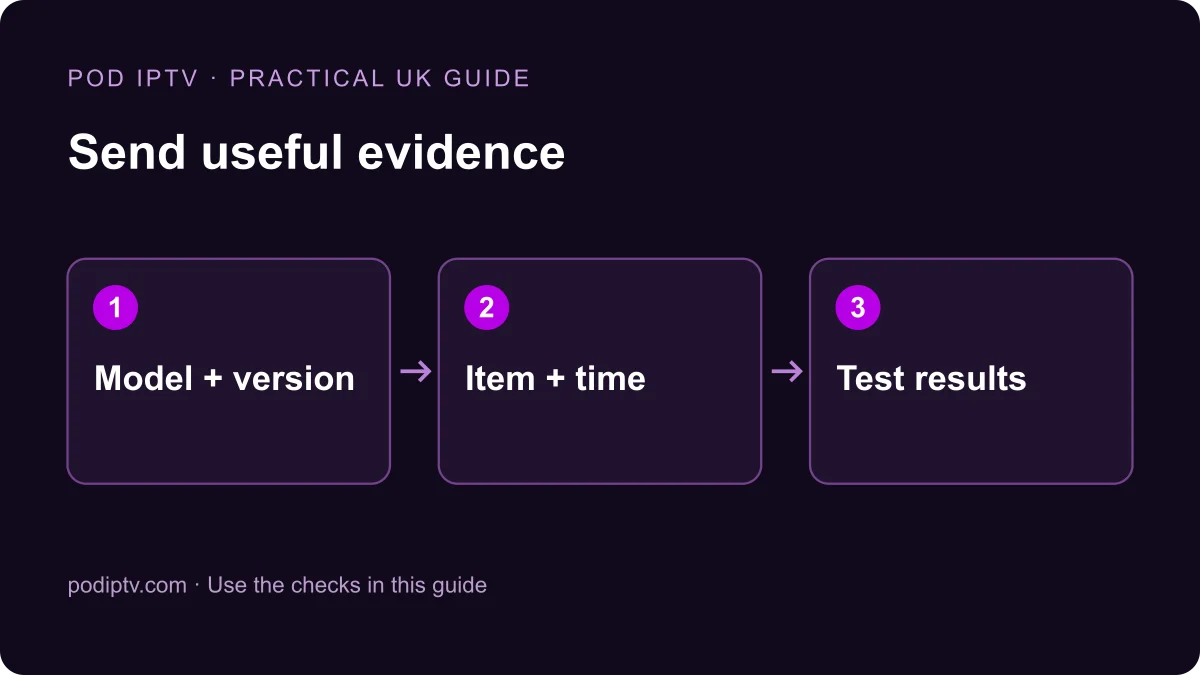
Give the device type and model where you can find it safely: for example, an Android TV, Apple device, smart television or Windows computer. Include the operating-system version if visible in its ordinary settings. “Smart TV” alone can cover several incompatible app platforms.
Give the player name and version separately. POD IPTV supplies account access; a third-party player is a different part of the setup. Similar app names can refer to different developers, platforms or versions, so a precise name is helpful.
If you recently updated the app or replaced the device, mention that fact and when the problem began. Do not guess a model from its appearance. A supported device-information screen is a better source than an old receipt if the equipment has changed.
Detail 2: describe the exact IPTV support symptom
Copy the visible error wording without including secret fields. Say whether the app freezes, closes, rejects the login, shows an empty catalogue or fails only when playback starts. Note whether sound plays, whether the picture is visible and whether a loading indicator remains.
For buffering, describe the pattern: repeated pauses, slow startup or a single interruption. For timing problems, say whether sound is early, late or drifting. For captions, say whether the menu has no tracks or a selected track fails to appear.
These descriptions are more useful than a general quality judgement. Support can ask a targeted next question when the symptom identifies a stage. Avoid assuming an error proves the service, broadband provider or player is solely responsible before controlled comparisons.
Detail 3: give IPTV support the programme and time
If one item fails, provide the exact channel name or the film, season and episode. Include a language or regional variant where relevant. A channel number may differ between players and is less reliable than the displayed name.
Record the date and approximate time with your time zone. A UK evening fault reported from another country can otherwise be difficult to line up with service checks. If the problem is recurring, say whether it happens at the same time or after a particular action.
Do not present a vague observation as a measured outage. “This item failed on my device at about 20:15 UK time” is clear evidence. “The whole service was down” needs broader proof and may lead the investigation in the wrong direction.
Detail 4: describe your connection to IPTV support
Say whether the device uses home Wi-Fi, direct Ethernet or a mobile hotspot. If Ethernet is connected to a wireless mesh node, mention that arrangement. It explains that part of the journey can still be wireless.
If you have a useful speed test, identify the device, location and time it was run. A fast phone test beside the router is not the same as a test on the television in another room. You can also report whether other ordinary internet activities are affected.
If a VPN or another network filter is active, mention it without assuming it causes or fixes the problem. Changing that route can affect availability, latency and service rules. Follow applicable terms and supported instructions rather than using it to bypass restrictions.
Detail 5: report your comparisons to IPTV support
Useful IPTV support evidence changes one thing at a time. Try another programme in the same player, or the same programme on another supported device, closing the earlier stream first. Note the result of each test and stay within your connection allowance.
Give a short record of normal restarts, supported updates and reversible settings changes. If you cleared app data or reinstalled, say so because stored preferences and logins may have changed. Avoid repeating disruptive steps while waiting for a reply.
Useful comparisons to include in a support request
Comparison
Keep constant
What to report
Another programme
Device, app and network
Whether the fault affects one item or several
Another device
Programme and network where possible
Whether the original device behaves differently
Direct cable if supported
Device, app and programme
Whether the wireless route changes the result
Another trusted player
Device, content and connection
Whether app behaviour differs
Normal restart
Existing settings
Whether improvement lasts or the fault returns
Changing the device, app and internet connection together can still produce a useful observation, but it does not isolate one cause. Say exactly what changed so support does not mistake it for a controlled comparison.
Detail 6: identify the request and account context privately
Explain whether you need installation help, a trial activation check, a playback investigation or an account-status check. If the issue relates to a trial, say it is a 24-hour trial request and give the relevant non-secret context through the verified private route.
For a plan question, state the duration and permitted simultaneous screens you believe apply. Compare that with the current plan information. Support may need to distinguish a trial account, an expired account and an active prepaid plan.
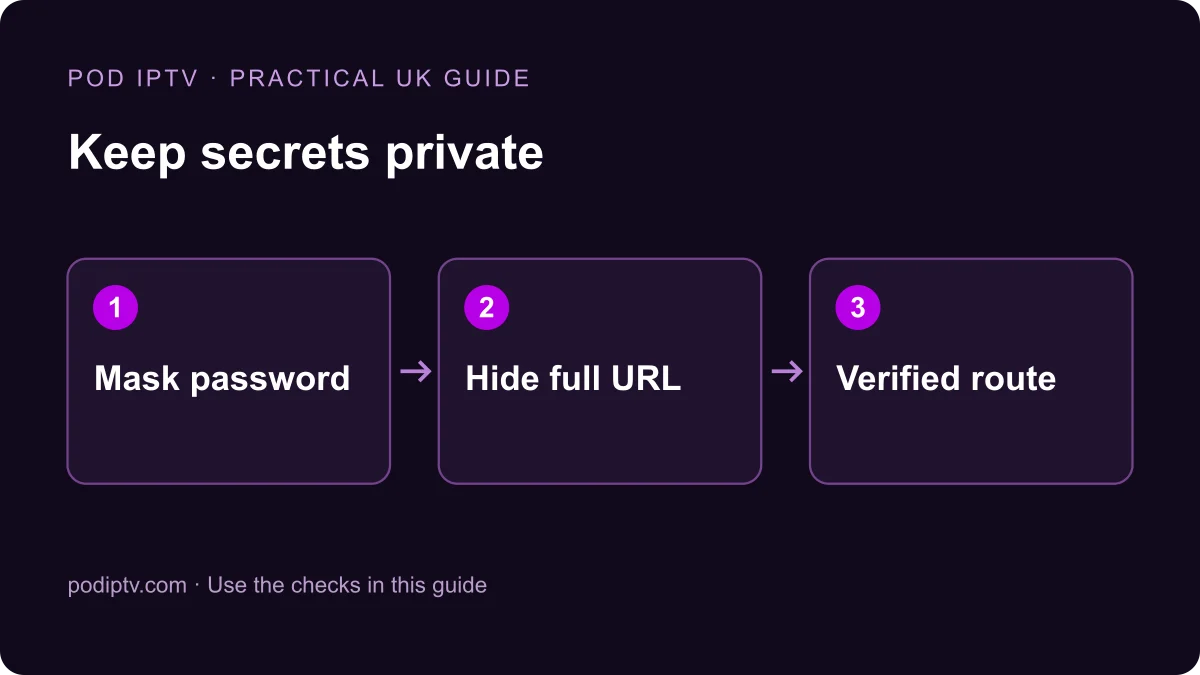
Do not paste your full password or complete playlist URL into a public form or discussion. Begin with the minimal information needed. If further account verification is required, use the known private contact route and check the recipient before sharing it.
Use the correct IPTV support route
Start from POD IPTV's Contact Us page. Identify the website as podiptv.com when describing the request, particularly if you use several services or contacted support through WhatsApp. That prevents confusion about which site and account the message concerns.
Do not trust a replacement contact number solely because it appears in an unsolicited message. Verify it through the current website. The UK's NCSC recommends protective habits for passwords in its password-security guidance; keep account access information separate from public troubleshooting evidence.
The first recipient can help direct the issue to the right part of the setup. A billing or access question differs from a bug in a third-party player's subtitle menu. Explain the symptom first instead of contacting several developers with inconsistent details.
A practical message to organise your details
You can organise a private request like this: “Website: podiptv.com. I need help with [failed stage]. Device and model: [your device]. Player and version: [your app]. Programme: [exact item]. Time: [date, time and zone]. Connection: [Wi-Fi, Ethernet or hotspot]. Visible error: [wording without secrets]. Comparisons completed: [brief results].”
This is a troubleshooting template, not a customer review or a claim about a fault that occurred. Replace the brackets with your actual observations. Leave unknown details marked unknown rather than inventing a version number or an exact failure time.
For a trial request, use the 24-hour free-trial page and supply its requested information. A trial activation request should not be confused with a report about an already working account.
What to do while the issue is investigated
Keep the last known settings and avoid repeated factory resets or unknown repair tools. Record any change in behaviour and send a concise update through the same verified conversation. A useful update identifies what changed rather than repeating the original message several times.
If support suggests a test, confirm you understand its effect before a disruptive step. Removing app data can erase a login; resetting a device can affect unrelated accounts. Ask for clarification if the instruction does not match your model or player.
No general response-time guarantee is made here. The aim is to make the first request useful so that the investigation can begin with relevant information. A well-organised IPTV support report also helps you avoid paying for unnecessary equipment before the cause is understood.
IPTV support questions
What is the most useful first detail?
The earliest failed stage: app opening, sign-in, catalogue loading or playback. Add the device and player so support can ask a relevant next question.
Should I send my account password immediately?
Keep it private. Begin with non-secret diagnostic details through the verified website route. Never publish complete credentials or a credential-bearing playlist link.
Can a screenshot help IPTV support?
Yes, when it shows the actual error or relevant setting and hides access information, private contact details and unrelated windows. A written description can often be enough initially.
Should I reinstall before asking for help?
Not automatically. Programme comparisons and a normal restart are less disruptive first checks. Explain what you already tried rather than deleting settings without a clear reason.
Why include the website name?
It identifies podiptv.com as the source of the request, especially in a messaging conversation involving several sites or accounts.