IPTV Time Zone: 6 Easy Checks for a Better TV Guide
By POD IPTV · Updated 10 October 2026 · 8-minute read
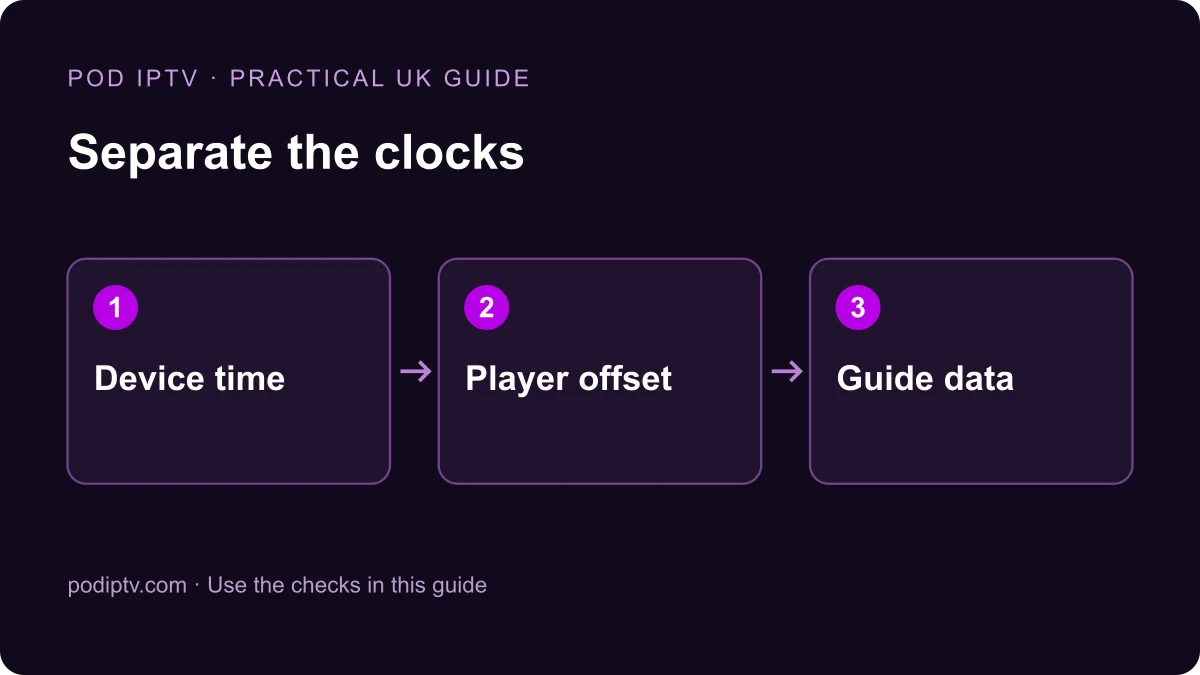
An IPTV time zone mismatch can make the programme guide look an hour early, several hours late or inconsistent between devices. The device clock, player display settings and supplied guide data can each contribute. This guide explains six checks for UK viewers so you can identify the mismatch without applying several offsets that cancel each other only temporarily.
Separate IPTV time zone settings from playback delay
A guide showing the wrong scheduled time is different from a live stream arriving a little behind another screen. The first concerns how a programme is labelled in time; the second concerns delivery and playback. Changing a guide offset does not make a live stream arrive sooner.
Similarly, a blank guide is not automatically a time-zone problem. The source may have no data, the player may need a supported guide refresh or channel identifiers may not match. Start with a known listing whose scheduled time you can verify independently.
Choose two channels if possible. If every listing appears shifted by the same amount, a consistent offset is plausible. If only one channel is wrong, investigate that channel's guide information before changing the whole device clock.
Check 1: verify the device clock and location
Open the device's ordinary date-and-time settings and compare the displayed time with a trusted clock. Note the selected time zone and whether automatic time is enabled. A streaming box brought back from a trip may retain a previous location setting.
Use the manufacturer's current instructions for your exact operating system. Menu names vary across televisions, phones and computers. Do not manually alter the clock merely to make one guide entry look correct while the rest of the device uses the wrong time.
If automatic time is supported but appears wrong, check that the device has normal internet access and the intended regional setting. Record the original values before changing anything. An operating-system clock problem can affect more than the television guide.
Check 2: account for UK clock changes in the IPTV time zone
The UK alternates between Greenwich Mean Time and British Summer Time. GOV.UK lists the current clock-change rules and dates. The clocks go forward on the last Sunday in March and back on the last Sunday in October; check the official calendar for the year you need.
A fixed one-hour adjustment can appear correct during one part of the year and become wrong after a clock change. Prefer the device's supported regional time-zone behaviour where available rather than treating the UK as a permanently fixed offset.
When investigating an IPTV time zone problem around a change, note whether it began on that date and whether all channels shifted. A recurring one-hour symptom is a useful clue, but it does not prove which layer handled the change incorrectly.
Check 3: inspect the player's IPTV time zone controls
Look for documented guide, EPG, time-zone or offset settings in the actual player. Some apps use the device clock; some expose a global offset; others allow a channel-specific adjustment. Identify the scope before changing the value.
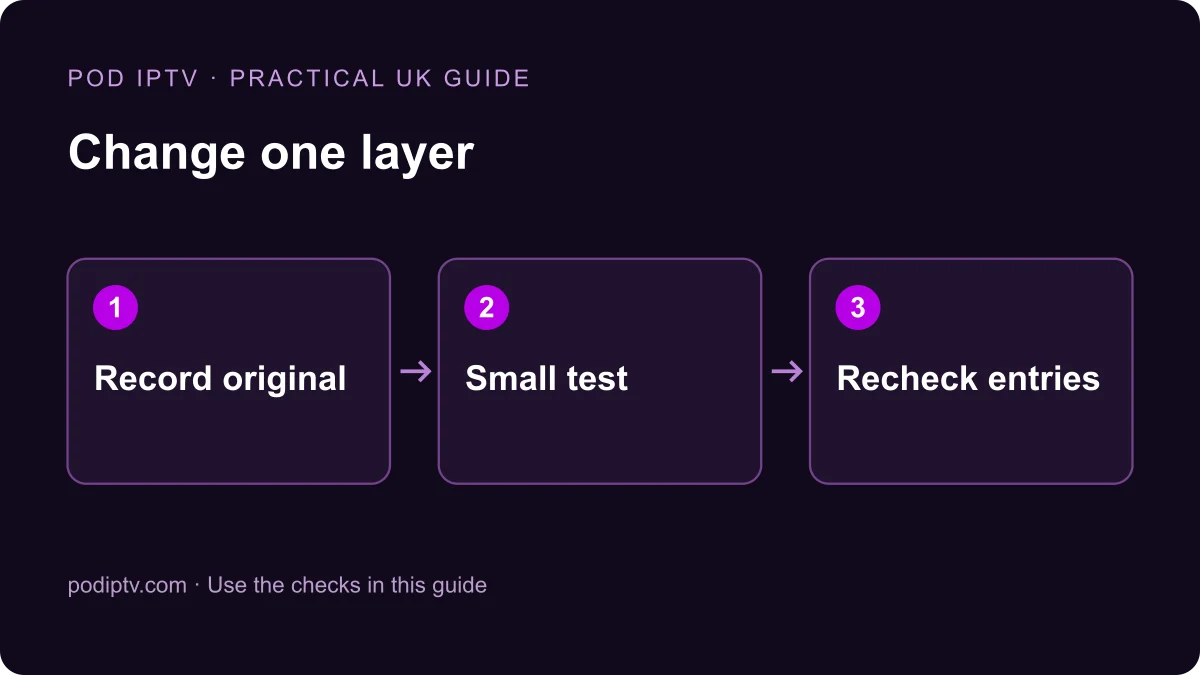
Write down the current value and make one small reversible test. Players can describe the direction of an offset differently, so inspect the result rather than assuming positive always means later. Do not change the system clock and app offset together.
If the player supports a per-channel correction, it may be preferable when only one listing is affected. A global change applied to solve one channel can move every otherwise-correct listing into the wrong position.
Different timing controls and their scope
Control
What it may affect
What to check first
Device clock
The operating system and apps using its time
Actual local time and regional settings
Global guide offset
Many guide entries in the player
Whether every channel shares the mismatch
Channel-specific offset
One supported guide mapping
Whether that channel alone is wrong
Supplied guide timestamps
The programme data received
Whether the same entry is wrong on another player
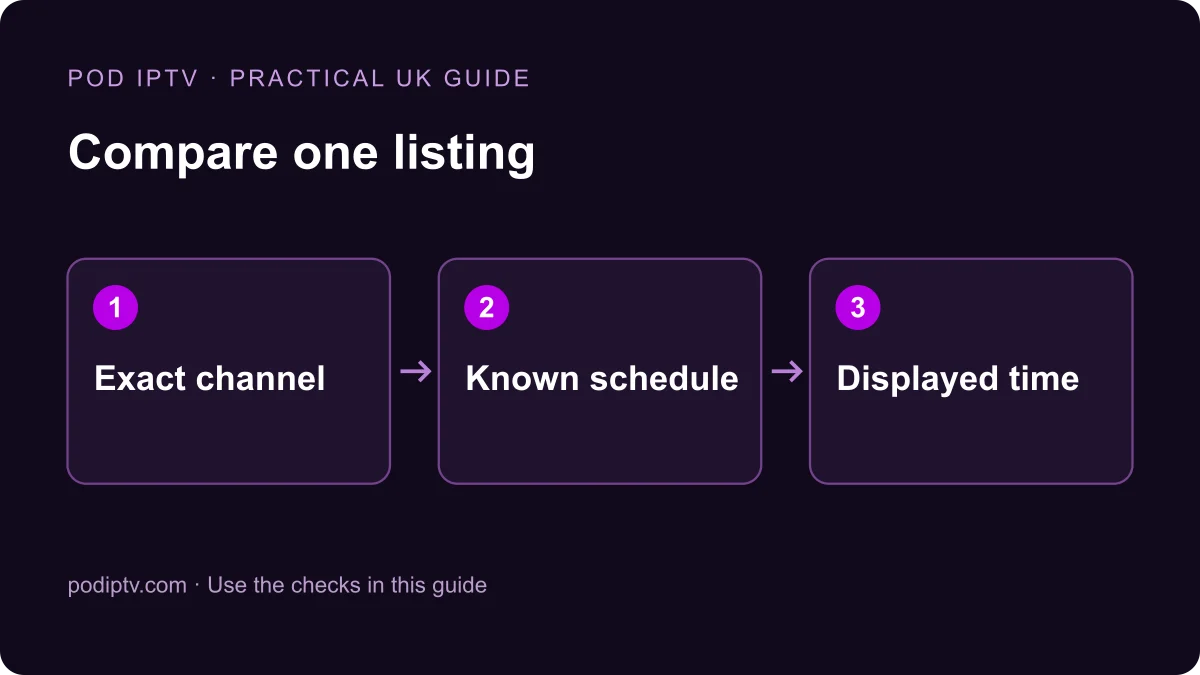
Check 4: compare a known scheduled programme
Use the broadcaster's own current schedule where available, then compare the exact channel and regional variant in your guide. A programme with the same name on another channel or a delayed variant is not a fair timing reference.
Note the scheduled time, the player's displayed time and the difference. Repeat with a second listing. If the difference remains constant across several entries, document it. If it changes unpredictably, the issue may involve the guide data or the item mapping rather than one simple offset.
Do not use a live-event notification from social media as an exact guide-clock measurement. Notifications and live feeds can have their own delays. A reliable schedule comparison is clearer evidence for an IPTV time zone investigation.
Check 5: refresh guide information separately
If the device time and player setting are suitable, use the player's supported guide-refresh option. A catalogue or playlist refresh may update channel entries without fetching fresh programme data. Check which action the menu actually performs.
Allow a reasonable supported loading period and then inspect the same entries. Repeatedly pressing refresh is not a substitute for identifying whether a download completes. Record any visible error and check whether other guide entries populate normally.
A refresh does not renew an expired account or create missing guide data. If the same item remains wrong, keep the comparison details rather than clearing all app data. Removing data can also remove favourites and settings you will need to recreate.
Check 6: compare IPTV time zone results on another device
Close the earlier stream and compare the same channel's guide on another compatible device within your account allowance. Note both device clocks and player versions. A television in UK time and a phone left in another location may correctly display different local labels.
If both devices use the same intended time zone but only one shows the mismatch, inspect that player's settings. If both show the same wrong entry while other channels are correct, supplied data or channel mapping deserves attention.
Keep the comparison limited. Changing the player, account and guide source at once makes the result harder to interpret. A simple record of two devices and one exact listing is often sufficient to guide the next step.
Check replays and recordings after a timing correction
Where a player supports catch-up or scheduling, guide timing can affect how you select a programme. A corrected display does not guarantee that a replay archive or recording schedule is now aligned. Test the actual supported feature separately.
For a replay, choose a known earlier programme and confirm that the intended item opens. For a permitted supported recording arrangement, complete a short schedule test before relying on it unattended. Do not assume a guide entry grants recording permission.
Keep any correction within the player's documented scope. If a change fixes display labels but replay selection still opens the wrong item, report that distinction. It provides more useful evidence than repeatedly increasing the offset.
Keep a clear IPTV time zone record
Details for a guide-timing support request
Detail
What to record
Device
Model, operating-system time and selected region
Player
App version and guide offset, including its scope
Programme
Exact channel and independently checked schedule
Difference
Displayed time versus expected local time
Comparison
Another channel or device and its result
Send this through POD IPTV support without passwords or full playlist links. Include the date, especially around clock changes. A screenshot can help when it clearly shows the timing comparison and no private account details.
Test guide timing before choosing a plan
During a 24-hour trial request, check the guide on the device and location you normally use. Test the exact channels that matter and ask about supported guide and replay features rather than inferring them from a general compatibility statement.
The installation guides establish the underlying player setup. Compare current prepaid plans after the viewing arrangement suits you; a longer subscription does not automatically repair a local clock setting.
IPTV time zone questions
Will changing IPTV time zone reduce live delay?
No. Guide labels and stream delivery are different. A time offset changes supported schedule presentation, not how quickly a live picture arrives.
Why is the guide one hour wrong after a clock change?
A fixed offset or one layer's daylight-saving behaviour may be involved. Check the device region, app scope and more than one channel before choosing a correction.
Should I change the whole device clock?
Only correct it if the actual device time is wrong, following supported instructions. Do not use an incorrect system clock to disguise one bad guide entry.
Can one channel need a different correction?
Possibly. Compare its exact schedule and mapping first. Use a channel-specific setting only if the player supports it and the evidence justifies it.
Why does another screen show a different guide time?
Compare the intended local zones and player settings. Different local-time displays can be legitimate, while a mismatch within the same zone needs investigation.