Xtream Codes Login: 6 Easy Checks to Avoid Failed Sign-In
By POD IPTV · Updated 10 October 2026 · 7-minute read
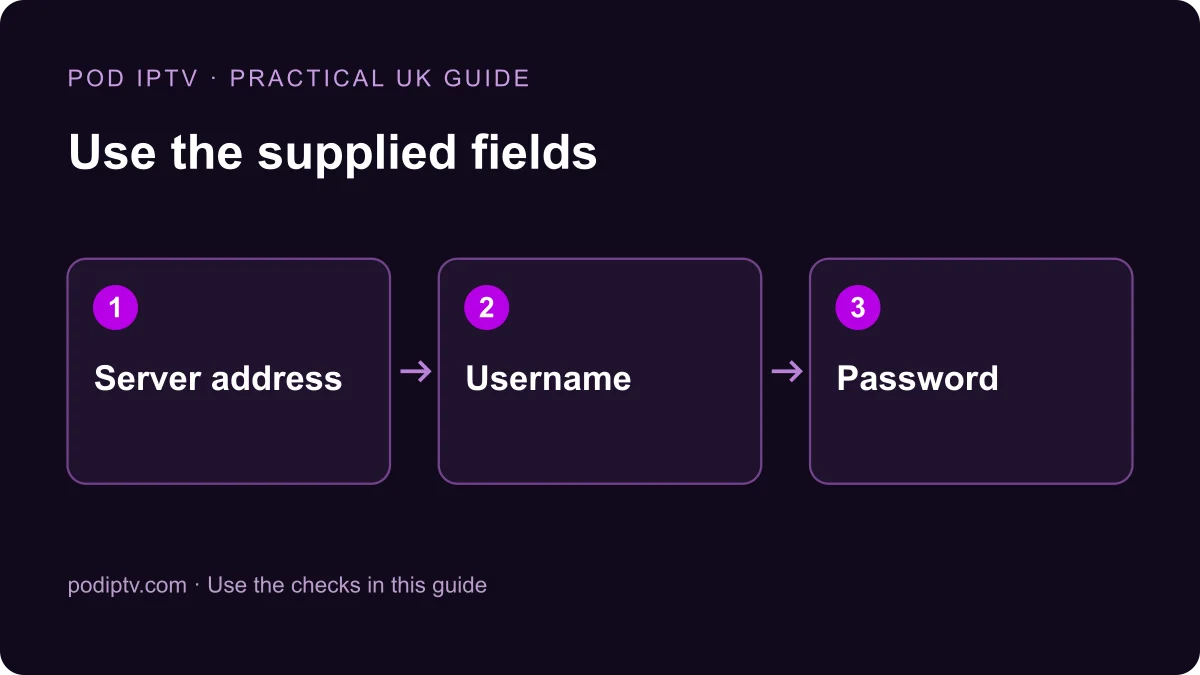
A Xtream Codes login usually asks for three supplied details: server address, username and password. A compatible player uses them to access the account and load its catalogue. If sign-in fails, check the format, copied text and account state before reinstalling the app. These six checks help UK viewers complete setup and report the right problem without exposing credentials.
Players may offer several methods for adding an account. A playlist URL field, a portal option and a separate server-and-password screen are not interchangeable. Choose the option matching the details supplied by your provider and supported by the app.
Menu wording varies. It may mention Xtream Codes, an API login or adding a user. Follow the instructions for your exact player rather than assuming every app uses the same labels. If the expected option is missing, check compatibility before buying an app licence.
The POD IPTV device guides help identify the right platform. Fire TV, Android TV, Samsung, LG and Apple devices can use different players. An instruction for another operating system may not match your screen.
2. Copy the server address exactly
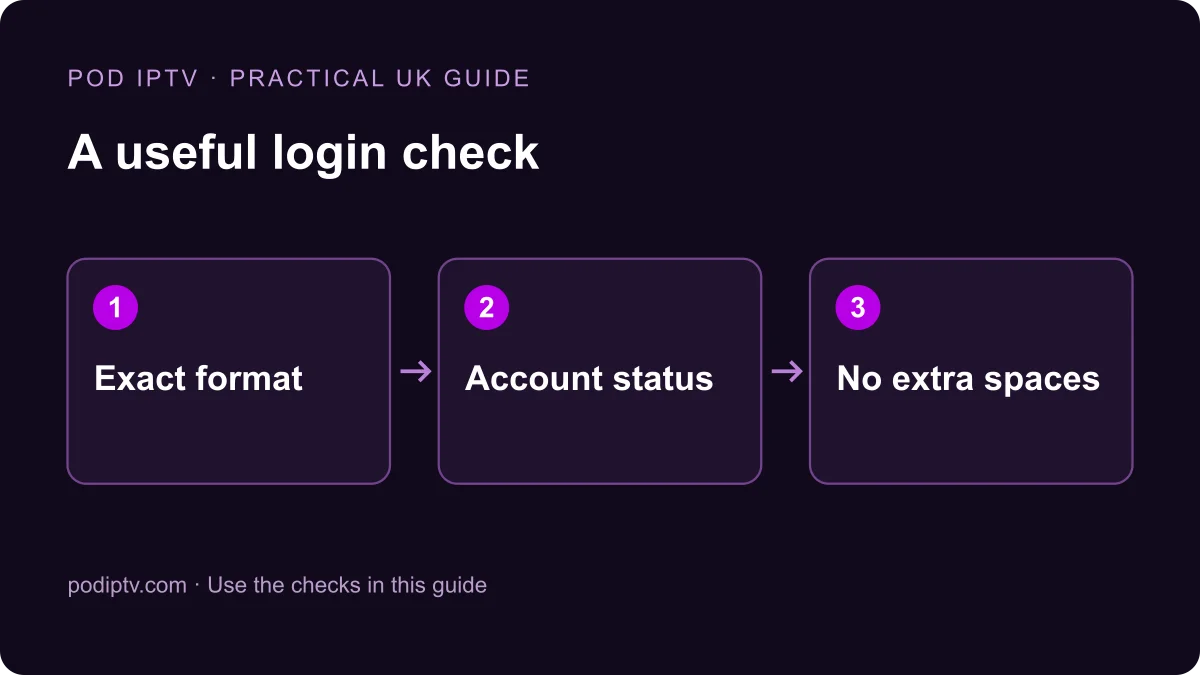
Use the complete server address as supplied. Its protocol, hostname and any port can matter. Do not replace one part with a similar address from an old tutorial or remove a port because it looks unusual.
Check for leading or trailing spaces after copying. A television keyboard may also introduce an unexpected character. Compare one field carefully before changing every part of the Xtream Codes login at once.
If the supplied information is unclear, ask through the verified contact route. Do not reconstruct a server address from a screenshot posted by another customer. Their account may use different details, and old addresses may no longer apply.
3. Check username and password characters
Compare capital letters, numbers and punctuation carefully. A remote keyboard can make similar characters difficult to distinguish. If the player supports showing the password temporarily, use that privately and hide it again afterwards.
A device's saved autocomplete can insert a different account. Confirm that the username is the service-supplied one, not your app-store email or player licence login. These accounts serve different purposes.
Never share the full Xtream Codes login in a public screenshot. Mask the server access details, username and password before asking for help in a discussion. Support usually needs a description of the failed stage first, not a public copy of the credentials.
4. Confirm the account is active
An accurate login cannot activate an expired or pending account by itself. Check the activation confirmation and term end date. If a trial was requested, establish whether support has confirmed usable access and when its testing period starts.
A paid player licence is separate from programme access. Paying the developer can unlock app functions without adding or renewing a service account. Keep those confirmations and support routes separate.
For POD IPTV, check the current service options and use the contact page for existing-account questions. Do not pay again solely because a Xtream Codes login fails; first confirm which account and payment are involved.
5. Verify connectivity on this device
Check a normal internet function on the same screen. Another phone working through mobile data does not prove that the television's Wi-Fi connection is usable. Record the network name and connection method if the setup recently changed.
If general internet access fails, address that before retrying the same credentials. Where appropriate, compare a wired path or a temporary position nearer the router. Keep the account information unchanged during the comparison.
If internet access works but the Xtream Codes login still fails, record the exact message. An authentication notice and a connection timeout may point to different investigations. Do not describe both simply as invalid password without evidence.
6. Distinguish accepted sign-in from playback problems
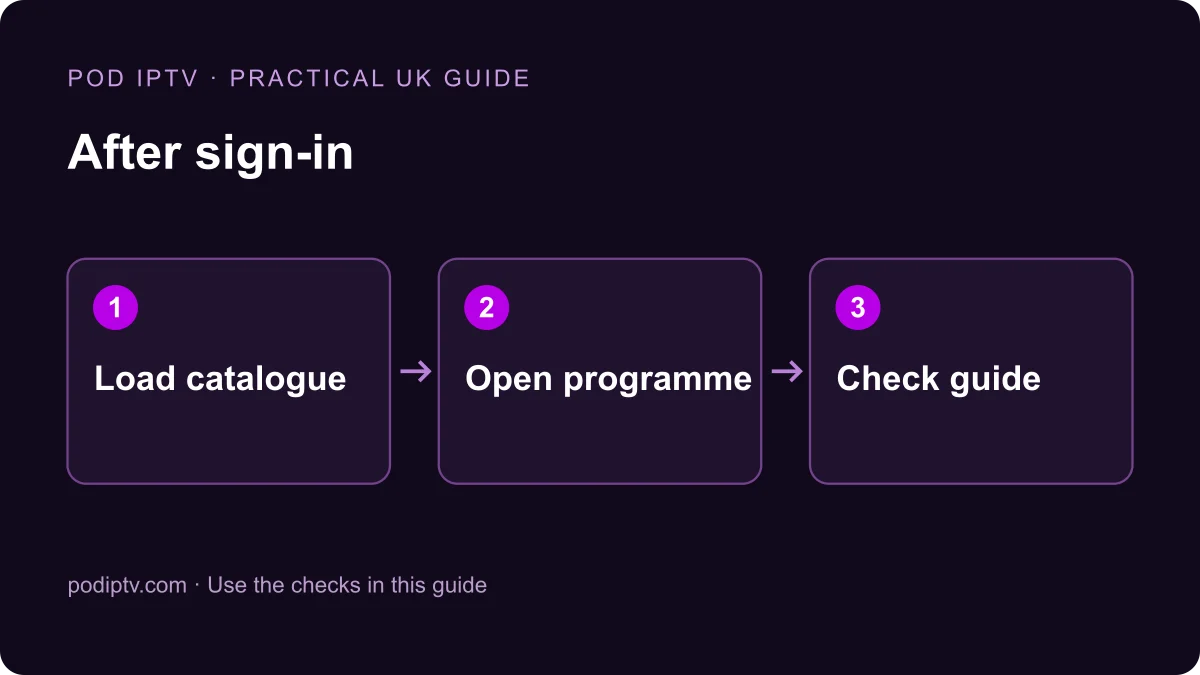
After sign-in succeeds, allow catalogue and guide information to load. Check the full programme section rather than an empty favourites group. An accepted login followed by slow import is different from authentication failure.
Test several items. If one channel fails while others play, report that source instead of requesting a new password immediately. Guide data can also be missing while live playback continues, so note each result separately.
Stop other streams before testing within a smaller account allowance. Background playback, casting or recording may affect active connections. Installing the account on another device does not automatically include another simultaneous stream.
Which detail belongs in which field?
Xtream Codes login fields
Field
Use
Avoid
Account label
A local name for recognising the account, if requested
Confusing it with the supplied username
Server
The supplied complete server address
Guessing another protocol or port
Username
The supplied service username
Using app-store or player licence details
Password
The supplied service password
Extra spaces or changed capitalisation
A troubleshooting example with two different failures
A viewer first enters a complete playlist link into a server field. The player rejects sign-in. The appropriate first step is to confirm whether the account should use a playlist import or separate credentials. Reinstalling would leave the same format mistake untouched.
After selecting the correct method, sign-in succeeds and the catalogue appears. A particular programme then fails. This second problem should be investigated as playback or source availability, not automatically treated as the original login error.
The viewer records the player version, exact programme and time. Other channels play, which gives support a useful comparison. Separating the stages makes the Xtream Codes login report clearer and preserves a working account configuration.
Keep the setup recoverable
Store the supplied details privately before clearing app data or reinstalling. Note the player name, version, device model and account method. That record helps restore the setup without relying on a forgotten screenshot or old chat message.
A normal restart is less destructive than deleting the account. If the app developer recommends maintenance, understand whether it removes saved data. Google's Android app troubleshooting guidance provides platform-specific context, while other devices need their own instructions.
A factory reset affects unrelated apps and preferences too. It should not be the default Xtream Codes login remedy for a likely typo or expired term. Ask what evidence makes that action useful before removing the configuration.
Protect supplied credentials
Use the verified website and contact route when discussing access. An unsolicited message asking for a password, full playlist or payment should be checked independently. Familiar branding alone does not establish that the sender is genuine.
If you accidentally expose a Xtream Codes login, tell the provider and ask about replacing access. Removing a screenshot does not necessarily prevent use by someone who already copied it. Do not try to solve that exposure only by changing the local account label.
Protect the email account used for confirmations and recovery. The NCSC two-step verification guidance explains an additional sign-in check for supported accounts. Service-issued credentials may require the provider's help to change.
A useful support message for failed sign-in
Describe whether this is a new setup or a previously working account. Include the exact device and player version, the selected login method and the error wording. Mention whether ordinary internet access works on the same device.
Explain what you compared: copied spaces, capital letters, supplied server format and account status. Keep passwords out of the opening message. If support needs account-specific information, use the verified private route and supply only what is necessary.
Ask for the next test's purpose. If support supplies corrected details, enter them privately and record which stage changes. Confirm normal playback and required controls after a successful Xtream Codes login rather than stopping at the catalogue screen.
Xtream Codes login questions
Is a Xtream Codes login the same as an M3U URL?
They are different ways a player may receive account access. Use the supplied method and the matching field rather than converting details by guesswork.
Does a Xtream Codes login include a player licence?
Not automatically. Service access and app activation can be separate purchases with different credentials.
Why does a Xtream Codes login fail after a reset?
Saved configuration may have been removed. Restore the supplied method carefully and confirm account status before assuming the service changed.
Can I send my Xtream Codes login to a public forum?
Do not expose credentials. Share the error, device and masked settings instead, and use verified support for account-specific questions.
What comes after a successful Xtream Codes login?
Allow the catalogue to load, open several programmes and check the guide and controls you need. Authentication and playback are separate checks.