Home / Installation guide / Fire TV Stick
POD IPTV · UK SETUP GUIDES
IPTV on Firestick: 4 setup stages
Follow the IPTV Firestick setup guide for UK viewers: check Fire TV settings, install a compatible player, add your POD IPTV login and test a channel.
About 10 minutes · Fire TV Stick, Lite, Max, Cube and compatible Fire TV televisions
For IPTV on Firestick with POD IPTV, install a compatible player first, then add your supplied account details. The service account provides access; the player is a separate app.
These steps are for Android-based Fire OS devices. Some newer Fire TV models use a different operating system and cannot install Android APKs. Check the model before using Downloader; use a compatible store player or ask support if the menus differ.
IPTV on Firestick: compatible player comparison
These players are supplied by independent developers. App purchases and upgrades are separate from your POD IPTV plan. TiviMate ↗ · Smarters Pro downloads ↗ · Downloader by AFTVnews ↗
Part 1: Check your Firestick installation settings
01
Open My Fire TV
From the Fire TV home screen, select the Settings gear and open My Fire TV. On some televisions the equivalent menu is Device & Software.
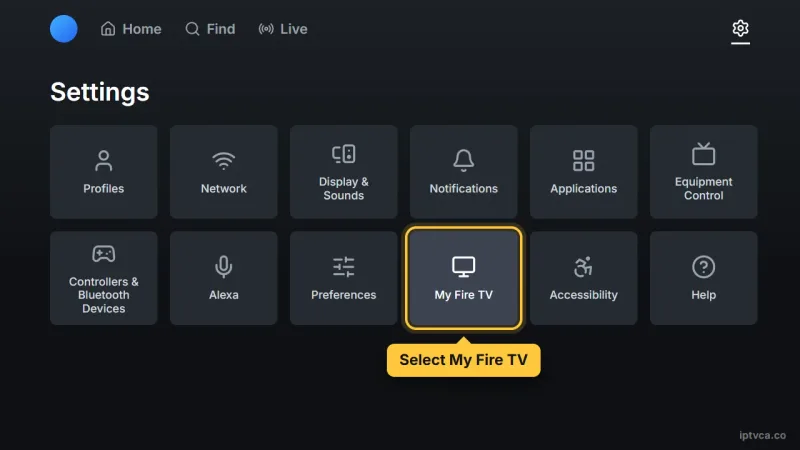
Fire TV Settings screen with My Fire TV selected
02
Show Developer Options when hidden
Open About and highlight your device name. Press Select seven times until the developer message appears, then press Back to return. Skip this if Developer Options is already visible.
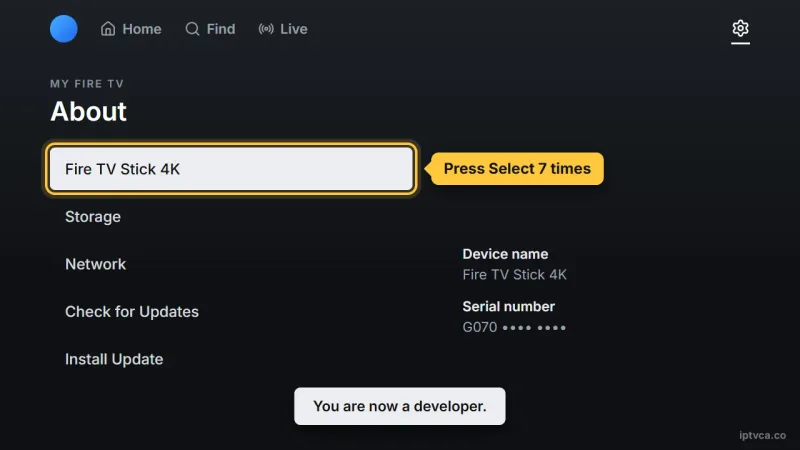
Fire TV About screen: press Select seven times on the device name to become a developer
03
Find Install unknown apps
Open Developer Options and locate Install unknown apps. You will allow Downloader after installing it. Older Fire OS versions may use a different label.
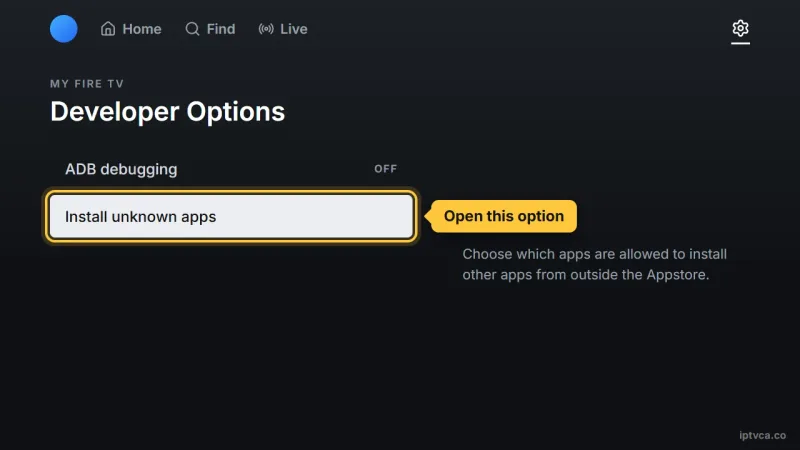
Fire TV Developer Options with Install unknown apps selected
Part 2: Install Downloader on Firestick
01
Search the Amazon Appstore
Open Find → Search and enter Downloader. Select the orange app published by AFTVnews. If your preferred player is already in the store, you can install it directly and skip the APK steps.
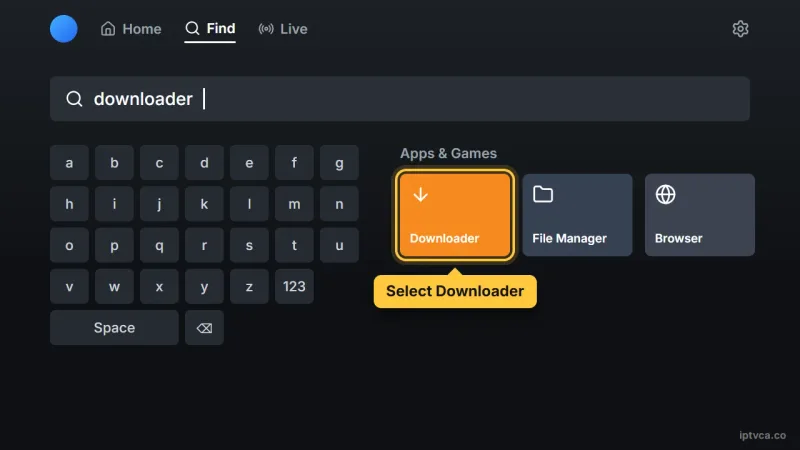
Fire TV search for Downloader, with the orange Downloader app selected
02
Download and open the app
Select Get / Download, wait for installation, then open Downloader. Review any permission request in the context of the download you are making.
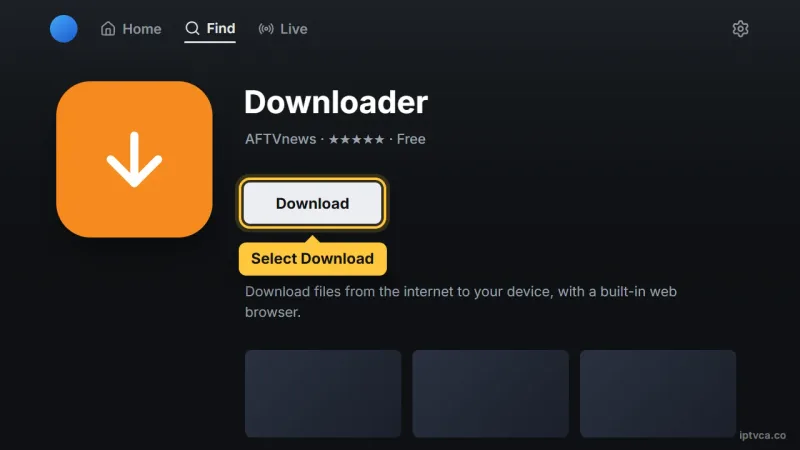
Downloader app page on Fire TV with the Download button selected
03
Allow installation through Downloader
Return to Settings → My Fire TV → Developer Options → Install unknown apps and enable Downloader. Only enable the installer you need.
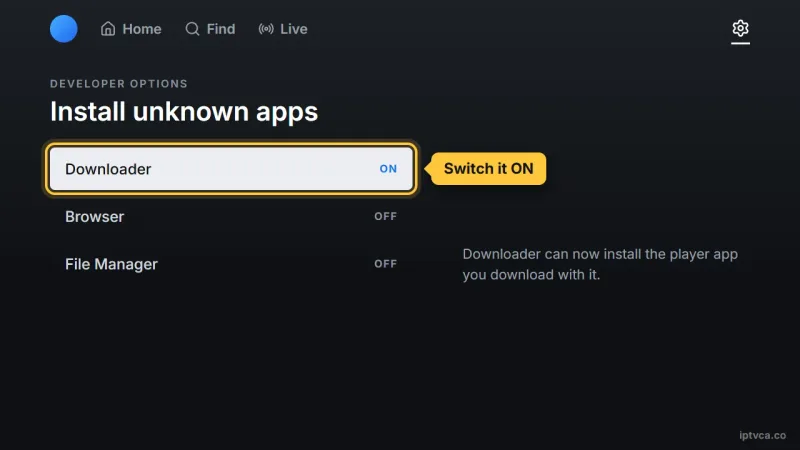
Fire TV Install unknown apps list with Downloader switched on
Part 3: Install your Firestick IPTV player
01
Open the address field
In Downloader, open Home and select the website address field.
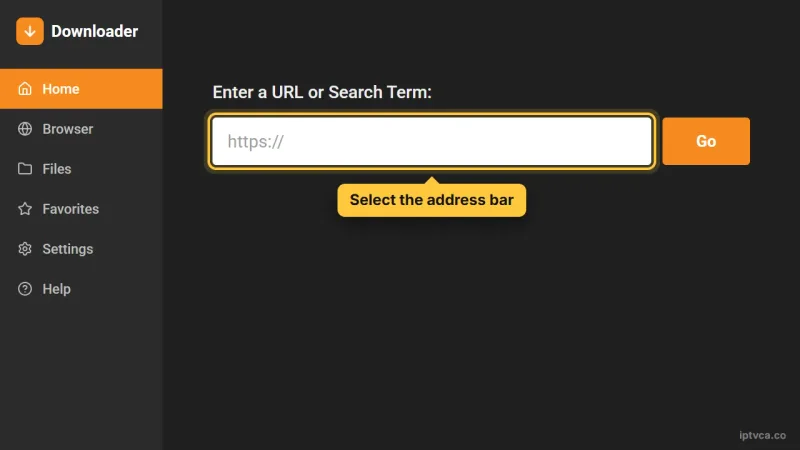
Downloader app home screen with the address bar selected
02
Use the developer’s own website
Enter the official player website linked in the table above. Choose its compatible Fire TV / Android download. Follow the current developer instructions rather than an unverified download code.
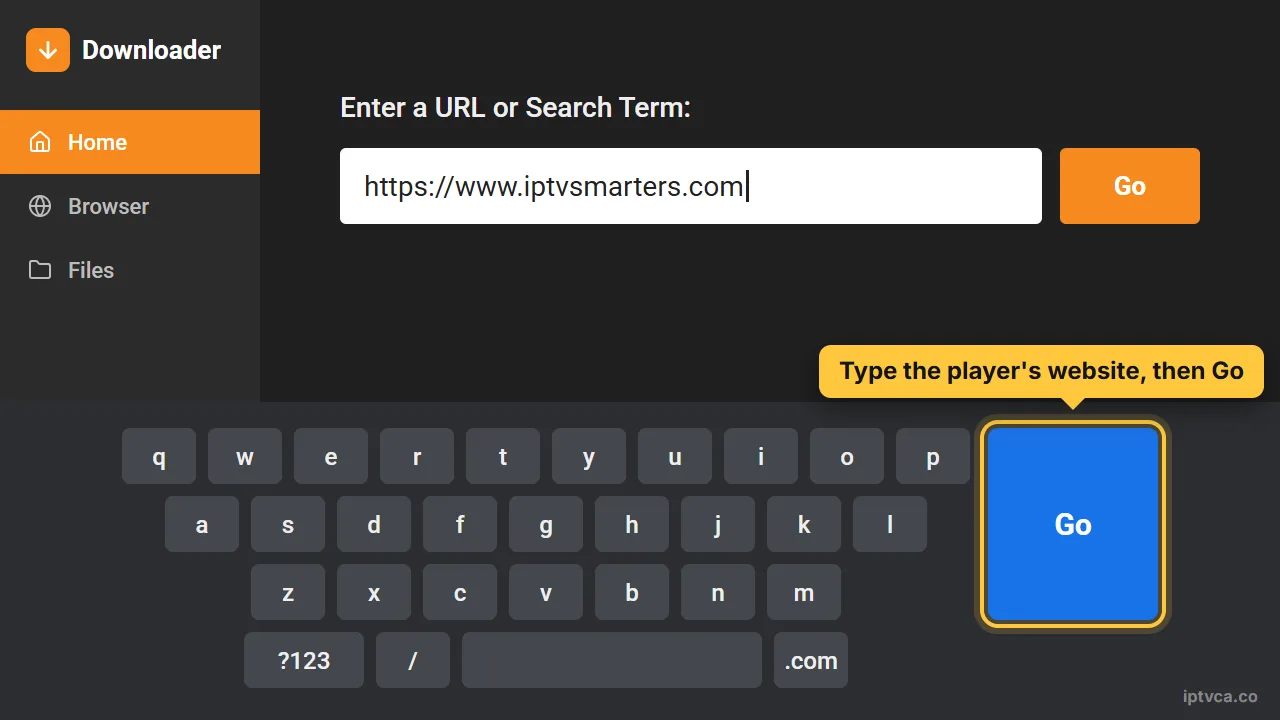
Downloader keyboard with the player's website typed in and the Go key selected
03
Install and tidy up
Select Install, then Done. Remove the downloaded installer if you no longer need it. Turn the Downloader installation permission off after completing setup.
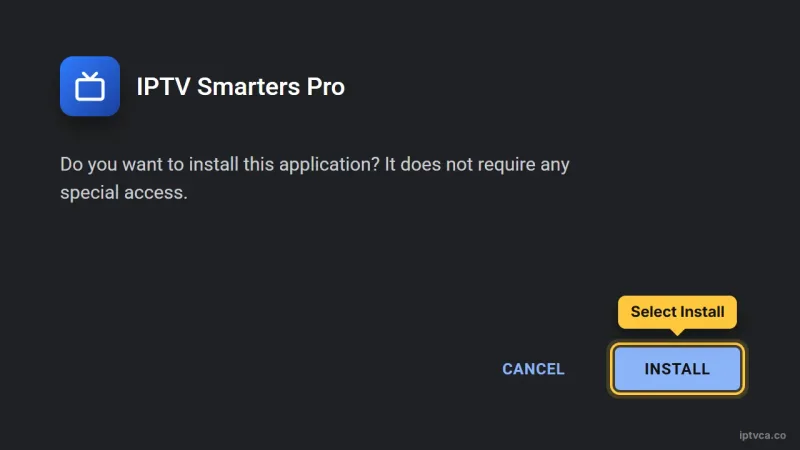
Android installer asking to install IPTV Smarters Pro, with Install selected
Part 4: Add your account to the Firestick player
01
Launch the player
Open Your Apps & Games and choose the installed IPTV player. You can also find it under Settings → Applications → Manage Installed Applications.
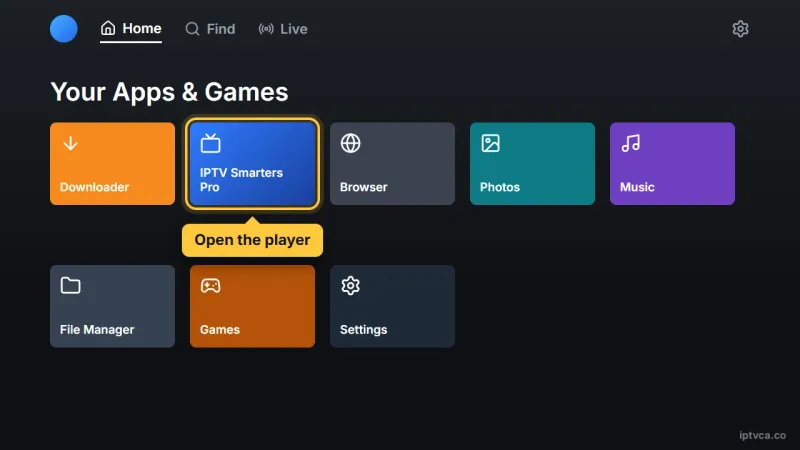
Fire TV Your Apps & Games with the IPTV player selected
02
Create a user or playlist
Select Add user, Add playlist or the plus button. The exact wording depends on the player.
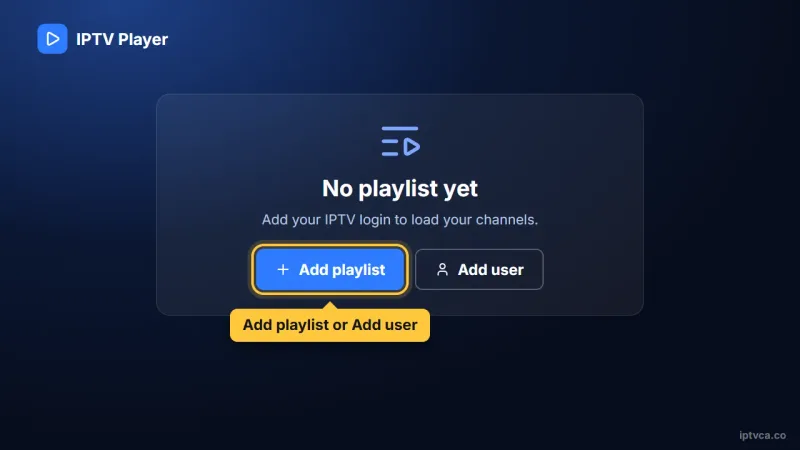
IPTV player first screen with the Add playlist button selected
03
Enter your access details
Choose Xtream Codes / Login with Xtream Codes API when your account has a server URL, username and password. Enter each field exactly as supplied by POD IPTV. Use POD IPTV as the playlist name, save and allow the first library update to finish. If you received a complete M3U URL instead, choose the M3U / playlist URL option and paste the entire link.
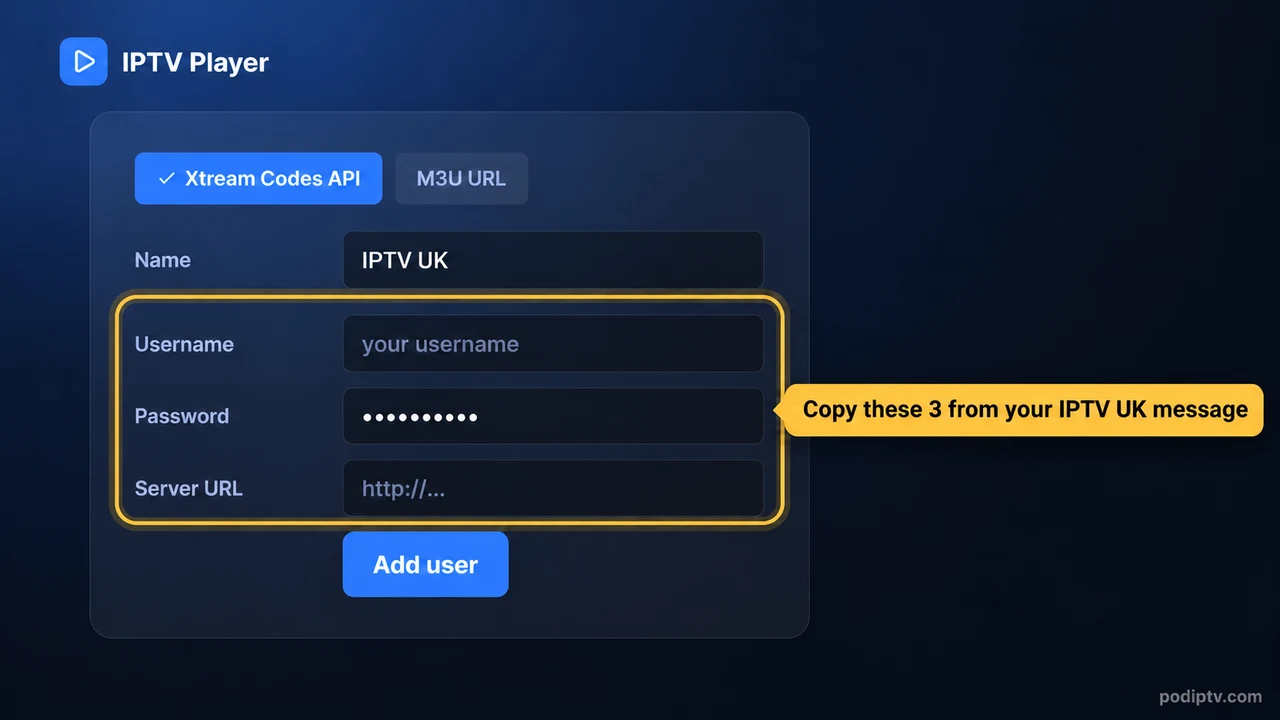
IPTV player Xtream Codes login form: username, password and server URL from your POD IPTV email
04
Test a channel and move the app forward
Open Live TV and test playback. To keep the player easy to find, highlight it in Your Apps, press the menu button and choose Move to front when available.
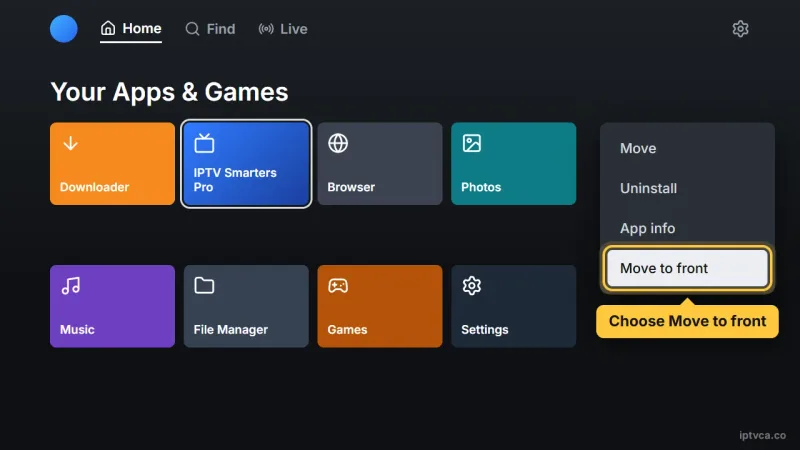
Fire TV app options menu with Move to front selected
Tips for reliable playback
- Use a compatible, up-to-date Fire TV device with enough free storage.
- An Ethernet adapter can help if the wireless signal behind the TV is weak.
- Refresh the guide after first login and add your regular channels to Favourites.
- Restart the device when menus become slow; check playback during your 24-hour trial.
Fire TV Stick IPTV troubleshooting
Developer Options is missing
Use the About-screen steps above. If the device runs a different operating system, Android sideloading may not be supported.
The APK will not install
Check the operating system, app version and available storage. Download a compatible installer from the developer.
The login is rejected
Check the server address, username and password against the details sent by POD IPTV. Keep capital letters and remove extra spaces. Confirm that your trial or subscription is active.
Channels freeze or buffer
Try another channel, pause other streams and downloads, then restart the player and router. Use Ethernet where available, or a strong Wi-Fi connection close to the router.
The programme guide is empty
Open the player settings and refresh the EPG. Let the update finish; some channels may not supply programme listings.
The player feels slow
Update the app, clear its cache and close background apps. Restart the device. Do not clear app data unless you have saved your login first.
Live channels work, but the library does not
Check whether your player requires its own upgrade for library features. Update the player and confirm the account includes the requested content.
Need help? Email support@podiptv.com or contact POD IPTV with your device model, player name and the error message. Never include your password in a public screenshot.
The reference screenshots illustrate the menus and account fields; labels can differ by app version. Use your own POD IPTV login. Screenshot reference.
Set up IPTV on another device
Choose your device for its installation steps, screenshots and troubleshooting.








IPTV setup on Fire TV Stick: quick answers
Can I use IPTV on Firestick in the UK?
Yes, with a compatible player and active account. Check your Fire TV model and follow the Fire OS or store installation route that it supports.
Do I need to jailbreak the device?
No. The Fire OS method uses an existing installation setting; it does not require modifying the operating system.
Which player should I choose?
TiviMate suits a remote-controlled guide, while Smarters Pro and compatible store players offer other layouts. Check the developer’s compatibility and licence terms before choosing.
Which Fire TV model should I use?
Check the model’s operating system and player compatibility first. For APK installation, use a supported Android-based Fire OS model. Keep storage available and test the player on your own device.
Can I test IPTV UK before choosing a plan?
Request the 24-hour IPTV free trial, install your player and check playback on your own device before choosing a subscription.
How many screens can I use at once?
Choose 1, 2 or 3 devices on the IPTV subscription UK pricing page. Follow the simultaneous-stream limit for your selected plan.
READY WHEN YOU ARE
Try POD IPTV on Fire TV
Request your 24-hour trial, follow the setup guide and check the service on your own screen. Compare prepaid UK plans when you are ready.