Home / Installation guide / Apple TV, iPhone & iPad
POD IPTV · UK SETUP GUIDES
IPTV on Apple TV, iPhone and iPad
Follow this IPTV Apple TV guide to install a compatible App Store player, add your POD IPTV account and test a channel. It also covers supported iPhone and iPad players and optional AirPlay.
About 5–10 minutes · Apple TV with App Store, compatible iPhones and iPads
For IPTV on Apple TV with POD IPTV, install a compatible player first, then add your supplied account details. The service account provides access; the player is a separate app.
Use the App Store version for your Apple device. Android APKs cannot be installed on iOS or tvOS. Older Apple TV units without an App Store need another supported playback method.
IPTV on Apple TV: compatible player comparison
These players are supplied by independent developers. App purchases and upgrades are separate from your POD IPTV plan. Smarters Pro Apple downloads ↗ · iMPlayer ↗ · Apple AirPlay support ↗
Step 1: Install the Apple player
01
Open the App Store
On Apple TV, open the App Store from the home screen. On iPhone or iPad, open the App Store app. The illustration below shows the TV interface.
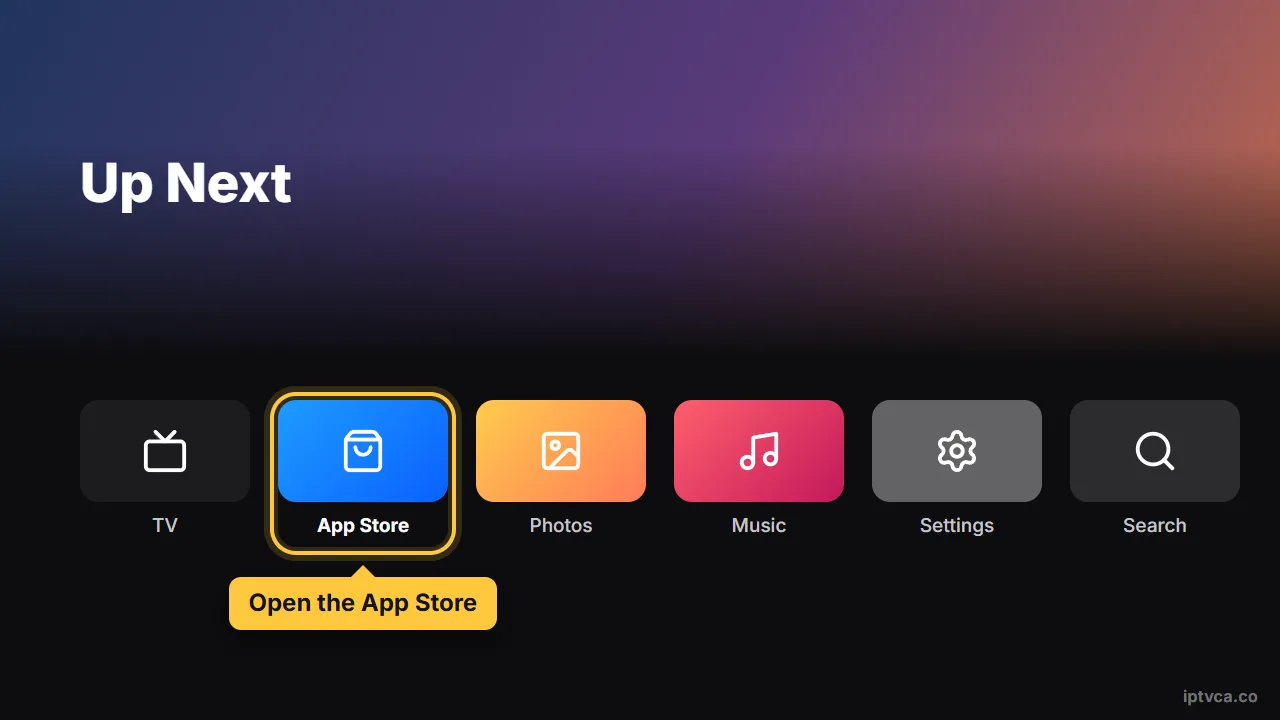
Apple TV home screen with the App Store selected
02
Choose the supported listing
Search for the player using the developer’s official store link. Check compatibility, select Get and open the app after installation. The store illustration may show an earlier app name.
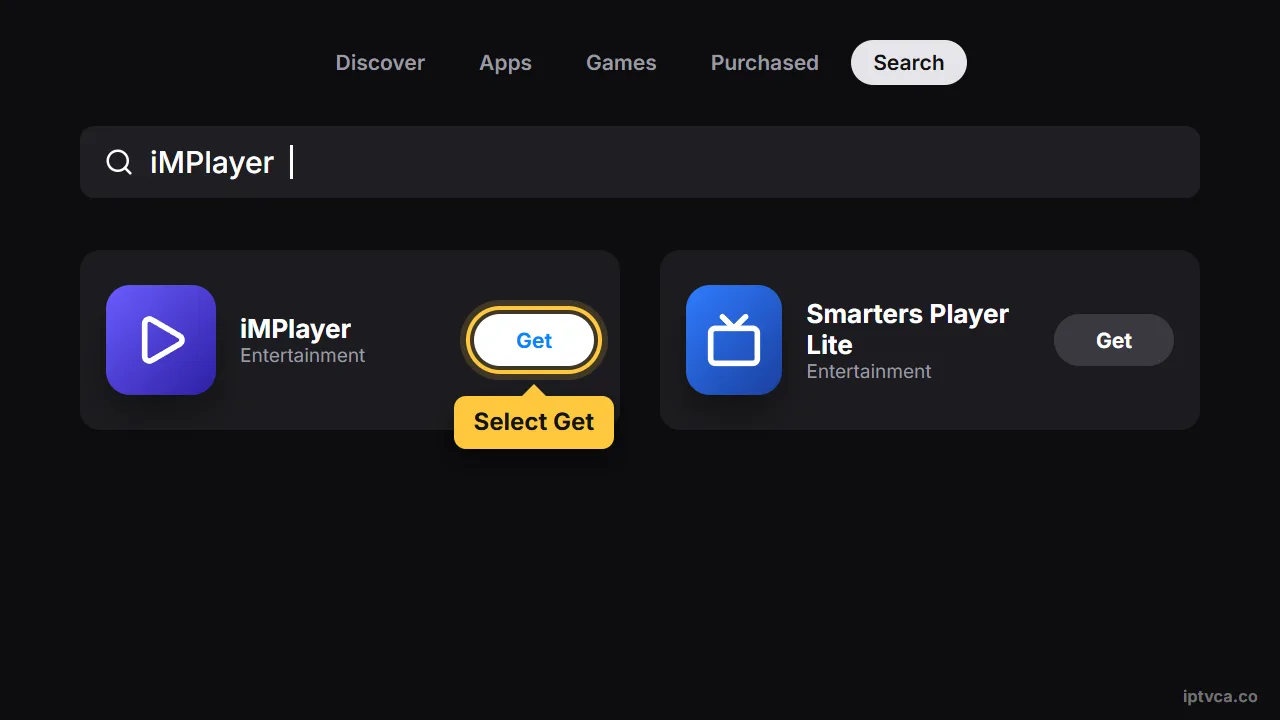
Apple TV App Store search for iMPlayer with Get selected
Step 2: Add your account
01
Create a playlist
Open the player and choose Add playlist, Add user or the plus control.
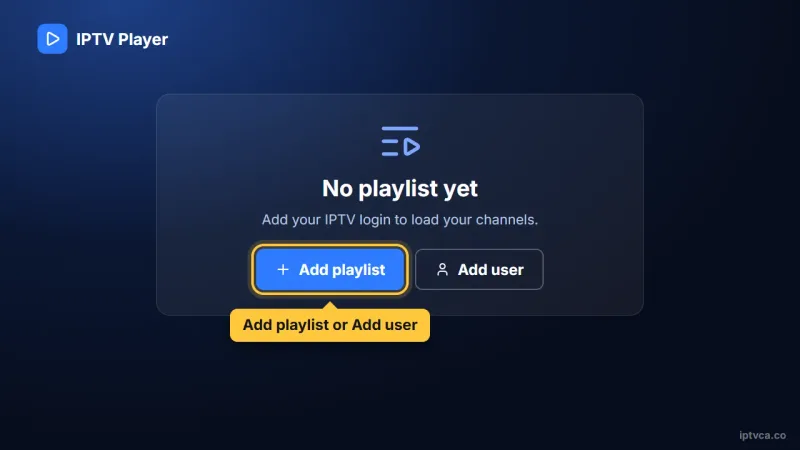
IPTV player first screen with the Add playlist button selected
02
Enter the supplied login
Choose Xtream Codes / Login with Xtream Codes API when your account has a server URL, username and password. Enter each field exactly as supplied by POD IPTV. Use POD IPTV as the playlist name, save and allow the first library update to finish. If you received a complete M3U URL instead, choose the M3U / playlist URL option and paste the entire link.
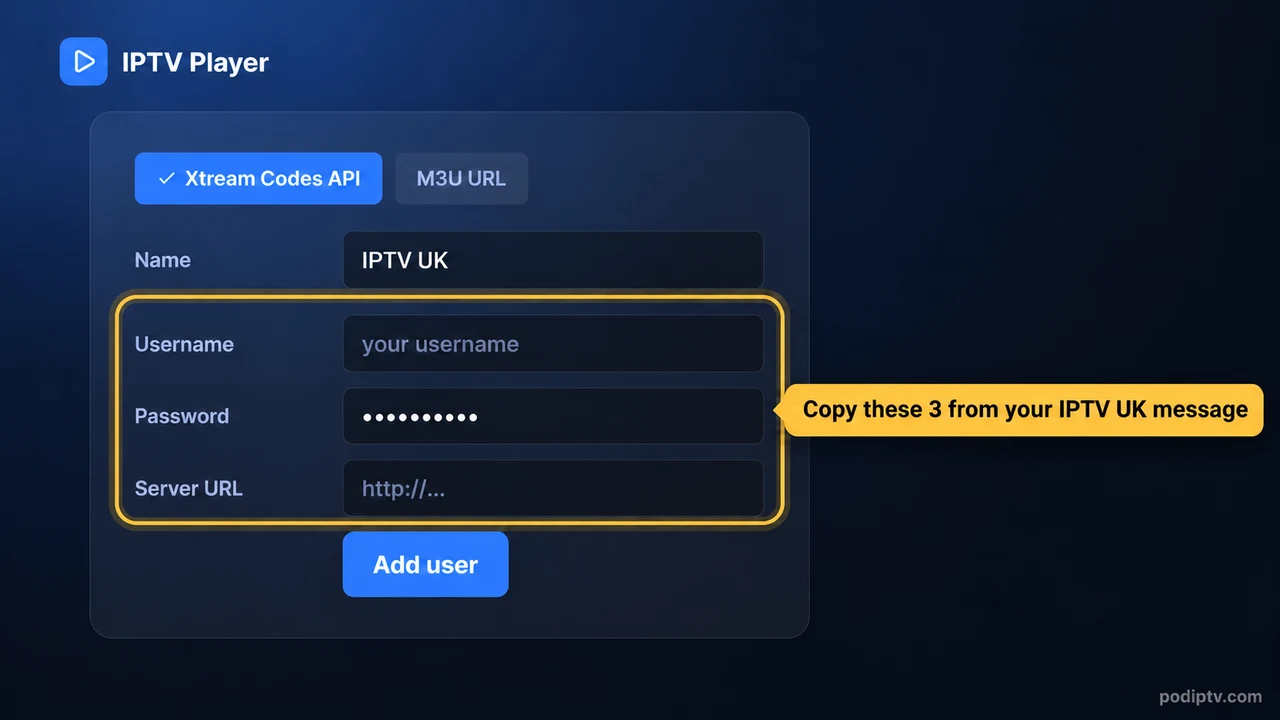
IPTV player Xtream Codes login form: username, password and server URL from your POD IPTV email
Step 3: Use AirPlay if supported
01
Connect the devices to the same Wi-Fi
Put your iPhone or iPad and Apple TV / AirPlay-compatible television on the same network. Confirm the receiving device is available.
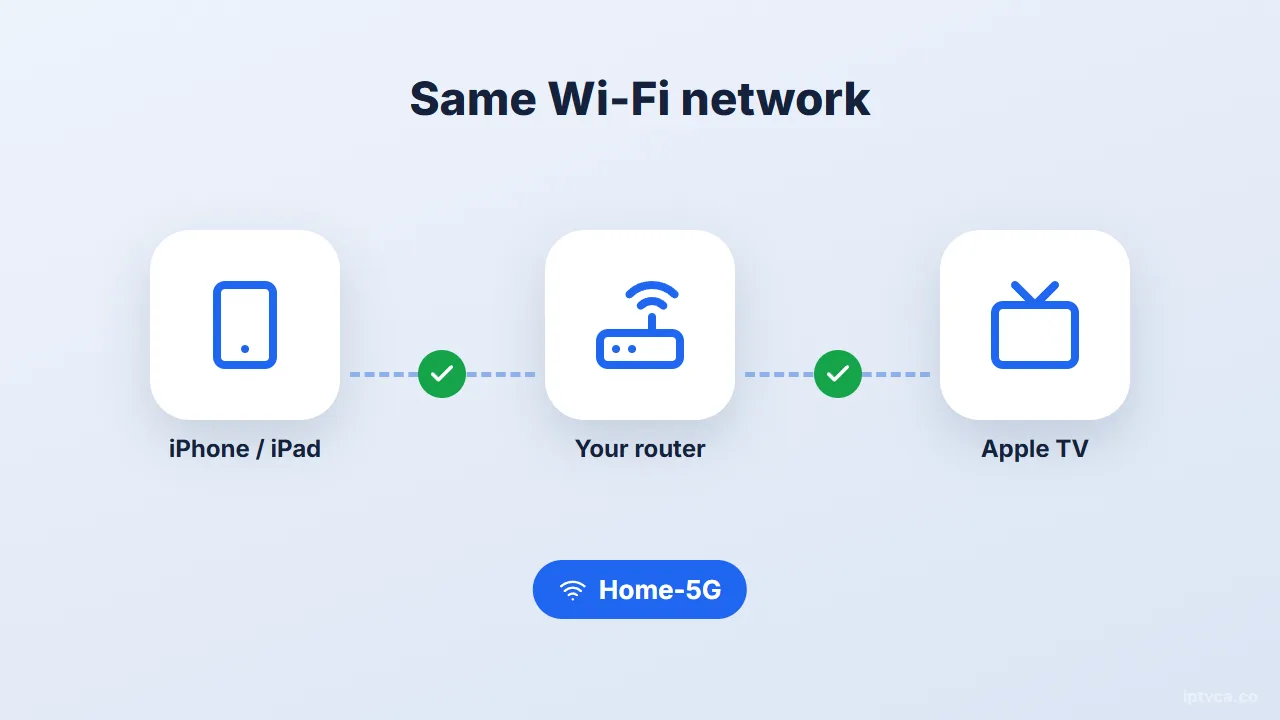
iPhone or iPad, router and Apple TV on the same Wi-Fi network
02
Choose the TV as the AirPlay destination
Start a channel and select the AirPlay control, then choose your television. Some apps or streams do not support AirPlay; install the player directly on Apple TV when necessary.
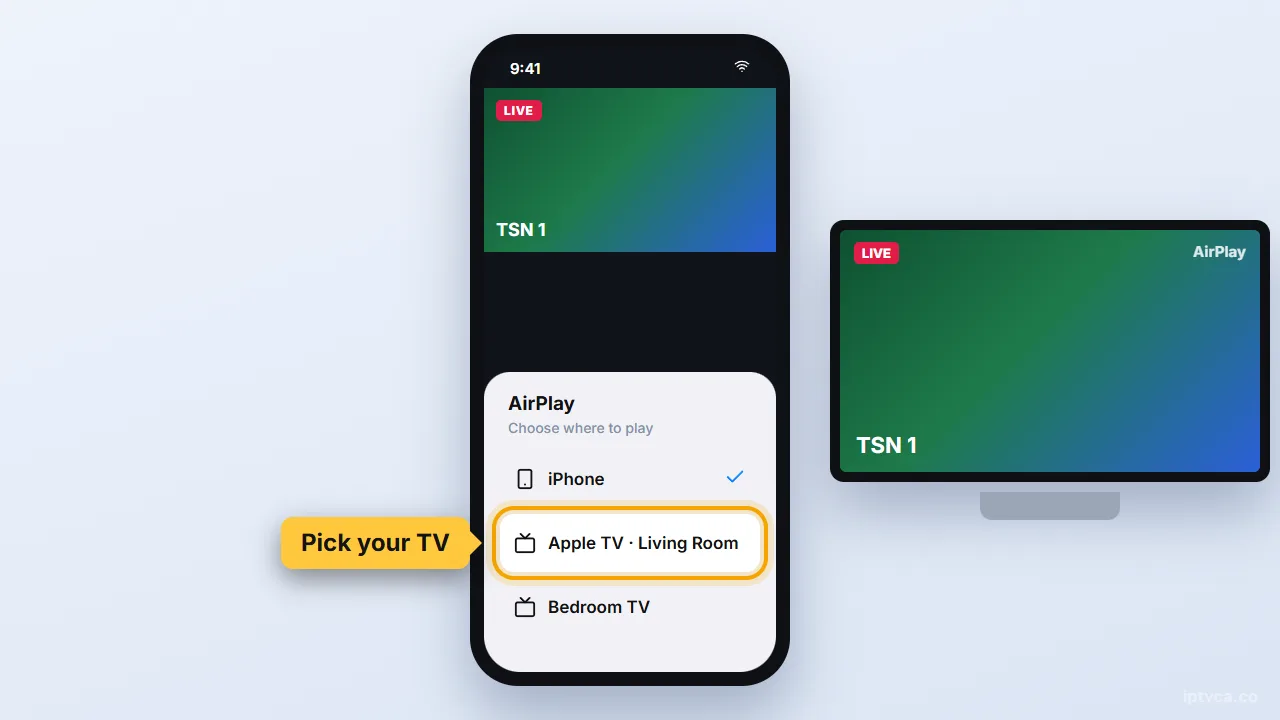
iPhone AirPlay menu with the living room Apple TV selected
Tips for reliable playback
- Use a wired Apple TV connection where supported, or reliable Wi-Fi.
- Let the first channel and EPG update complete before switching libraries.
- Check your mobile data allowance before watching away from Wi-Fi.
- Use the player’s own favourites and parental controls when available.
Apple TV, iPhone & iPad IPTV troubleshooting
The login is rejected
Check the server address, username and password against the details sent by POD IPTV. Keep capital letters and remove extra spaces. Confirm that your trial or subscription is active.
Channels freeze or buffer
Try another channel, pause other streams and downloads, then restart the player and router. Use Ethernet where available, or a strong Wi-Fi connection close to the router.
The programme guide is empty
Open the player settings and refresh the EPG. Let the update finish; some channels may not supply programme listings.
The player feels slow
Update the app, clear its cache and close background apps. Restart the device. Do not clear app data unless you have saved your login first.
AirPlay has sound but a blank screen
The player or stream may not support AirPlay. Try playback in the directly installed TV app and consult the developer’s support.
Need help? Email support@podiptv.com or contact POD IPTV with your device model, player name and the error message. Never include your password in a public screenshot.
The reference screenshots illustrate the menus and account fields; labels can differ by app version. Use your own POD IPTV login. Screenshot reference.
Set up IPTV on another device
Choose your device for its installation steps, screenshots and troubleshooting.








IPTV setup on Apple TV, iPhone & iPad: quick answers
Do Apple devices need a jailbreak?
No. Use a compatible player from the App Store.
Can I use the same login on iPhone and Apple TV?
Use the supplied account details in compatible players. Your selected plan sets the permitted simultaneous streams.
Can I watch using mobile data?
A compatible mobile player can use an internet connection, but streaming consumes data. Check your allowance and connection quality first.
Which player can I use on an iPhone or iPad?
Check the current iOS listings linked by Smarters Pro or iMPlayer. Choose a compatible version, confirm its account format and try its interface before paying for optional features.
Can I test IPTV UK before choosing a plan?
Request the 24-hour IPTV free trial, install your player and check playback on your own device before choosing a subscription.
How many screens can I use at once?
Choose 1, 2 or 3 devices on the IPTV subscription UK pricing page. Follow the simultaneous-stream limit for your selected plan.
READY WHEN YOU ARE
Try POD IPTV on Apple devices
Request your 24-hour trial, follow the setup guide and check the service on your own screen. Compare prepaid UK plans when you are ready.