Home / Installation guide / Android TV & Google TV
POD IPTV · UK SETUP GUIDES
IPTV on Android TV and Google TV
Use this IPTV Android TV guide to install a compatible TV player from Google Play, add your POD IPTV account and test playback on a supported television or box.
About 5–10 minutes · Google TV Streamer, Chromecast with Google TV, Nvidia Shield, Android boxes and compatible Sony, TCL or Hisense TVs
For IPTV on Android TV with POD IPTV, install a compatible player first, then add your supplied account details. The service account provides access; the player is a separate app.
Check the operating system first. A television with Google Play normally follows this guide. Samsung Tizen, LG webOS and Hisense VIDAA need the Smart TV guide, even when the television brand also sells Android models.
IPTV on Android TV: compatible player comparison
These players are supplied by independent developers. App purchases and upgrades are separate from your POD IPTV plan. TiviMate ↗ · Smarters Pro ↗ · Downloader ↗
Step 1: Install a player from Google Play
01
Open Apps and Google Play
On Android TV, open Apps → Google Play Store. On Google TV, search for the app from the Apps tab.
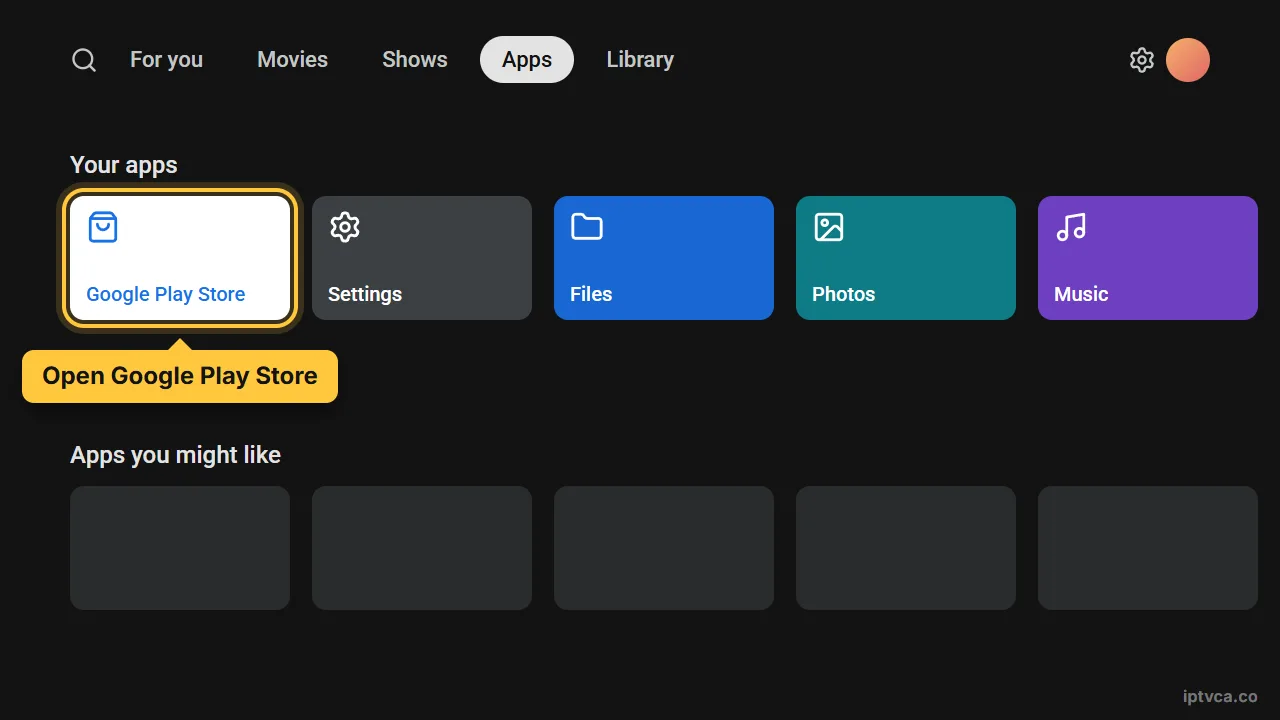
Google TV Apps tab with Google Play Store selected
02
Find the official player listing
Search TiviMate or follow the Android TV store link on the player developer’s website. Check the publisher and choose the television version.
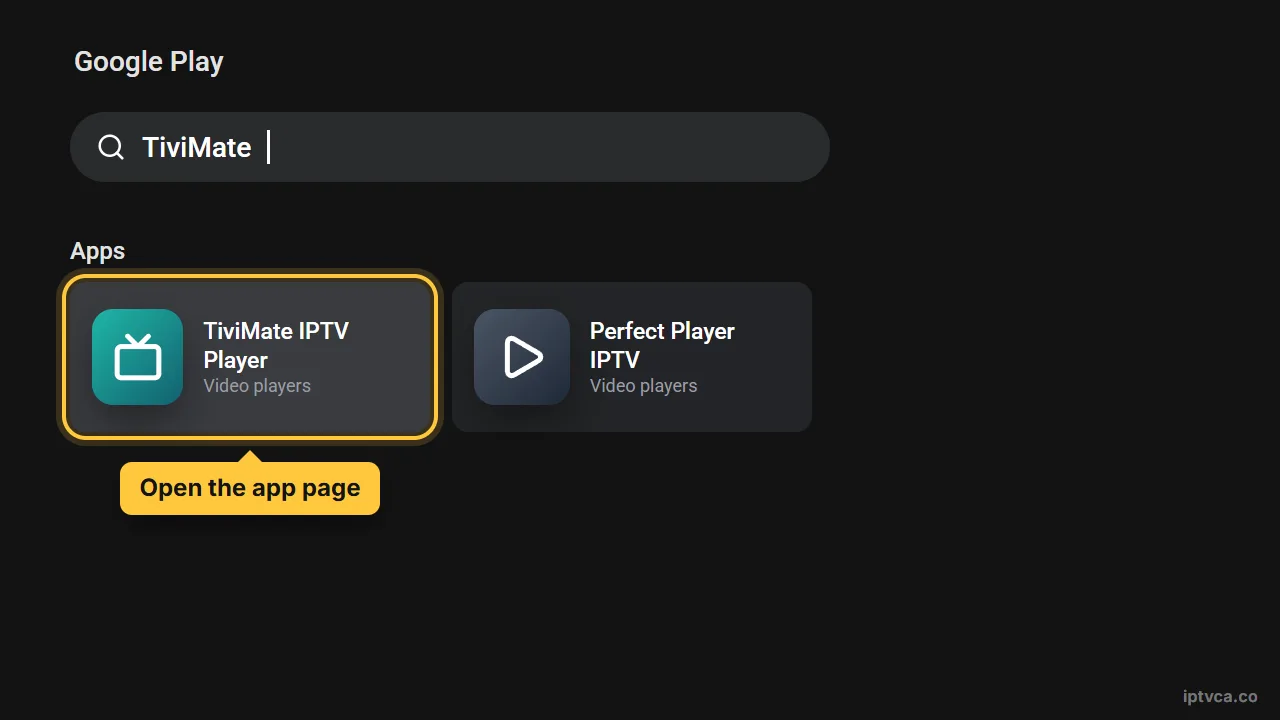
Google Play search for TiviMate on Android TV
03
Install and launch
Select Install. When the download finishes, choose Open.
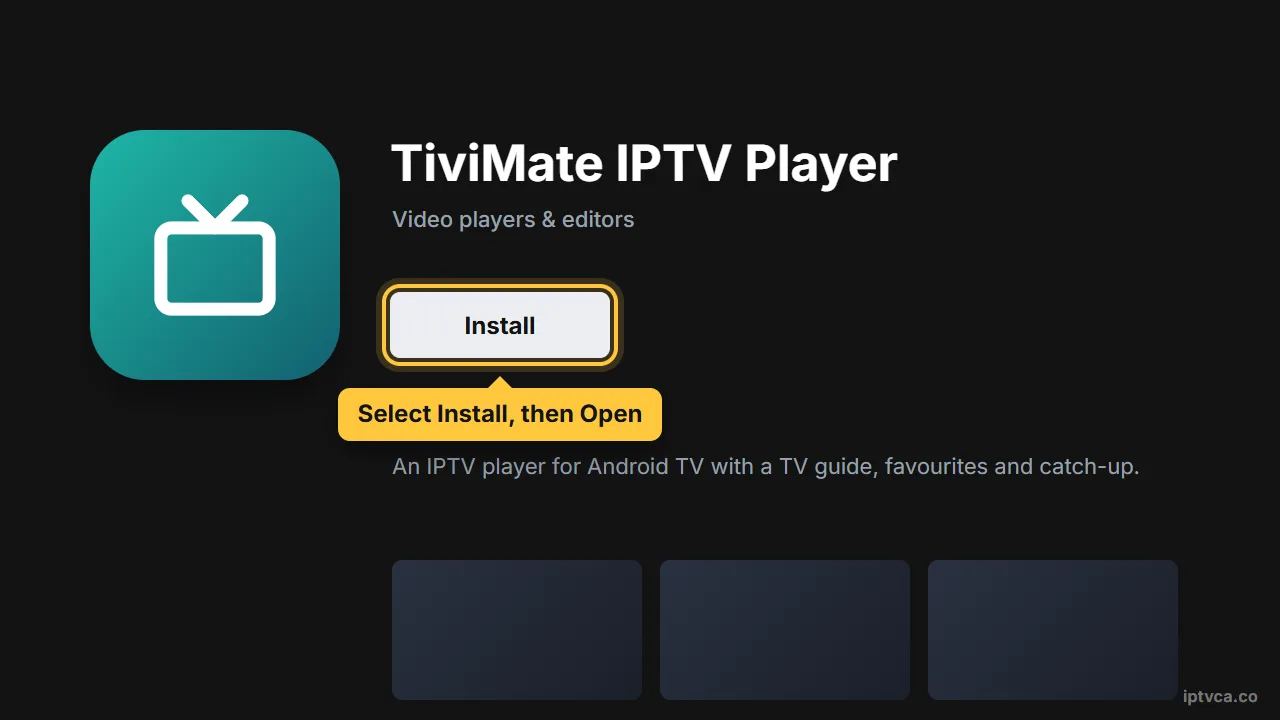
TiviMate app page in Google Play on Android TV with Install selected
Step 2: Connect your POD IPTV playlist
01
Add a playlist
Choose Add playlist in TiviMate, or Add user / the plus button in another player.
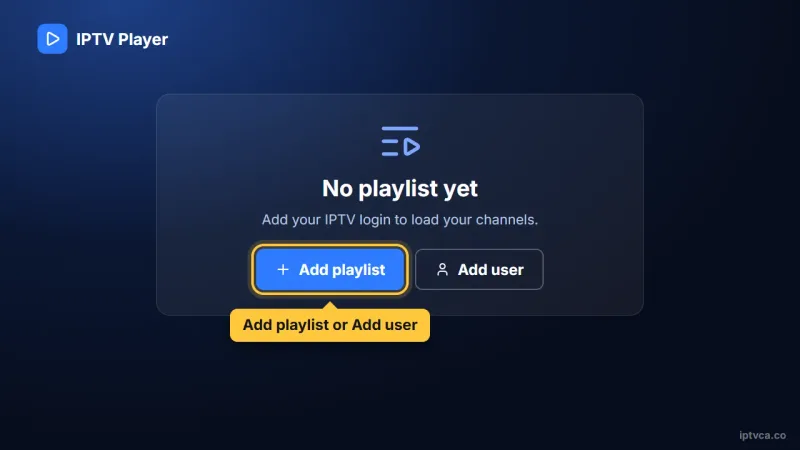
IPTV player first screen with the Add playlist button selected
02
Save your account
Choose Xtream Codes / Login with Xtream Codes API when your account has a server URL, username and password. Enter each field exactly as supplied by POD IPTV. Use POD IPTV as the playlist name, save and allow the first library update to finish. If you received a complete M3U URL instead, choose the M3U / playlist URL option and paste the entire link.
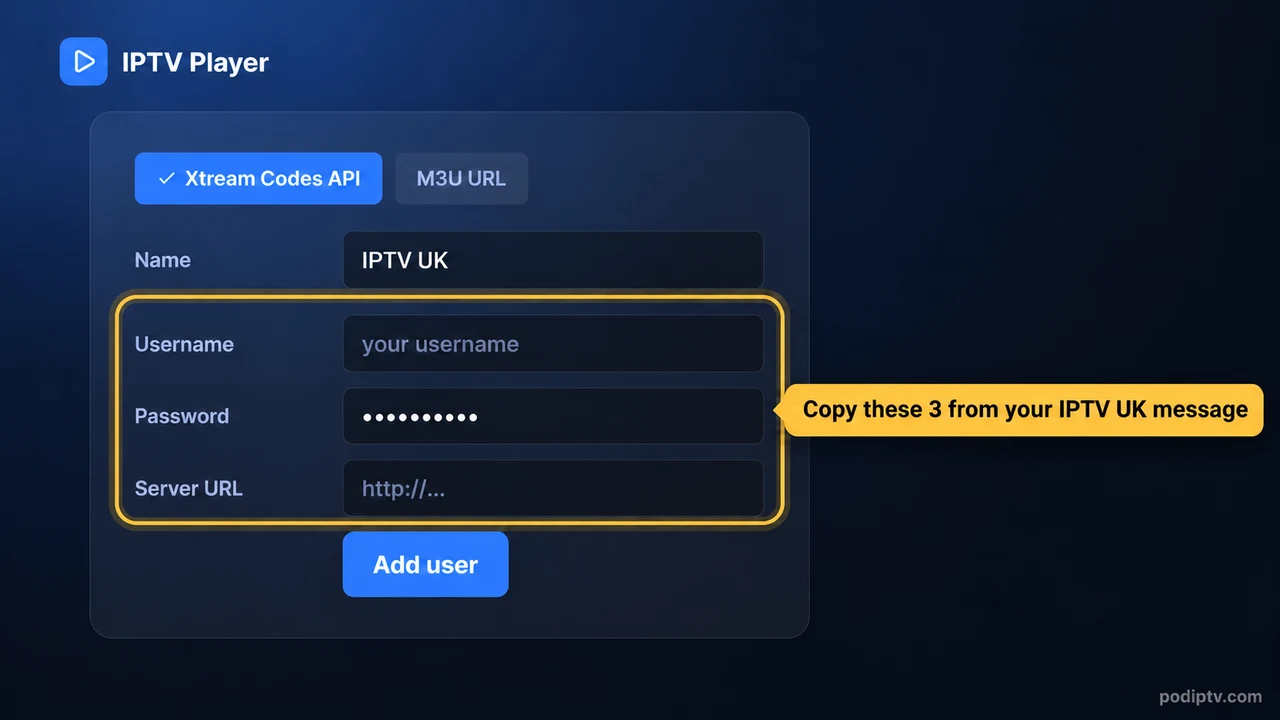
IPTV player Xtream Codes login form: username, password and server URL from your POD IPTV email
03
Set favourites and check the guide
Open a live channel, then use the channel menu or a long press to add it to Favourites. Refresh the programme guide if it has not finished loading.
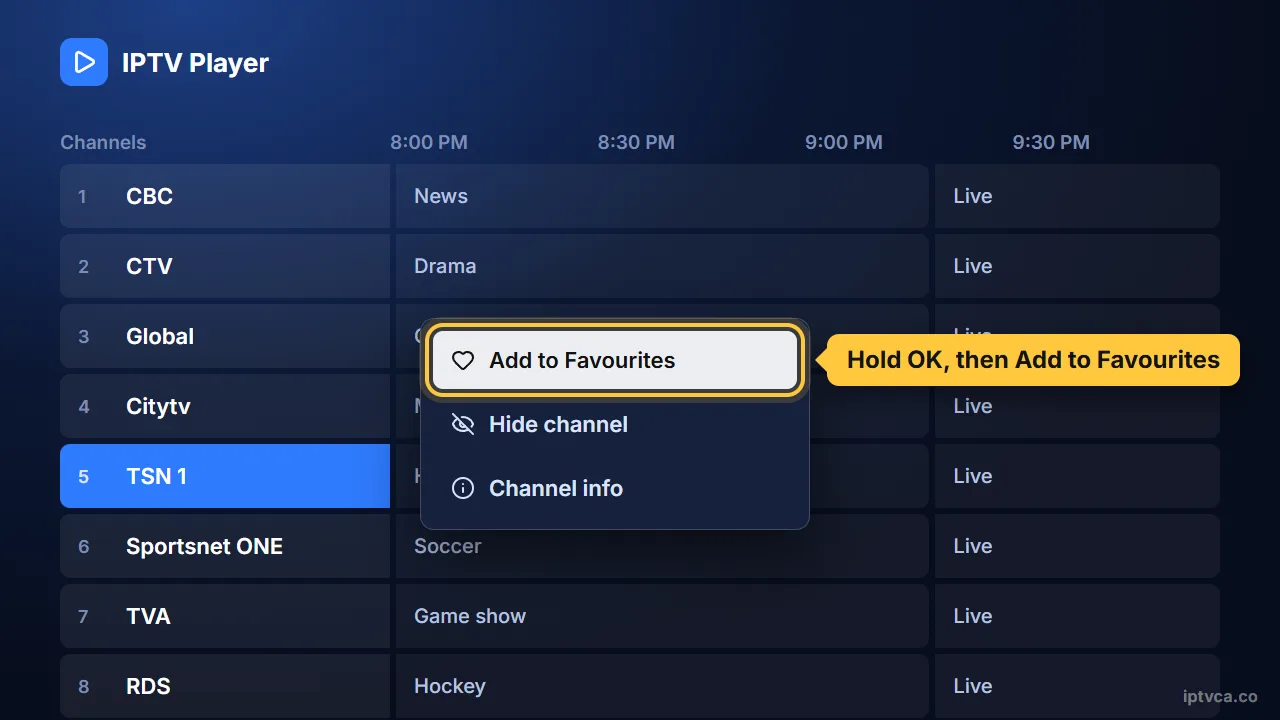
IPTV player TV guide with the Add to Favourites option on a channel
Optional: Install a player outside Google Play
01
Install Downloader
If the developer offers a compatible TV download outside Google Play, install Downloader by AFTVnews from the store first.
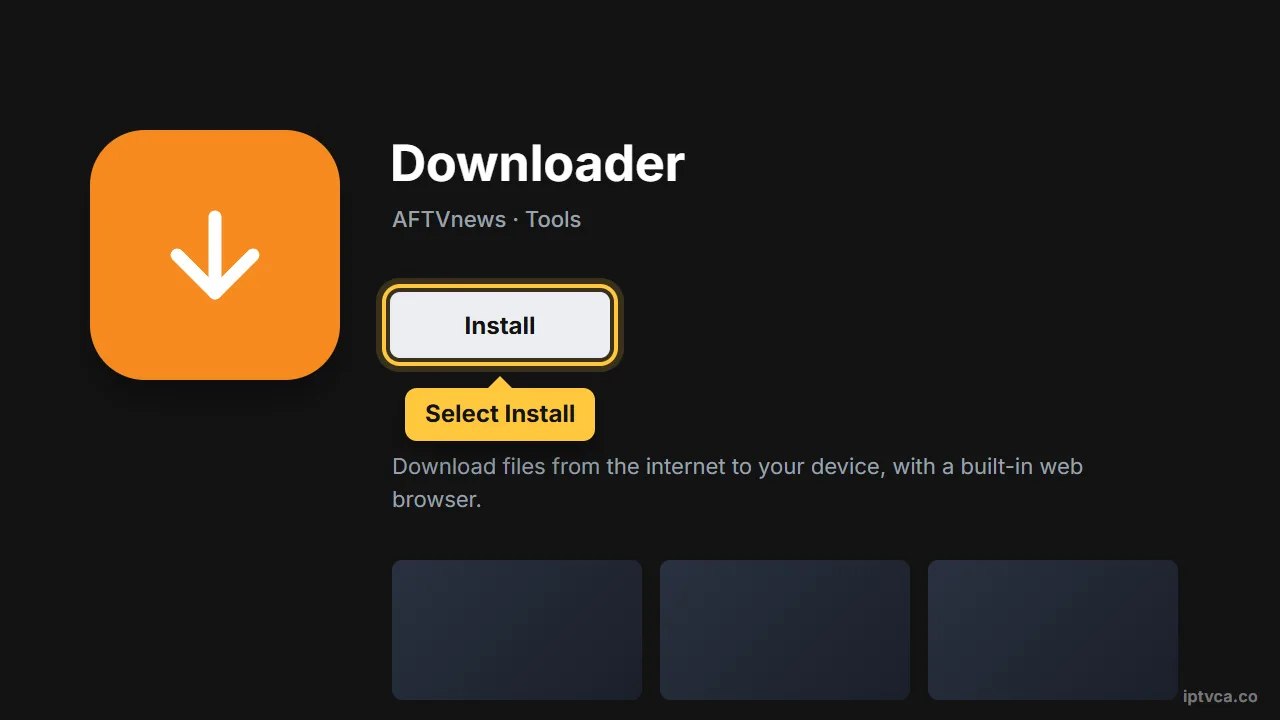
Downloader app page in Google Play on Android TV with Install selected
02
Allow that installer
Open Settings → Apps → Security & restrictions / Special app access → Install unknown apps, and allow Downloader. Paths differ between devices.
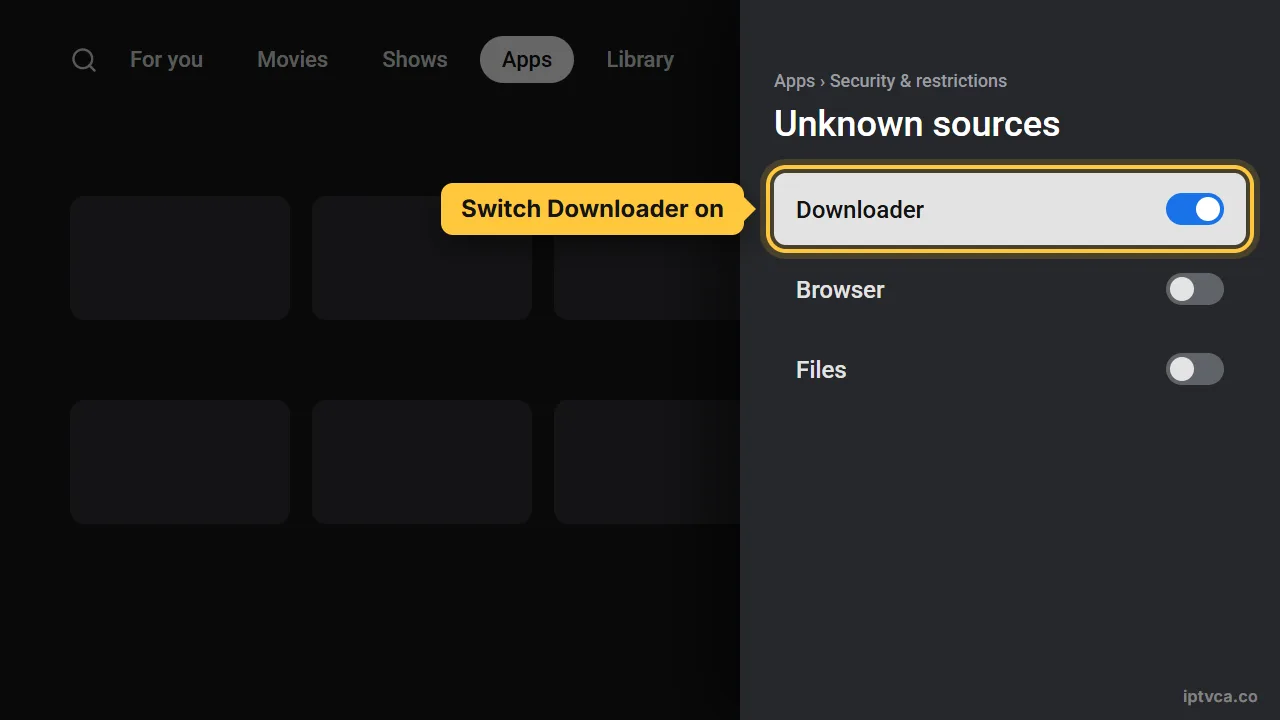
Android TV Unknown sources settings with Downloader switched on
03
Download from the developer
In Downloader, enter the official website and select its Android TV version. Install it, then follow the account steps above. Disable the installer permission afterwards.
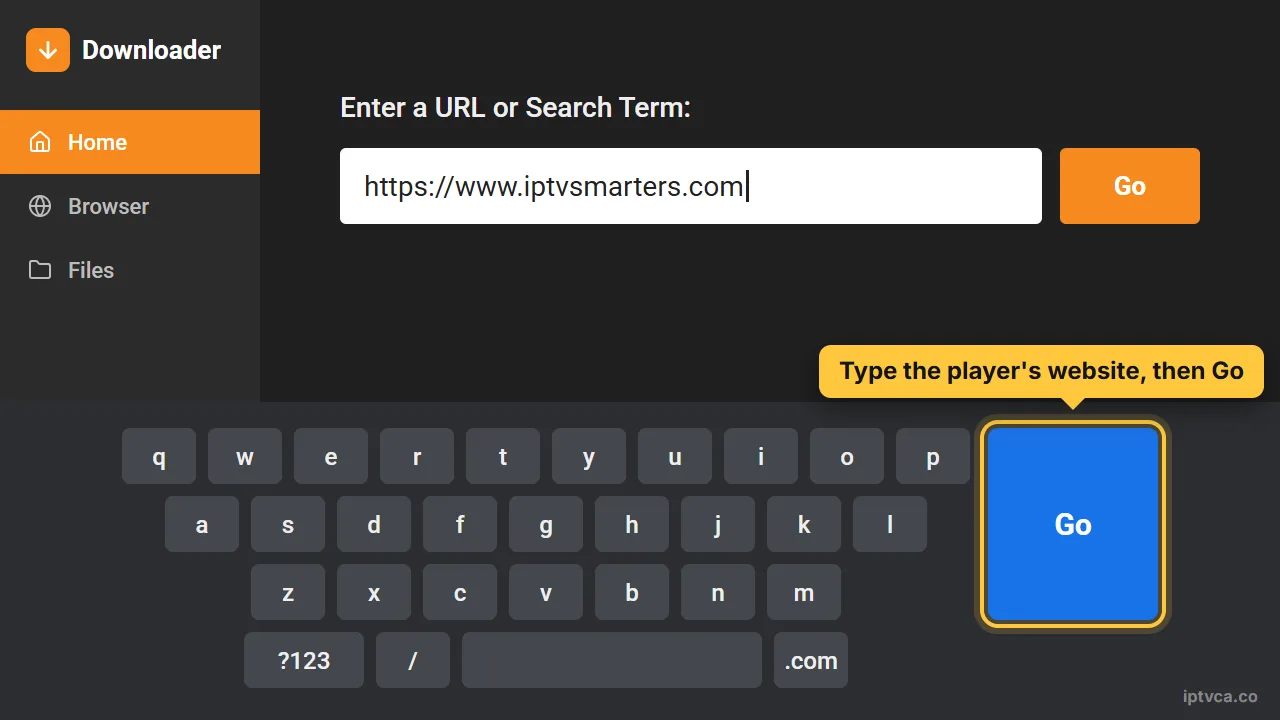
Downloader keyboard with the player's website typed in and the Go key selected
Tips for reliable playback
- Use Ethernet where possible, or a strong nearby Wi-Fi connection.
- Choose the TV version of the player rather than a phone-only interface.
- A Formuler or BuzzTV device may include its own player; use the account format offered by that player.
- Startup shortcuts, recording and library tools depend on the app and its licence.
Android TV & Google TV IPTV troubleshooting
The player is not in Google Play
The listing may vary by device or country. Use the developer’s compatible download or choose another official store player.
The login is rejected
Check the server address, username and password against the details sent by POD IPTV. Keep capital letters and remove extra spaces. Confirm that your trial or subscription is active.
Channels freeze or buffer
Try another channel, pause other streams and downloads, then restart the player and router. Use Ethernet where available, or a strong Wi-Fi connection close to the router.
The programme guide is empty
Open the player settings and refresh the EPG. Let the update finish; some channels may not supply programme listings.
The player feels slow
Update the app, clear its cache and close background apps. Restart the device. Do not clear app data unless you have saved your login first.
Movies are missing in TiviMate
Check the current feature list and licence in TiviMate. Player upgrades are separate from your POD IPTV plan.
Need help? Email support@podiptv.com or contact POD IPTV with your device model, player name and the error message. Never include your password in a public screenshot.
The reference screenshots illustrate the menus and account fields; labels can differ by app version. Use your own POD IPTV login. Screenshot reference.
Set up IPTV on another device
Choose your device for its installation steps, screenshots and troubleshooting.








IPTV setup on Android TV & Google TV: quick answers
Does this work on Chromecast?
Chromecast with Google TV and Google TV Streamer can run compatible TV apps. Older cast-only Chromecast devices need a supported phone player.
Can I use the TV app on an Android phone?
Use the mobile version instead. TiviMate is intended for Android TV and is not optimised for phones.
Does buying a player include a subscription?
No. The player and the POD IPTV account are separate. A developer may charge for its own app features.
How do I choose an Android TV box for IPTV UK?
Check that the box has a supported Android TV release, the required player in Google Play and enough storage for updates. Test your account on the device rather than relying on brand alone.
Can I test IPTV UK before choosing a plan?
Request the 24-hour IPTV free trial, install your player and check playback on your own device before choosing a subscription.
How many screens can I use at once?
Choose 1, 2 or 3 devices on the IPTV subscription UK pricing page. Follow the simultaneous-stream limit for your selected plan.
READY WHEN YOU ARE
Try POD IPTV on Android TV
Request your 24-hour trial, follow the setup guide and check the service on your own screen. Compare prepaid UK plans when you are ready.