Home / Installation guide / Samsung & LG Smart TV
POD IPTV · UK SETUP GUIDES
IPTV on Samsung and LG Smart TV: setup guide
Follow this Smart TV setup guide on supported Samsung Tizen televisions or a compatible LG Smart TV. Check your model’s app store, install a supported player and test your supplied login before buying a separate app licence.
About 5–10 minutes · Samsung Tizen, LG webOS, Hisense VIDAA and other supported TV app stores
For IPTV on Smart TV with POD IPTV, install a compatible player first, then add your supplied account details. The service account provides access; the player is a separate app.
A TV player may have its own trial and activation fee. That licence does not purchase or renew your POD IPTV subscription. Confirm the app works on your television before paying its developer.
Smart TV IPTV players for Samsung and LG
These players are supplied by independent developers. App purchases and upgrades are separate from your POD IPTV plan. HotPlayer ↗
Step 1: Install the TV player
01
Open your TV’s store
Samsung: press Home and open Apps. LG: open Apps / LG Content Store. For VIDAA, use the store built into the television.
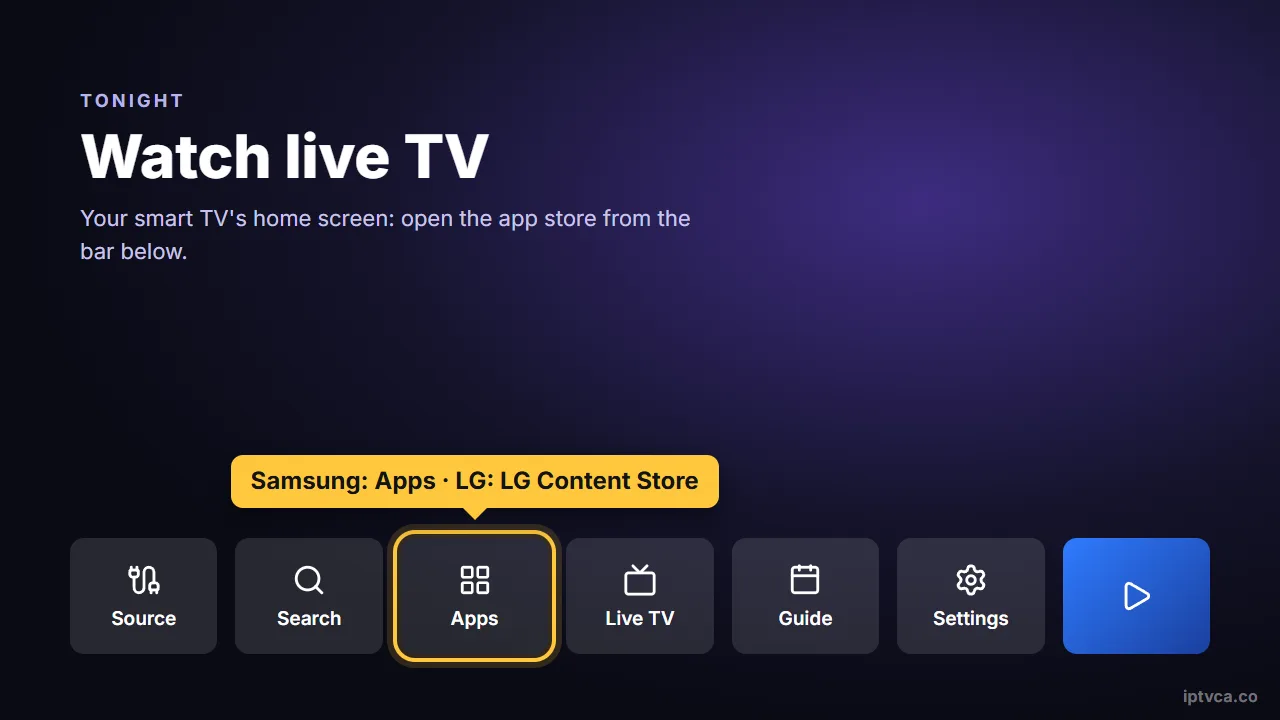
Smart TV home bar with Apps selected (LG Content Store on LG TVs)
02
Search and install
Find HotPlayer, IBO Player or a compatible alternative listed for your model and region. Select Install, then launch the app.
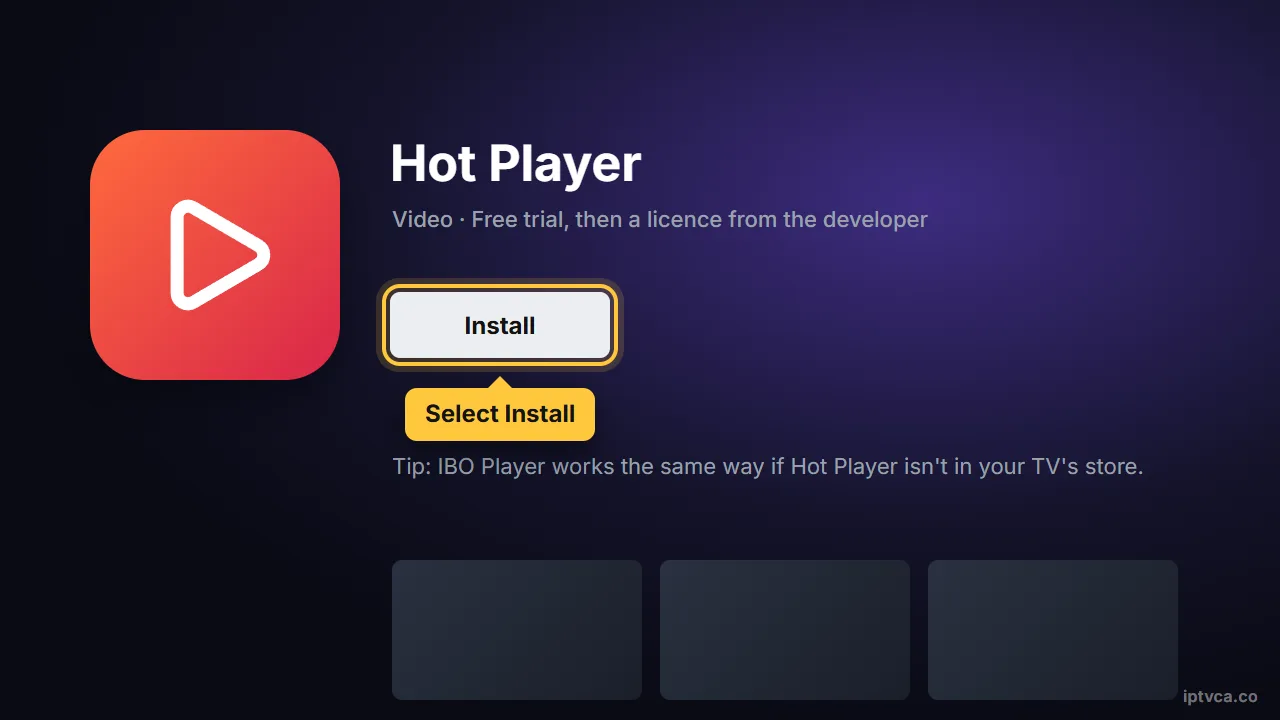
Hot Player page in the smart TV app store with Install selected
03
Record the player’s device details
Note the MAC address and device key, if displayed. These are the player’s registration details; copy them exactly and keep them private.
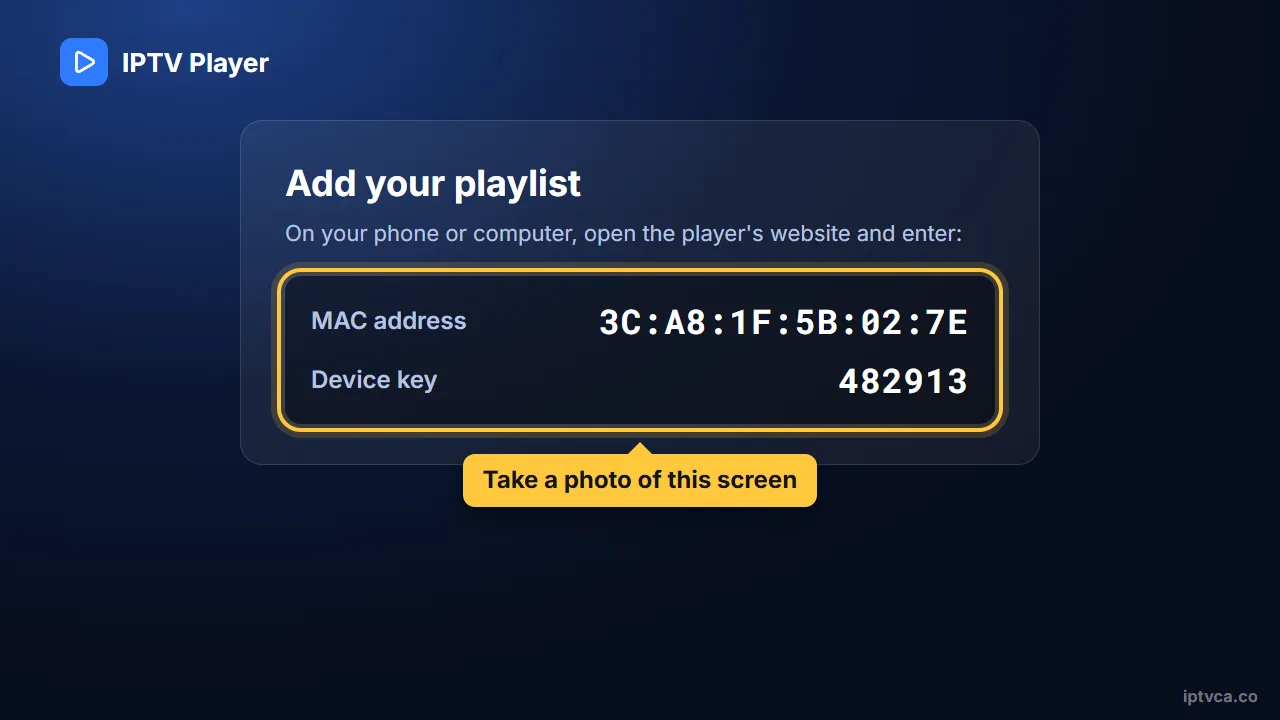
IPTV player on the TV showing its MAC address and device key
Step 2: Register your POD IPTV playlist
01
Open the playlist manager
On a phone or computer, visit the exact official website shown by the TV player. Open Upload playlist, Add list or Manage device.
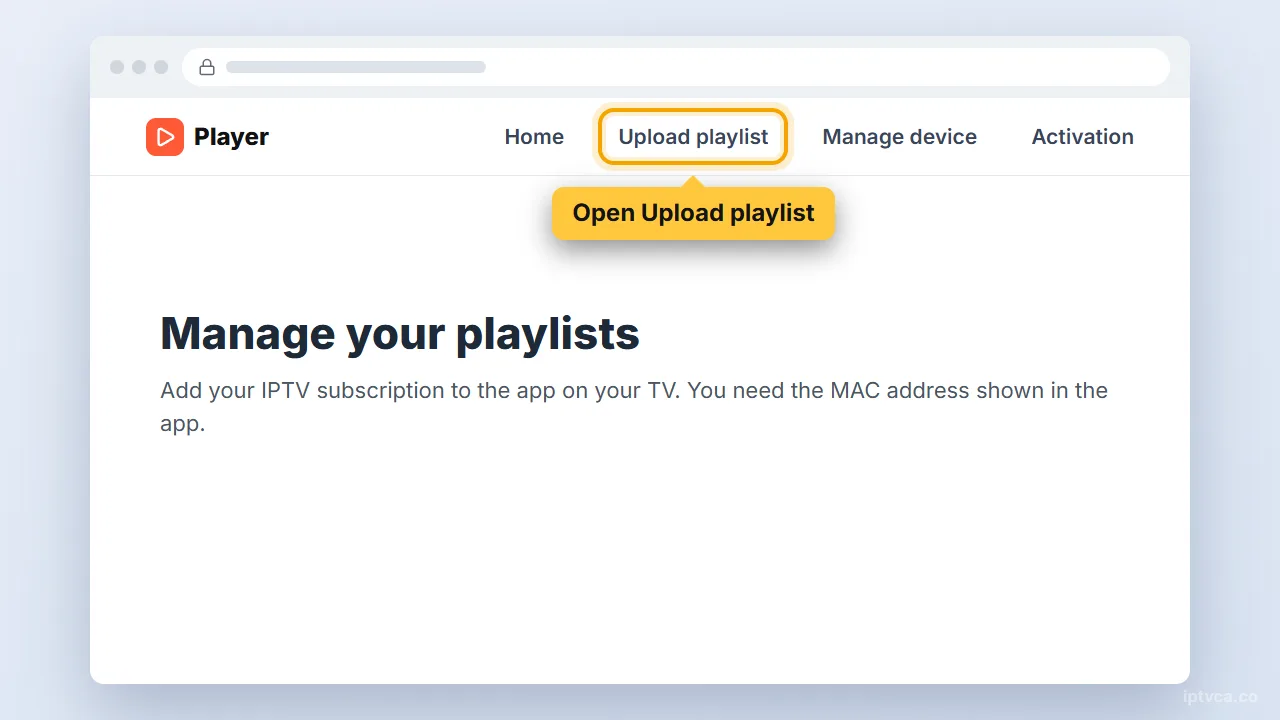
Player website with the Upload playlist menu selected
02
Enter the TV registration details
Copy the player MAC address and device key into the requested fields. Check each character before continuing.
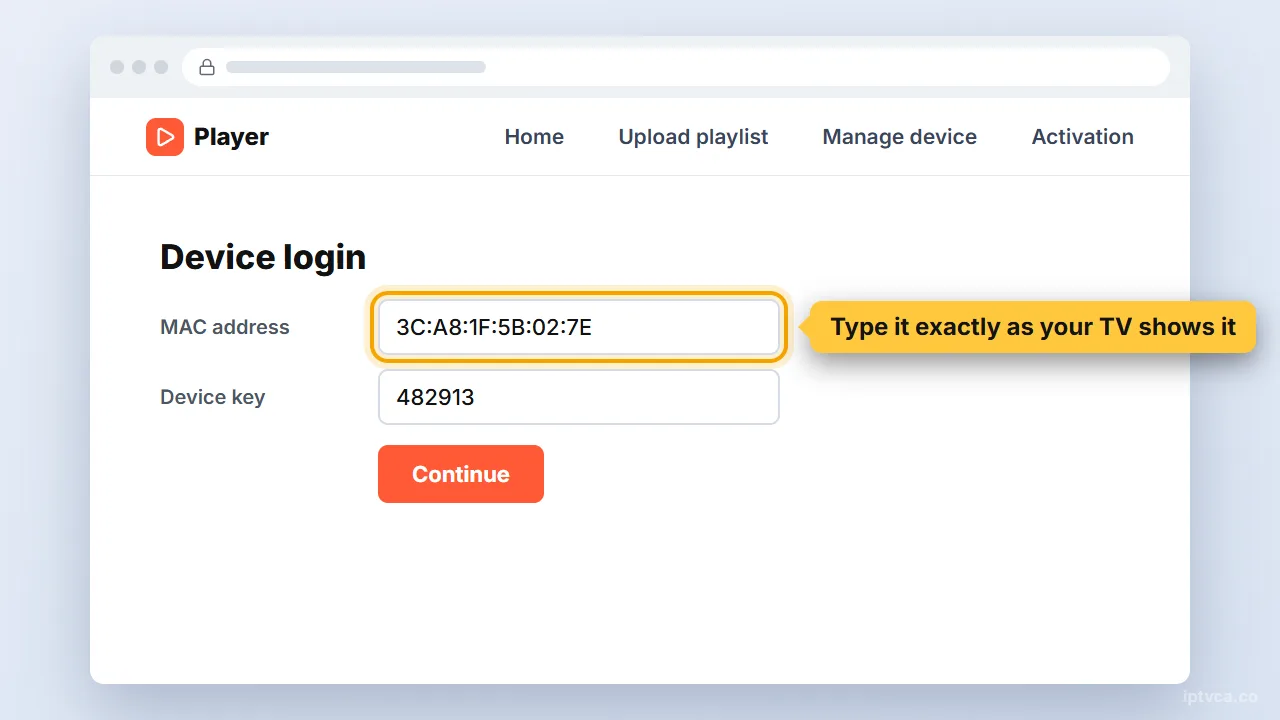
Player website device login with the TV's MAC address entered
03
Add your account
Choose Xtream Codes if supported. Name the playlist POD IPTV and enter the server URL, username and password supplied with your account. If the app uses M3U, paste the complete playlist URL instead. Save the playlist.
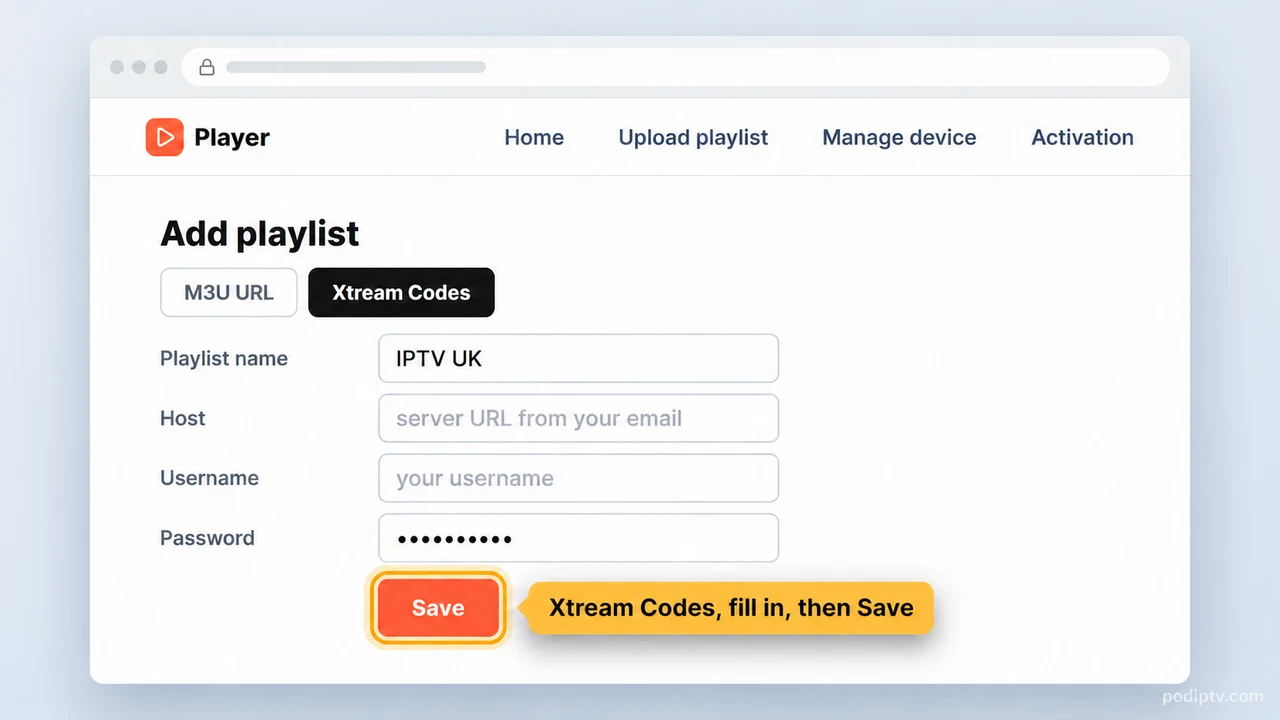
Player website Add playlist form with Xtream Codes selected
04
Refresh on the television
Return to the TV, choose Refresh / Reload or close and reopen the app. Allow the channels and guide to load, then test playback.
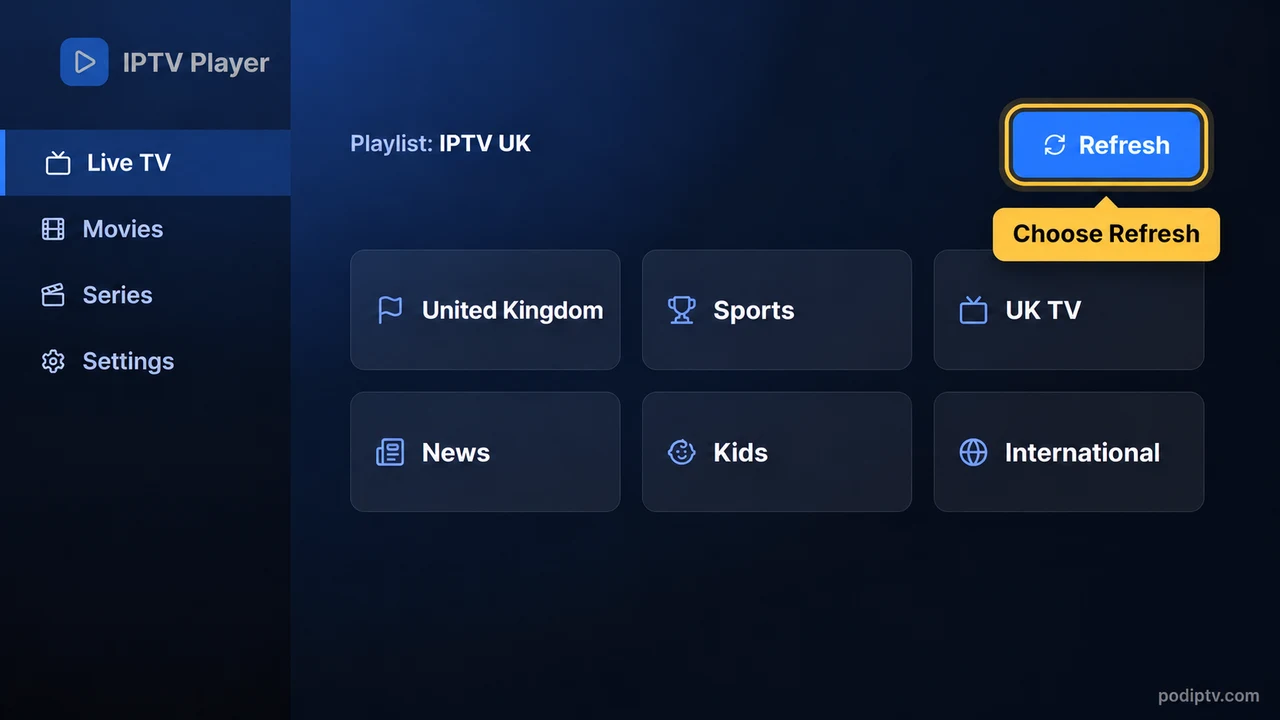
IPTV player with the POD IPTV playlist loaded and the Refresh button selected
Tips for reliable playback
- If the television has Google Play, use the Android TV guide instead.
- A wired network connection can improve stability without changing the television picture settings.
- If an older TV has no suitable player, a compatible HDMI streaming device offers another route.
- Check the app licence message separately from your subscription status.
Samsung & LG Smart TV IPTV troubleshooting
The app is not listed
Availability depends on the TV model, year and store region. Check another compatible player or use a streaming device.
The screen says No playlist
Verify the MAC address and device key registered on the website, confirm the playlist was saved, then refresh the TV app.
The app asks for activation
Check the player developer’s licence terms. POD IPTV access does not activate a third-party player.
The login is rejected
Check the server address, username and password against the details sent by POD IPTV. Keep capital letters and remove extra spaces. Confirm that your trial or subscription is active.
Channels freeze or buffer
Try another channel, pause other streams and downloads, then restart the player and router. Use Ethernet where available, or a strong Wi-Fi connection close to the router.
The programme guide is empty
Open the player settings and refresh the EPG. Let the update finish; some channels may not supply programme listings.
The player feels slow
Update the app, clear its cache and close background apps. Restart the device. Do not clear app data unless you have saved your login first.
Need help? Email support@podiptv.com or contact POD IPTV with your device model, player name and the error message. Never include your password in a public screenshot.
The reference screenshots illustrate the menus and account fields; labels can differ by app version. Use your own POD IPTV login. Screenshot reference.
Set up IPTV on another device
Choose your device for its installation steps, screenshots and troubleshooting.








IPTV setup on Samsung & LG Smart TV: quick answers
Can I watch IPTV without an extra box?
Yes, when your television has a compatible player in its app store. A separate box is an alternative when the store or TV hardware is unsuitable.
Do Samsung and LG use Android APK files?
Samsung Tizen and LG webOS do not use the Android TV installation method. Install a player offered for the television’s own operating system.
Is the player licence included?
Third-party player activation is separate. Test the player with your account before purchasing any app upgrade.
Which player can I use on a Samsung TV?
Check Samsung Apps for a compatible HotPlayer, IBO Player or other official listing. Availability depends on the model and store region.
Which player can I use on an LG TV?
Use a compatible webOS listing in LG Content Store / Apps. Check the player’s own playlist format and activation terms.
Can I test IPTV UK before choosing a plan?
Request the 24-hour IPTV free trial, install your player and check playback on your own device before choosing a subscription.
How many screens can I use at once?
Choose 1, 2 or 3 devices on the IPTV subscription UK pricing page. Follow the simultaneous-stream limit for your selected plan.
READY WHEN YOU ARE
Try POD IPTV on Smart TV
Request your 24-hour trial, follow the setup guide and check the service on your own screen. Compare prepaid UK plans when you are ready.