Home / Installation guide / Windows & Mac
POD IPTV · UK SETUP GUIDES
IPTV on Windows and Mac: computer setup guide
Use this computer IPTV setup guide to install a compatible player on Windows or Mac and add your POD IPTV login. For a supplied M3U playlist, the guide also explains basic network playback in VLC. Choose the instructions for your operating system; a TV app or Android APK will not install as a native desktop program.
About 5–10 minutes · Compatible Windows laptops and desktops, Mac and MacBook
For IPTV on Windows and Mac with POD IPTV, install a compatible player first, then add your supplied account details. The service account provides access; the player is a separate app.
The account illustrations show the login fields rather than an exact Windows or macOS interface. Follow the controls in the version installed on your computer.
Computer IPTV players: Windows and Mac comparison
These players are supplied by independent developers. App purchases and upgrades are separate from your POD IPTV plan. Smarters Pro desktop downloads ↗ · VideoLAN VLC ↗
Step 1: Install the player on your computer
01
Choose the correct download
Visit the official Smarters Pro website and select Windows or macOS. Check the system requirements and the developer’s current version before downloading.
02
Install on Windows
Run the official installer, follow the setup prompts and launch the app. If a security warning appears, check the developer’s support instructions and file source before continuing.
03
Install on Mac
Open the official disk image / installer and move the application into Applications as directed. Launch it and check the developer’s compatibility guidance if needed.
Step 2: Add your account on the computer
01
Open the account screen
Choose Add user / Add playlist in the installed app. Select the supported login format.
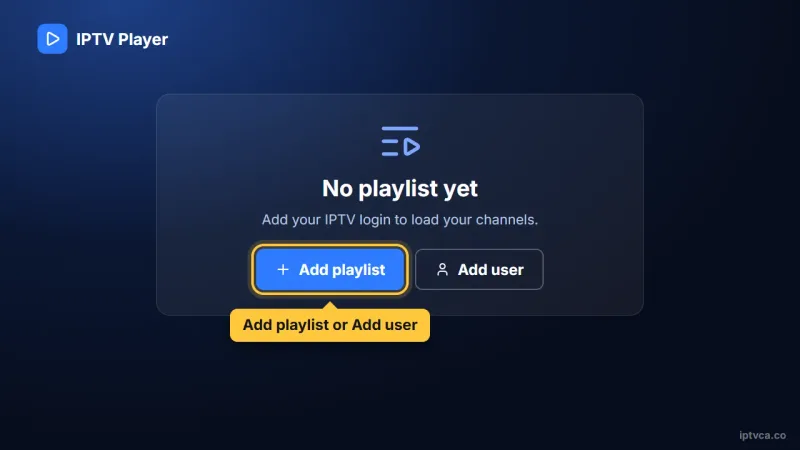
IPTV player first screen with the Add playlist button selected
02
Save and test playback
Choose Xtream Codes / Login with Xtream Codes API when your account has a server URL, username and password. Enter each field exactly as supplied by POD IPTV. Use POD IPTV as the playlist name, save and allow the first library update to finish. If you received a complete M3U URL instead, choose the M3U / playlist URL option and paste the entire link. Open Live TV and test a channel after loading completes.
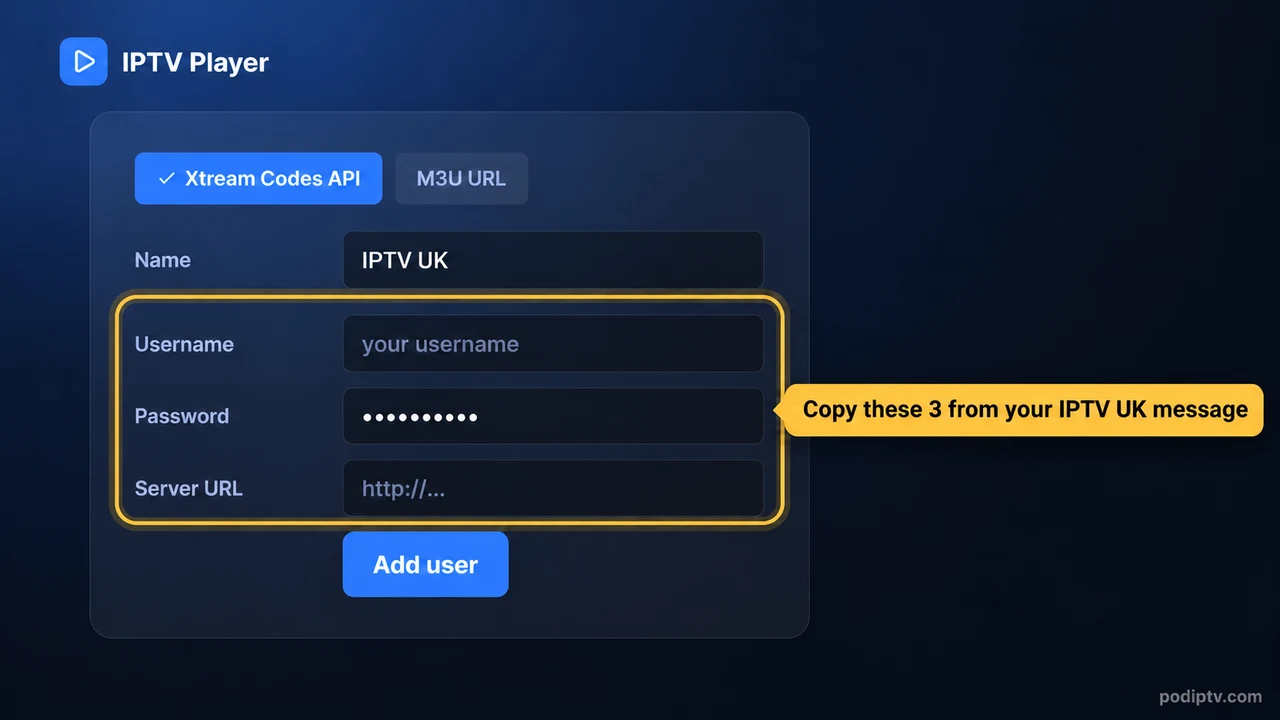
IPTV player Xtream Codes login form: username, password and server URL from your POD IPTV email
Alternative: Basic M3U playback in VLC
01
Install the official VLC version
Download VLC for your operating system from videolan.org and complete installation.
02
Open the network address field
Windows: Media → Open Network Stream, or Ctrl + N. Mac: File → Open Network.
03
Paste the full M3U link
Enter the complete playlist URL and choose Play / Open. A standalone server URL or portal address is not a complete M3U playlist. Open VLC’s playlist view to choose a channel.
Tips for reliable IPTV playback on your computer
- Use the desktop release for your operating system and keep it updated.
- Prefer a stable network connection while testing.
- Keep the full account URL private; M3U links can contain credentials.
- Compare the dedicated player and VLC based on the guide and library features you need.
Windows & Mac IPTV troubleshooting
The login is rejected
Check the server address, username and password against the details sent by POD IPTV. Keep capital letters and remove extra spaces. Confirm that your trial or subscription is active.
Channels freeze or buffer
Try another channel, pause other streams and downloads, then restart the player and router. Use Ethernet where available, or a strong Wi-Fi connection close to the router.
The programme guide is empty
Open the player settings and refresh the EPG. Let the update finish; some channels may not supply programme listings.
The player feels slow
Update the app, clear its cache and close background apps. Restart the device. Do not clear app data unless you have saved your login first.
The computer app will not open
Check the supported operating system and the official release notes. Use a compatible alternative if the developer’s Beta release does not support your computer.
VLC has no programme guide
VLC is a general media player. Use a dedicated compatible IPTV app when you need a TV guide and organised library.
Need help? Email support@podiptv.com or contact POD IPTV with your device model, player name and the error message. Never include your password in a public screenshot.
The reference screenshots illustrate the menus and account fields; labels can differ by app version. Use your own POD IPTV login. Screenshot reference.
Set up IPTV on another device
Choose your device for its installation steps, screenshots and troubleshooting.








Computer IPTV setup: Windows and Mac questions
Does IPTV UK work on a laptop?
A compatible desktop player can use your POD IPTV account. Choose the supported account format and respect your plan’s simultaneous-stream limit.
Can I enter an Xtream server address into VLC?
VLC’s network playback needs the complete stream or M3U playlist URL, rather than an Xtream server address alone.
Are the screenshots Windows screenshots?
The login pictures are shared field illustrations. Windows and Mac app menus can differ from the illustrated TV interface.
Can I test IPTV UK before choosing a plan?
Request the 24-hour IPTV free trial, install your player and check playback on your own device before choosing a subscription.
How many screens can I use at once?
Choose 1, 2 or 3 devices on the IPTV subscription UK pricing page. Follow the simultaneous-stream limit for your selected plan.
READY WHEN YOU ARE
Try POD IPTV on Windows & Mac
Request your 24-hour trial, follow the setup guide and check the service on your own screen. Compare prepaid UK plans when you are ready.